<?xml version="1.0" encoding="utf-8"?><feed xmlns="http://www.w3.org/2005/Atom" xml:lang="de"><generator uri="https://jekyllrb.com/" version="4.3.2">Jekyll</generator><link href="https://reukauff.eu/feed.xml" rel="self" type="application/atom+xml" /><link href="https://reukauff.eu/" rel="alternate" type="text/html" hreflang="de" /><updated>2025-11-23T22:07:33+01:00</updated><id>https://reukauff.eu/feed.xml</id><entry><title type="html">Kostenlose VMs - Gibt es!</title><link href="https://reukauff.eu/2025/10/15/KostenloseVMs-GibtEs.html" rel="alternate" type="text/html" title="Kostenlose VMs - Gibt es!" /><published>2025-10-15T00:00:00+02:00</published><updated>2025-10-15T00:00:00+02:00</updated><id>https://reukauff.eu/2025/10/15/KostenloseVMs-GibtEs</id><content type="html" xml:base="https://reukauff.eu/2025/10/15/KostenloseVMs-GibtEs.html"><![CDATA[<p>Es gibt unzählige Anbieter für Serverinfrastruktur “in der Cloud”. Von selbst verwalteter Hardware (“Rootserver”) über VMs auf Hardware des Anbieters bis hin zu den ganz großen bei Azure, AWS oder Google. Je nach Ausstattung und anderen Merkmalen kosten diese selbstverständlich Geld. Oder…? Die Antwort ist: NEIN!</p>

<p>Natürlich ist das ganze kein Wunschkonzert und man muss schon mit einigen Kompromissen zurecht kommen, aber generell ist es möglich VMs zu mieten, die weitestgehend kostenlos zu verwenden sind. Dazu sei gesagt, dass in der Regel kein Anspruch auf ein stabilen Betrieb besteht und die Anbieter daher im Falle eines Falles wahrscheinlich diese kostenfreien VMs abschalten werden, aber dies sollte in der Praxis nicht vorkommen. In der Regel versuchen die Anbieter durch dieses Angebot natürlich Werbung für die regulär zu bezahlenden Angebote zu machen und da wäre ein instabiler Betrieb kein gutes Aushängeschild. In der Praxis habe ich auch noch keine Ausfälle erlebt.</p>

<p>Diese Anbieter sind mir soweit bekannt:</p>

<h1 id="microsoft-azure">Microsoft Azure</h1>
<p>Micosoft Azure bietet die Produkte B1s und B2ats an. Beide haben 1 GB RAM und 1 vCPU (B1s) bzw. 2 vCPU (B2ats). Mit einem Microsoft Azure Free account bekommt man 750 Stunden pro Monat für die besagten Systemtypen. Beide haben keinen persistenten Storage (= Festplatten). Diese müssen über P6 managed Disks, welche ebenfalls kostenfrei sind und 64GB Größe haben, umgesetzt werden. Die Bereitstellung der kostenfreien Stunden sind offiziell auf 12 Monate begrenzt -allerdings verlängert Microsoft diese auch darüber hinaus.
Weitere Informationen dazu gibt es hier: https://marketplace.microsoft.com/en-us/product/azure-services/microsoft.freeaccountvirtualmachine?tab=Overview</p>

<h1 id="amazon-aws">Amazon AWS</h1>
<p>Amazon bietet in ihrer AWS den sogenannten “Free Tier” an.
Man erhält hier 100$ pro Monat AWS-Kontingent für 6 Monate kostenfrei und weitere 100$ pro Monat, wenn man “die wichtigsten AWS Services erkundet”.
Weitere Informationen hier: https://aws.amazon.com/de/free/</p>

<h1 id="oracle-cloud">Oracle Cloud</h1>
<p>Mit eines der besten Angebote bietet Oracle in seiner cloud in dem Free Tier. Man hat die Möglichkeit zwei VMs mit je 1GB RAM und 1/8 vCPU (einem Achtel!) zu bekommen. Alternativ kann man, basieren auf ARM Ampere A1 CPUs bis zu vier VMs mit 24 GB Arbeitsspeicher bekommen. Hier ist die Limitierung allerdings auf dem Ressourcenverbrauch (3000 vCPU Stunden bzw. 18.000GB Arbeitsspeicher). D.h. wenn die vCPUs zusammen 3000 Stunden gerechnet haben, ist das “Free” verbraucht. Mit 4 vCPUs ist man also auf der sicheren Seite (2976 Stunden bei 31 Tagen und durchgängig 100% Auslastung). Bei den 18.000 GB RAM hängt es einfach stark von eurem Nutzungsverhalten ab und lässt sich nicht pauschal berechnen.
Mehr Informationen unter dieser Seite (nicht vergessen unter “Tier Type” den Haken “always free” zu setzen): https://www.oracle.com/cloud/free/</p>

<h1 id="euserv">EuServ</h1>
<p>EuServ bietet mit dem Produkt vs2-free ebenfalls eine kostenlose VM mit 1GB RAM und 1 vCPU sowie 10GB Festplatte an. Hier ist allerdings lediglich eine IPv6-Addresse möglich. Eine IPv4-Addresse bekommt ihr für 1€/Monat.
Mehr Details gibt es hier: https://www.euserv.com/en/virtual-private-server/root-vserver/v2/vs2-free.php</p>

<h1 id="google">Google</h1>
<p>Auch Google bietet eine kostenfreie VM an: e2-micro. Diese kann in ausgewählten US-Rechenzentren betrieben werden, besitzt 30GB Speicherplatz, darf aber nur 1GB ausgehenden Datentraffic pro Monat durchführen - das ist wenig!
Weitere Infos unter “Computer Engine” unter diesem Link:
https://cloud.google.com/free/docs/free-cloud-features?hl=de#free-tier-usage-limits</p>

<h1 id="ibm-cloud">IBM Cloud</h1>
<p>IBM hat für 30 Tage eine kostenfreie VM “Hyper Protect Virtual Server”. Diese habe ich noch nicht ausprobiert. Hier gibt es dazu mehr Infos: https://ibm.com/cloud/free</p>

<h1 id="huawei-cloud">Huawei Cloud</h1>
<p>Auch Huawei ist im Club der kostenfreien VMs vertreten. Für immerhin 2 Monate kann man einen Server S6 ECSs (1vCPU, 4GB RAM) kostenfrei testen.
Mehr Infos: https://www.huaweicloud.com/eu/product/ecs.html und https://activity.huaweicloud.com/intl/en-us/free_packages/index.html</p>

<h1 id="alibaba-cloud">Alibaba Cloud</h1>
<p>Bei Alibaba kann man für 1 Jahr eine ECS t5 Instanz kostenfrei nutzen. Ich habe das noch nicht ausprobiert und kann daher auch keine näheren Details nennen. Weiteres hier: https://www.alibabacloud.com/de/free</p>
<h1 id="vpswala">vpswala</h1>
<p>VPSWala bietet mehrere Angebote für kostenfreie Nutzung. Zunächst einmal die “Starter VPS Environment” (1vCPU, 25GB HDD, 1GB RAM). Diese scheint dauerhaft kostenfrei zu sein.
Dann gibt es die “Professional Cloud VPS Server”, welche 30 Tage (=100$) kostenfrei sind (8 vCPU, 1TB HDD, 8GB RAM). (https://vpswala.org)
Interessant für alle Minecraft-Fans ist auch, dass hier mit “Minecraft Starter” ebenfalls ein scheinbar dauerhaft kostenfreier Minecraft-Server zur Verfügung steht (https://vpswala.org/free-minecraft-server-hosting-24x7.html).</p>

<h1 id="übersicht">Übersicht</h1>

<table>
  <thead>
    <tr>
      <th>Anbieter</th>
      <th>Produkt</th>
      <th>Max. Dauer</th>
      <th>OS</th>
      <th>vCPU</th>
      <th>RAM</th>
      <th>Disk</th>
      <th>Others</th>
    </tr>
  </thead>
  <tbody>
    <tr>
      <td>Microsoft Azure</td>
      <td>B1s</td>
      <td>12 Monate</td>
      <td>Windows, Linux</td>
      <td>1</td>
      <td>1GB</td>
      <td>4GB non persistent</td>
      <td> </td>
    </tr>
    <tr>
      <td>Microsoft Azure</td>
      <td>B2ats</td>
      <td>12 Monate</td>
      <td>Windows, Linux</td>
      <td>2</td>
      <td>1GB</td>
      <td>?</td>
      <td> </td>
    </tr>
    <tr>
      <td>Amazon AWS</td>
      <td>Free Tier</td>
      <td>12 Monate</td>
      <td>?</td>
      <td>1</td>
      <td>1GB</td>
      <td>EBS Storage?</td>
      <td> </td>
    </tr>
    <tr>
      <td>Amazon AWS</td>
      <td>Free Tier</td>
      <td>12 Monate</td>
      <td>?</td>
      <td>2</td>
      <td>1GB</td>
      <td>EBS Storage?</td>
      <td> </td>
    </tr>
    <tr>
      <td>Oracle Cloud</td>
      <td>Free Tier</td>
      <td>Unbegrenzt</td>
      <td>?</td>
      <td>1/8</td>
      <td>1GB</td>
      <td>?</td>
      <td>Bis zu 2 VMs</td>
    </tr>
    <tr>
      <td>Oracle Cloud</td>
      <td>Free Tier</td>
      <td>Unbegrenzt</td>
      <td>?</td>
      <td>4 (bis 24)</td>
      <td>24GB<br />max. 18.000GB hours/Monat</td>
      <td>?</td>
      <td>Bis zu 4 VMs</td>
    </tr>
    <tr>
      <td>EuServ</td>
      <td>vs2-free</td>
      <td>Unbegrenzt</td>
      <td>Linux</td>
      <td>1</td>
      <td>1GB</td>
      <td>10GB</td>
      <td>1GBit/s Network, max 1TB/Monat<br />Keine IPv4-Adresse enthalten</td>
    </tr>
    <tr>
      <td>Google</td>
      <td>e2-micro</td>
      <td>Unbegrenzt</td>
      <td>?</td>
      <td>2</td>
      <td>1GB</td>
      <td>30GB</td>
      <td>1GB ausgehende Daten</td>
    </tr>
    <tr>
      <td>IBM Cloud</td>
      <td>Hyper Protect Virtual Server</td>
      <td>30 Tage</td>
      <td>Linux</td>
      <td>?</td>
      <td>?</td>
      <td>?</td>
      <td>?</td>
    </tr>
    <tr>
      <td>Huawei Cloud</td>
      <td>S6 ECS</td>
      <td>2 Monate</td>
      <td>Linux</td>
      <td>1</td>
      <td>2GB</td>
      <td>40GB</td>
      <td>1 MBit/s</td>
    </tr>
    <tr>
      <td>Alibaba Cloud</td>
      <td>ecs.t5-lc1m1.small</td>
      <td>1 Jahr</td>
      <td>Linux</td>
      <td>1</td>
      <td>1GB</td>
      <td>40GB</td>
      <td>1 MBit/s</td>
    </tr>
    <tr>
      <td>Alibaba Cloud</td>
      <td>ecs.c5.large</td>
      <td>3 Monate</td>
      <td>Linux</td>
      <td>2</td>
      <td>4GB</td>
      <td>40GB</td>
      <td>1 MBit/s</td>
    </tr>
    <tr>
      <td>vpswala</td>
      <td>VPS Starter Plan</td>
      <td>?</td>
      <td>Windows, Linux</td>
      <td>1</td>
      <td>1GB</td>
      <td>25GB</td>
      <td>1TB Traffic<br />Bieten auch kostenfreie Minecraft Server</td>
    </tr>
  </tbody>
</table>

<p>Zu wenig Ressourcen bei diesen Angeboten dabei? Lies meinen Artikel “VMs für unter 3€/Monat!”</p>]]></content><author><name></name></author><summary type="html"><![CDATA[Es gibt unzählige Anbieter für Serverinfrastruktur “in der Cloud”. Von selbst verwalteter Hardware (“Rootserver”) über VMs auf Hardware des Anbieters bis hin zu den ganz großen bei Azure, AWS oder Google. Je nach Ausstattung und anderen Merkmalen kosten diese selbstverständlich Geld. Oder…? Die Antwort ist: NEIN! Natürlich ist das ganze kein Wunschkonzert und man muss schon mit einigen Kompromissen zurecht kommen, aber generell ist es möglich VMs zu mieten, die weitestgehend kostenlos zu verwenden sind. Dazu sei gesagt, dass in der Regel kein Anspruch auf ein stabilen Betrieb besteht und die Anbieter daher im Falle eines Falles wahrscheinlich diese kostenfreien VMs abschalten werden, aber dies sollte in der Praxis nicht vorkommen. In der Regel versuchen die Anbieter durch dieses Angebot natürlich Werbung für die regulär zu bezahlenden Angebote zu machen und da wäre ein instabiler Betrieb kein gutes Aushängeschild. In der Praxis habe ich auch noch keine Ausfälle erlebt. Diese Anbieter sind mir soweit bekannt:]]></summary></entry><entry><title type="html">VMs für unter 3€</title><link href="https://reukauff.eu/2025/03/05/VMsUnter3Euro.html" rel="alternate" type="text/html" title="VMs für unter 3€" /><published>2025-03-05T00:00:00+01:00</published><updated>2025-03-05T00:00:00+01:00</updated><id>https://reukauff.eu/2025/03/05/VMsUnter3Euro</id><content type="html" xml:base="https://reukauff.eu/2025/03/05/VMsUnter3Euro.html"><![CDATA[<p>Jeder braucht vielleicht mal kurz (oder auch länger) eine VM um etwas auszuprobieren oder um einen kleine Dienst zu betreiben. Sei es eine Homepage, Mailserver, WebProxy, Gameserver oder was es auch sonst noch so gibt. Dafür möchte man meist zunächst nicht viel Geld ausgeben.
Ich habe daher viele Hoster gesammelt und deren Angebote geprüft. Dabei habe ich VMs notiert, die weniger als 3€/Monat kosten. Ich habe dabei die Kosten für die ersten 12 Monate als Durchschnittspreis genommen, sodass einmalige Angebote für den Anfangszeitraum in den dauerhaften Kosten mit berücksichtigt werden. Entsprechende Angebote mit “Starter-Rabatt” sind entsprechend gekennzeichnet.</p>

<p>Ich weise darauf hin, dass ich für KEINEN der aufgeführten Links irgendeine Art von Provision oder Gegenleistung bekomme!</p>

<p>Geprüft habe ich folgende Hoster: <a href="https://www.hetzner.de">Hetzner</a>, <a href="www.ovh.de">OVH</a>, <a href="www.ionos.de">Ionos</a>, <a href="go4hosting.in">Go4Hosting (Indien)</a>, <a href="arubacloud.com">ArubaCloud</a>, <a href="prepaid-host.com">Prepaid-Host</a>, <a href="prohosting24.de">ProHosting24</a>, <a href="datalix.de">Datalix</a>, <a href="mc-host24.de">MC-Host24</a>, <a href="dashserv.io/vserver-mieten">Dashserv.IO</a>, <a href="kernelhost.com">Kernelhost.com</a>, <a href="opusx.io/business/cloud-server">OpusX.IO</a>, <a href="venocix.de">Venocix</a>, <a href="www.Lumaserv.com">Lumaserv</a>, <a href="https://www.conrise.de">Conrise</a>, <a href="https://mgho.de/">MGHO.de</a>, <a href="https://www.nodeservers.de">Nodeservers</a>, <a href="https://bero-host.de/">breo Host</a>, <a href="https://evotic.io/">Evotic</a>, <a href="https://zap-hosting.com">Zap Hosting</a>, <a href="https://hostinger.com">Hostinger</a>, <a href="https://siteground.com">Siteground</a>, <a href="https://a2hosting.com">A2Hosting</a>, <a href="https://scalahosting.com">Scalahosting</a>, <a href="https://st-hosting.com/">ST Hosting</a>, <a href="https://netcup.com">Netcup</a>, <a href="https://lima-city.de">Lima City</a>, <a href="https://storagebase">Storagebase</a>, <a href="https://delta-networks.de">delta.networks</a>, <a href="https://noez.de">Noez</a>, <a href="https://infomaniak.com">infomaniak</a>, <a href="https://gamerzhost.de">gamerzhost</a>, <a href="https://ultravps.eu">ultravps.eu</a>, <a href="https://realtoxmedia.de">Realtox Media</a>, <a href="https://1blu.de">1blu</a>, <a href="https://virtarix.com">Virtarix</a>, <a href="https://bcloud.club/">Bcloud</a>, <a href="https://23m.com">23m</a>, <a href="https://contabo.com">Contabo</a>, <a href="https://dashserv.io/vserver-mieten">Dashserv</a>, <a href="https://caasify.com/vpspricing">Caasify</a>, <a href="https://hostingfuchs.de">Hosting Fuchs</a>, <a href="https://HT-Hosting.de">HT Hosting</a>, <a href="https://synhost.de">SynHost</a>, <a href="https://clouding.io/en">VPS Cloud</a>, <a href="https://ip-projects.com">IP Projects</a>, <a href="https://server.unesty.net/">Unesty</a></p>

<p>Hier meine Liste nach zufälliger Sortierung ohne weitere Wertung. Letzte vollständige Überprüfung: 05.03.2025. Seit dem ggf. vereinzelte Ergänzungen oder Updates.</p>

<table>
  <thead>
    <tr>
      <th>Hoster</th>
      <th>Produkt</th>
      <th>OS</th>
      <th>vCPU</th>
      <th>RAM</th>
      <th>Disk</th>
      <th>Sonstiges</th>
      <th>Land</th>
      <th>Cost/Month</th>
      <th>Link</th>
    </tr>
  </thead>
  <tbody>
    <tr>
      <td>a2hosting</td>
      <td>Launch1</td>
      <td>Linux</td>
      <td>1</td>
      <td>1</td>
      <td>25</td>
      <td>500GB Traffic</td>
      <td><img src="/assets/images/flags/us.png" alt="USA" title="USA" /> <img src="/assets/images/flags/nl.png" alt="Niederlande" title="Niederlande" /> <img src="/assets/images/flags/sg.png" alt="Singapur" title="Singapur" /></td>
      <td>2,99$</td>
      <td><a href="https://www.a2hosting.com/vps-hosting/unmanaged/">Best Unmanaged VPS Web Hosting Services (a2hosting.com)</a></td>
    </tr>
    <tr>
      <td>space-hosting.net</td>
      <td>R9-VPS-KVM-S</td>
      <td>Linux</td>
      <td>1</td>
      <td>1</td>
      <td>25</td>
      <td>1 GBit/s</td>
      <td><img src="/assets/images/flags/it.png" alt="Italien" title="Italien" /></td>
      <td>1,99€ (12 Months)</td>
      <td>https://www.space-hosting.net/vps-ryzen/</td>
    </tr>
    <tr>
      <td>space-hosting.net</td>
      <td>R9-VPS-KVM-S+</td>
      <td>Windows, Linux</td>
      <td>1</td>
      <td>2</td>
      <td>30</td>
      <td>1 GBit/s</td>
      <td><img src="/assets/images/flags/it.png" alt="Italien" title="Italien" /></td>
      <td>2,49€ (12 Months)</td>
      <td>https://www.space-hosting.net/vps-ryzen/</td>
    </tr>
    <tr>
      <td>conrise</td>
      <td>allcon-100</td>
      <td>Linux</td>
      <td>1</td>
      <td>1</td>
      <td>10</td>
      <td>500GB Traffic</td>
      <td><img src="/assets/images/flags/nl.png" alt="Niederlande" title="Niederlande" /></td>
      <td>2,50€</td>
      <td><a href="https://conrise.de/cloudserver">Cloud Server mieten - conrise</a></td>
    </tr>
    <tr>
      <td>OpusX</td>
      <td>ED24-100</td>
      <td>Linux</td>
      <td>1</td>
      <td>1</td>
      <td>10</td>
      <td> </td>
      <td><img src="/assets/images/flags/de.png" alt="Deutschland" title="Deutschland" /></td>
      <td>2,90€</td>
      <td>https://www.opusx.io/business/cloud-server/</td>
    </tr>
    <tr>
      <td>Dashserv</td>
      <td>Starter</td>
      <td>Linux</td>
      <td>1</td>
      <td>2</td>
      <td>50</td>
      <td>50TB Traffic<br />2x1GBit/s</td>
      <td><img src="/assets/images/flags/de.png" alt="Deutschland" title="Deutschland" /></td>
      <td>2,95€</td>
      <td><a href="https://dashserv.io/vserver-mieten">AMD EPYC KVM vServer mieten, auf PrePaid Basis. Sofort online! - dashserv.io</a></td>
    </tr>
    <tr>
      <td>MC-Host24</td>
      <td>EPYC Rootserver</td>
      <td>Linux</td>
      <td>1</td>
      <td>512MB</td>
      <td>10</td>
      <td> </td>
      <td> </td>
      <td>2,42€ (365 Tage)</td>
      <td><a href="https://mc-host24.de/rootserver-mieten">Rootserver mieten — MC-HOST24</a></td>
    </tr>
    <tr>
      <td>Datalix</td>
      <td>Ryzen Gen2 Small</td>
      <td>Linux</td>
      <td>1</td>
      <td>2</td>
      <td>20</td>
      <td>1 GBit/s / 5TB/Monat</td>
      <td><img src="/assets/images/flags/de.png" alt="Deutschland" title="Deutschland" /></td>
      <td>2,45€</td>
      <td><a href="https://datalix.de/ryzen-kvm-server-mieten">Datalix - Ryzen KVM Server</a></td>
    </tr>
    <tr>
      <td>ArubaCloud</td>
      <td>VPS 01|1</td>
      <td>Linux</td>
      <td>1</td>
      <td>1</td>
      <td>20</td>
      <td>2TB Traffic<br />Keine IPv4 (+0,60€)</td>
      <td><img src="/assets/images/flags/it.png" alt="Italien" title="Italien" /></td>
      <td>2,37€</td>
      <td><a href="https://www.arubacloud.com/vps.aspx">Virtual Servers: high-performance, secure Cloud Computing | ArubaCloud.com</a></td>
    </tr>
    <tr>
      <td>OVH Cloud</td>
      <td>Starter</td>
      <td>Linux</td>
      <td>1</td>
      <td>2</td>
      <td>20</td>
      <td>100 MBit/s</td>
      <td><img src="/assets/images/flags/fr.png" alt="Frankreich" title="Frankreich" /> <img src="/assets/images/flags/ca.png" alt="Kanada" title="Kanada" /> <img src="/assets/images/flags/pl.png" alt="Polen" title="Polen" /> <img src="/assets/images/flags/de.png" alt="Deutschland" title="Deutschland" /> <img src="/assets/images/flags/gb.png" alt="Groß-Britannien" title="Groß-Britannien" /> <img src="/assets/images/flags/au.png" alt="Australien" title="Australien" /> <img src="/assets/images/flags/sg.png" alt="Singapur" title="Singapur" /></td>
      <td>0,96€ (für ein Jahr, Neukunden)</td>
      <td><a href="https://www.ovhcloud.com/de/vps/">VPS – Ihr virtueller privater Server in der Cloud | OVHcloud</a></td>
    </tr>
    <tr>
      <td>Ionos</td>
      <td>VPS Linux XS</td>
      <td>Linux</td>
      <td>1</td>
      <td>1</td>
      <td>10</td>
      <td>10€ Einrichtungsgebühr</td>
      <td><img src="/assets/images/flags/de.png" alt="Deutschland" title="Deutschland" /> <img src="/assets/images/flags/es.png" alt="Spanien" title="Spanien" /> <img src="/assets/images/flags/gb.png" alt="Groß-Britannien" title="Groß-Britannien" /> <img src="/assets/images/flags/us.png" alt="USA" title="USA" /></td>
      <td>1€</td>
      <td><a href="https://www.ionos.de/server/vps">vServer Günstig Mieten » VPS ab 1€ / M. | IONOS</a></td>
    </tr>
    <tr>
      <td>Ionos</td>
      <td>VPS Linux S</td>
      <td>Linux</td>
      <td>2</td>
      <td>2</td>
      <td>80</td>
      <td> </td>
      <td><img src="/assets/images/flags/de.png" alt="Deutschland" title="Deutschland" /> <img src="/assets/images/flags/es.png" alt="Spanien" title="Spanien" /> <img src="/assets/images/flags/gb.png" alt="Groß-Britannien" title="Groß-Britannien" /> <img src="/assets/images/flags/us.png" alt="USA" title="USA" /></td>
      <td>2,50€ (24 Monate)</td>
      <td><a href="https://www.ionos.de/server/vps">vServer Günstig Mieten » VPS ab 1€ / M. | IONOS</a></td>
    </tr>
    <tr>
      <td>st-hosting</td>
      <td>IPv6 LXC “Type 9”</td>
      <td>Linux</td>
      <td>1</td>
      <td>512MB</td>
      <td>20</td>
      <td>Keine IPv4 Addresse</td>
      <td><img src="/assets/images/flags/de.png" alt="Deutschland" title="Deutschland" /></td>
      <td>0,91€ (12 Monate)</td>
      <td><a href="https://st-hosting.com/ssd-lxc-ipv6vserver">SSD LXC IPv6 Server - ST-Hosting.com</a></td>
    </tr>
    <tr>
      <td>st-hosting</td>
      <td>IPv6 LXC “Runabout”</td>
      <td>Linux</td>
      <td>1</td>
      <td>1</td>
      <td>30</td>
      <td>Keine IPv4 Addresse</td>
      <td><img src="/assets/images/flags/de.png" alt="Deutschland" title="Deutschland" /></td>
      <td>1,18€ (12 Monate)</td>
      <td><a href="https://st-hosting.com/ssd-lxc-ipv6vserver">SSD LXC IPv6 Server - ST-Hosting.com</a></td>
    </tr>
    <tr>
      <td>st-hosting</td>
      <td>IPv6 LXC “Constitution”</td>
      <td>Linux</td>
      <td>2</td>
      <td>2</td>
      <td>45</td>
      <td>Keine IPv4 Addresse</td>
      <td><img src="/assets/images/flags/de.png" alt="Deutschland" title="Deutschland" /></td>
      <td>1,91€ (12 Monate)</td>
      <td><a href="https://st-hosting.com/ssd-lxc-ipv6vserver">SSD LXC IPv6 Server - ST-Hosting.com</a></td>
    </tr>
    <tr>
      <td>st-hosting</td>
      <td>IPv6 LXC “Excelsior”</td>
      <td>Linux</td>
      <td>3</td>
      <td>3</td>
      <td>60</td>
      <td>Keine IPv4 Addresse</td>
      <td><img src="/assets/images/flags/de.png" alt="Deutschland" title="Deutschland" /></td>
      <td>2,37€ (12 Monate)</td>
      <td><a href="https://st-hosting.com/ssd-lxc-ipv6vserver">SSD LXC IPv6 Server - ST-Hosting.com</a></td>
    </tr>
    <tr>
      <td>st-hosting</td>
      <td>IPv6 LXC “Ambassador”</td>
      <td>Linux</td>
      <td>4</td>
      <td>4</td>
      <td>80</td>
      <td>Keine IPv4 Addresse</td>
      <td><img src="/assets/images/flags/de.png" alt="Deutschland" title="Deutschland" /></td>
      <td>3,02€ (12 Monate)</td>
      <td><a href="https://st-hosting.com/ssd-lxc-ipv6vserver">SSD LXC IPv6 Server - ST-Hosting.com</a></td>
    </tr>
    <tr>
      <td>st-hosting</td>
      <td>NVMe LXC “Type 9”</td>
      <td>Linux</td>
      <td>1</td>
      <td>1</td>
      <td>20</td>
      <td> </td>
      <td><img src="/assets/images/flags/de.png" alt="Deutschland" title="Deutschland" /></td>
      <td>2,19€ (12 Monate)</td>
      <td><a href="https://st-hosting.com/ssd-lxc-vserver">NVMe LXC vServer - ST-Hosting.com</a></td>
    </tr>
    <tr>
      <td>lima-city</td>
      <td>Hosttest.de-Angebot</td>
      <td>Linux</td>
      <td>1</td>
      <td>2</td>
      <td>40</td>
      <td>20TB/Monat</td>
      <td><img src="/assets/images/flags/de.png" alt="Deutschland" title="Deutschland" /></td>
      <td>2,79€</td>
      <td><a href="https://www.lima-city.de/vserver/hosttest-de-angebot?gclid=hosttest-vserver-exkl&amp;pk_campaign=hosttest-vserver-exkl">Hosttest.de-Angebot vServer | lima-city (www.lima-city.de)</a></td>
    </tr>
    <tr>
      <td>storagebase</td>
      <td>VPS Nano</td>
      <td>Linux</td>
      <td>1</td>
      <td>1</td>
      <td>10</td>
      <td>100MBit/s</td>
      <td><img src="/assets/images/flags/de.png" alt="Deutschland" title="Deutschland" /></td>
      <td>1,29€ (12 Monate)</td>
      <td><a href="https://storage-base.de/vserver-vps">vServer zum kleinen Preis - StorageBase (storage-base.de)</a></td>
    </tr>
    <tr>
      <td>storagebase</td>
      <td>VPS Micro</td>
      <td>Linux</td>
      <td>1</td>
      <td>2</td>
      <td>20</td>
      <td>100MBit/s</td>
      <td><img src="/assets/images/flags/de.png" alt="Deutschland" title="Deutschland" /></td>
      <td>2,49€ (12 Monate)</td>
      <td><a href="https://storage-base.de/vserver-vps">vServer zum kleinen Preis - StorageBase (storage-base.de)</a></td>
    </tr>
    <tr>
      <td>noez.de</td>
      <td>VPS HDD Builder</td>
      <td>Linux</td>
      <td>1</td>
      <td>256MB</td>
      <td>10</td>
      <td>1TB/Monat, 150 MBit/s</td>
      <td><img src="/assets/images/flags/de.png" alt="Deutschland" title="Deutschland" /></td>
      <td>1,79€ (12 Monate)</td>
      <td><a href="https://noez.de/de/vserver-kvm">Prepaid KVM vServer aus Frankfurt am Main mieten (noez.de)</a></td>
    </tr>
    <tr>
      <td>noez.de</td>
      <td>VPS SSD Builder</td>
      <td>Linux</td>
      <td>1</td>
      <td>512MB</td>
      <td>10</td>
      <td>1TB/Monat, 150 MBit/s</td>
      <td><img src="/assets/images/flags/de.png" alt="Deutschland" title="Deutschland" /></td>
      <td>3,05€ (12 Monate)</td>
      <td><a href="https://noez.de/de/vserver-kvm">Prepaid KVM vServer aus Frankfurt am Main mieten (noez.de)</a></td>
    </tr>
    <tr>
      <td>delta.networks</td>
      <td>256-SSD Storage</td>
      <td>Linux</td>
      <td>1</td>
      <td>256MB</td>
      <td>15</td>
      <td> </td>
      <td><img src="/assets/images/flags/de.png" alt="Deutschland" title="Deutschland" /></td>
      <td>1,99€</td>
      <td><a href="https://www.delta-networks.de/root-server-ssd-storage/">Virtuelle Storage SSD Root-Server - Angebote - delta-networks.de</a></td>
    </tr>
    <tr>
      <td>delta.networks</td>
      <td>512-SSD Storage</td>
      <td>Linux</td>
      <td>1</td>
      <td>512MB</td>
      <td>25</td>
      <td> </td>
      <td><img src="/assets/images/flags/de.png" alt="Deutschland" title="Deutschland" /></td>
      <td>2,39€</td>
      <td><a href="https://www.delta-networks.de/root-server-ssd-storage/">Virtuelle Storage SSD Root-Server - Angebote - delta-networks.de</a></td>
    </tr>
    <tr>
      <td>delta.networks</td>
      <td>1G-SSD Storage</td>
      <td>Linux</td>
      <td>1</td>
      <td>1</td>
      <td>50</td>
      <td> </td>
      <td><img src="/assets/images/flags/de.png" alt="Deutschland" title="Deutschland" /></td>
      <td>2,99€</td>
      <td><a href="https://www.delta-networks.de/root-server-ssd-storage/">Virtuelle Storage SSD Root-Server - Angebote - delta-networks.de</a></td>
    </tr>
    <tr>
      <td>infomaniak</td>
      <td>VPS Lite</td>
      <td>Linux</td>
      <td>1</td>
      <td>2</td>
      <td>20</td>
      <td> </td>
      <td><img src="/assets/images/flags/ch.png" alt="Schweiz" title="Schweiz" /></td>
      <td>2,70€ (12 Monate)</td>
      <td><a href="https://www.infomaniak.com/de/hosting/vps-lite">VPS Lite – Die günstige Lösung für das Hosting Ihrer Projekte in der Cloud | Infomaniak</a></td>
    </tr>
    <tr>
      <td>GamerzHost</td>
      <td>vServer Linux Mini</td>
      <td>Linux</td>
      <td>4</td>
      <td>1</td>
      <td>40</td>
      <td> </td>
      <td><img src="/assets/images/flags/de.png" alt="Deutschland" title="Deutschland" /></td>
      <td>2,50€ (Vorauszahlung für 1 Jahr)</td>
      <td><a href="https://www.gamerzhost.de/VirtualServer-linux-mini-10jahre">vServer Linux Mini - 15 Jahre GH Aktion (gamerzhost.de)</a></td>
    </tr>
    <tr>
      <td>GamerzHost</td>
      <td>Linux VS Micro</td>
      <td>Linux</td>
      <td>2</td>
      <td>512MB</td>
      <td>25</td>
      <td>1 GBit/s</td>
      <td><img src="/assets/images/flags/de.png" alt="Deutschland" title="Deutschland" /></td>
      <td>2,25€</td>
      <td><a href="https://www.gamerzhost.de/vServer-Linux">vServer Linux (gamerzhost.de)</a></td>
    </tr>
    <tr>
      <td>GamerzHost</td>
      <td>Linux VS Individuell</td>
      <td>Linux</td>
      <td>1</td>
      <td>512MB</td>
      <td>5</td>
      <td>1 GBit/s</td>
      <td><img src="/assets/images/flags/de.png" alt="Deutschland" title="Deutschland" /></td>
      <td>1,99€</td>
      <td><a href="https://www.gamerzhost.de/vServer-Linux">vServer Linux (gamerzhost.de)</a></td>
    </tr>
    <tr>
      <td>UltraVPS.eu</td>
      <td>UltraKVM-30</td>
      <td>Linux</td>
      <td>1</td>
      <td>1,5</td>
      <td>30</td>
      <td>1TB/Monat</td>
      <td><img src="/assets/images/flags/de.png" alt="Deutschland" title="Deutschland" /> <img src="/assets/images/flags/nl.png" alt="Niederlande" title="Niederlande" /> <img src="/assets/images/flags/gb.png" alt="Groß-Britannien" title="Groß-Britannien" /> <img src="/assets/images/flags/us.png" alt="USA" title="USA" /> <img src="/assets/images/flags/lt.png" alt="Litauen" title="Litauen" /> <img src="/assets/images/flags/md.png" alt="Moldau" title="Moldau" /></td>
      <td>3,00€</td>
      <td>https://www.ultravps.eu/de/</td>
    </tr>
    <tr>
      <td>realtoxmedia</td>
      <td>S</td>
      <td>Linux</td>
      <td>1</td>
      <td>2</td>
      <td>50</td>
      <td>2TB/Monat, 1 GBit/s</td>
      <td><img src="/assets/images/flags/de.png" alt="Deutschland" title="Deutschland" /></td>
      <td>1,99€</td>
      <td><a href="https://realtoxmedia.de/server/vserver">Realtox Media</a></td>
    </tr>
    <tr>
      <td>Caasify</td>
      <td>2 Core Intel-Shared</td>
      <td>Linux</td>
      <td>2</td>
      <td>4</td>
      <td>20</td>
      <td>1TB/Monat</td>
      <td><img src="/assets/images/flags/tr.png" alt="Türkei" title="Türkei" /></td>
      <td>1€</td>
      <td><a href="https://caasify.com/vpspricing">Caasify</a></td>
    </tr>
    <tr>
      <td>Caasify</td>
      <td>4 Core Intel-Shared</td>
      <td>Linux</td>
      <td>4</td>
      <td>8</td>
      <td>40</td>
      <td>2TB/Monat</td>
      <td><img src="/assets/images/flags/tr.png" alt="Türkei" title="Türkei" /></td>
      <td>2€</td>
      <td><a href="https://caasify.com/vpspricing">Caasify</a></td>
    </tr>
    <tr>
      <td>VPS-Mart</td>
      <td>Express Linux VPS</td>
      <td>Linux</td>
      <td>2</td>
      <td>4</td>
      <td>60</td>
      <td>100 MBit/s</td>
      <td> </td>
      <td>2,69$ (24 Monate)</td>
      <td>https://www.vps-mart.com/pricing/lifetime</td>
    </tr>
    <tr>
      <td>SynHost</td>
      <td>Intel Xeon VPS Custom</td>
      <td>Linux</td>
      <td>1</td>
      <td>1</td>
      <td>10</td>
      <td>zusl. IPv4: 0,45€/Monat</td>
      <td><img src="/assets/images/flags/de.png" alt="Deutschland" title="Deutschland" /></td>
      <td>2,30€</td>
      <td>https://synhost.de/product/intel-xeon-vps-custom</td>
    </tr>
    <tr>
      <td>SynHost</td>
      <td>Intel Xeon VPS Custom</td>
      <td>Linux</td>
      <td>1</td>
      <td>1</td>
      <td>40</td>
      <td>zusl. IPv4: 0,45€/Monat</td>
      <td><img src="/assets/images/flags/de.png" alt="Deutschland" title="Deutschland" /></td>
      <td>2,83€</td>
      <td>https://synhost.de/product/intel-xeon-vps-custom</td>
    </tr>
    <tr>
      <td>SynHost</td>
      <td>Intel Xeon VPS Custom</td>
      <td>Linux</td>
      <td>2</td>
      <td>1</td>
      <td>10</td>
      <td>zusl. IPv4: 0,45€/Monat</td>
      <td><img src="/assets/images/flags/de.png" alt="Deutschland" title="Deutschland" /></td>
      <td>2,95€</td>
      <td>https://synhost.de/product/intel-xeon-vps-custom</td>
    </tr>
    <tr>
      <td>VPS Cloud</td>
      <td>0.004€/hour</td>
      <td>Linux</td>
      <td>0,5</td>
      <td>2</td>
      <td>5</td>
      <td>Windows +3€<br />5GB Space +0.50€<br />Zahlung je nach Nutzung</td>
      <td><img src="/assets/images/flags/es.png" alt="Spanien" title="Spanien" /></td>
      <td>3,00€ (oder weniger)</td>
      <td>https://clouding.io/en/</td>
    </tr>
    <tr>
      <td>Strato</td>
      <td>VC 1-1</td>
      <td>Linux</td>
      <td>1</td>
      <td>1</td>
      <td>10</td>
      <td> </td>
      <td><img src="/assets/images/flags/de.png" alt="Deutschland" title="Deutschland" /></td>
      <td>1,00€ (12 Monate)</td>
      <td>https://www.strato.de/server/linux-vserver</td>
    </tr>
    <tr>
      <td>Strato</td>
      <td>VC 1-2</td>
      <td>Linux</td>
      <td>1</td>
      <td>2</td>
      <td>60</td>
      <td> </td>
      <td><img src="/assets/images/flags/de.png" alt="Deutschland" title="Deutschland" /></td>
      <td>2,00€ (12 Monate)</td>
      <td>https://www.strato.de/server/linux-vserver</td>
    </tr>
  </tbody>
</table>]]></content><author><name></name></author><summary type="html"><![CDATA[Jeder braucht vielleicht mal kurz (oder auch länger) eine VM um etwas auszuprobieren oder um einen kleine Dienst zu betreiben. Sei es eine Homepage, Mailserver, WebProxy, Gameserver oder was es auch sonst noch so gibt. Dafür möchte man meist zunächst nicht viel Geld ausgeben. Ich habe daher viele Hoster gesammelt und deren Angebote geprüft. Dabei habe ich VMs notiert, die weniger als 3€/Monat kosten. Ich habe dabei die Kosten für die ersten 12 Monate als Durchschnittspreis genommen, sodass einmalige Angebote für den Anfangszeitraum in den dauerhaften Kosten mit berücksichtigt werden. Entsprechende Angebote mit “Starter-Rabatt” sind entsprechend gekennzeichnet.]]></summary></entry><entry><title type="html">Graylog Setup</title><link href="https://reukauff.eu/2024/08/12/GraylogSetup.html" rel="alternate" type="text/html" title="Graylog Setup" /><published>2024-08-12T00:00:00+02:00</published><updated>2024-08-12T00:00:00+02:00</updated><id>https://reukauff.eu/2024/08/12/GraylogSetup</id><content type="html" xml:base="https://reukauff.eu/2024/08/12/GraylogSetup.html"><![CDATA[<p>Graylog provides a simple and (relative) small environment, that can analyze different type of logs.
Graylog offers some commercial plans but in general it is open source and can be used by everyone for free.
This documentation is for Graylog Open version 6.0 (further called just “Graylog”) following the official documentation with some adjustments. It is for internal use or labs only. See chapter <code class="language-plaintext highlighter-rouge">Hardening</code> for further hardening of the systems.</p>

<h1 id="requirements">Requirements</h1>
<p>Graylog is NOT a small simple tool that can just be downloaded and executed. It is a set of minimum two servers where the recommended lowest system requirements (for 1-10GB logs/day) are:
Server 1 (Graylog, MongoDB):</p>
<ul>
  <li>CPU: 8</li>
  <li>RAM: 16GB</li>
  <li>Storage: 130GB</li>
</ul>

<p>Server 2 (OpenSearch):</p>
<ul>
  <li>CPU: 8</li>
  <li>RAM: 24GB</li>
  <li>Storage: Depends on the log amount. Start with 100GB but be ready to increase.</li>
</ul>

<p>In general SSDs with minimum of 50.000 IOPS is required but 300.000 IOPS is recommended for OpenSearch.
More details can be found at the Graylog website: <a href="https://go2docs.graylog.org/current/planning_your_deployment/planning_your_deployment.html">Planning Your Deployment (graylog.org)</a></p>

<p>BUT:
I want to use this in a small setup and don’t have the recommended requirements, so I will not fulfill them. I will use 4 CPUs and 8 GB of memory and use just one server!</p>

<p>Additionally to the server resources, you need a already running Elasticsearch node or cluster Graylog can connect to.</p>
<h1 id="basic-operating-system-setup">Basic Operating System setup</h1>
<p>I chose Debian 12 to run the MongoDB and OpenSearch Server.
Install Debian 12 and all available updates and sudo for security reasons.
Set the timezone by running this command (it is recommend to use UTC):</p>

<pre><code class="language-Shell">sudo timedatectl set-timezone UTC
</code></pre>

<h1 id="install-mongodb">Install MongoDB</h1>
<p>Follow these steps to install MongoDB with required dependencies:</p>
<pre><code class="language-Shell">sudo apt install gnupg
echo "deb [trusted=yes] http://repo.mongodb.org/apt/debian bookworm/mongodb-org/7.0 main" | sudo tee /etc/apt/sources.list.d/mongodb-org-7.0.list
sudo apt update
sudo apt install -y mongodb-org
sudo systemctl daemon-reload
sudo systemctl enable mongod.service
sudo systemctl restart mongod.service
sudo systemctl status mongod.service
sudo apt-mark hold mongodb-org
</code></pre>

<p>The second last line should indicate that the status is activly running. 
<em>Note:</em>
<em>If the service crashes immediatly with the error <code class="language-plaintext highlighter-rouge">illegal instruction</code>, check if your CPU supports the AVX flag. If you are running a Proxmox/KVM VM, the default CPU type <code class="language-plaintext highlighter-rouge">x86-64-v2</code> does not support it. Change it to <code class="language-plaintext highlighter-rouge">x86-64-v3</code> or <code class="language-plaintext highlighter-rouge">x86-64-v4</code>. If your CPU does not support both versions, you need to downgrade MongoDB to version 4.4.x, which is out of support since February 2024.</em></p>

<h1 id="install-and-configure-opensearch">Install and configure OpenSearch</h1>
<p>Follow these steps to install OpenSearch with all requirements.</p>

<p><em>Note: 
At time of writing OpenSearch 2.16 was not supported, so the install command is installing OpenSearch 2.15 instead.</em></p>
<pre><code class="language-Shell">sudo apt update &amp;&amp; sudo apt -y install lsb-release ca-certificates curl gnupg2
curl -o- https://artifacts.opensearch.org/publickeys/opensearch.pgp | sudo gpg --dearmor --batch --yes -o /usr/share/keyrings/opensearch-keyring
echo "deb [signed-by=/usr/share/keyrings/opensearch-keyring] https://artifacts.opensearch.org/releases/bundle/opensearch/2.x/apt stable main" | sudo tee /etc/apt/sources.list.d/opensearch-2.x.list
sudo apt update
sudo apt list -a opensearch
sudo OPENSEARCH_INITIAL_ADMIN_PASSWORD=$(tr -dc A-Z-a-z-0-9_@#%^-_=+ &lt; /dev/urandom  | head -c${1:-32}) apt-get -y install opensearch=2.15.0
sudo apt-mark hold opensearch
</code></pre>

<p>Open the OpenSearch configuration file</p>
<pre><code class="language-Shell">sudo nano /etc/opensearch/opensearch.yml
</code></pre>

<p>Set the following values in the config. Uncomment them until <code class="language-plaintext highlighter-rouge">network.host</code>and add the ones after to the end. This will setup an instance with minimum security, so don’t make it available to the public!</p>
<div class="language-plaintext highlighter-rouge"><div class="highlight"><pre class="highlight"><code>cluster.name: graylog
node.name: ${HOSTNAME}
path.data: /var/lib/opensearch
path.logs: /var/log/opensearch
network.host: 0.0.0.0
discovery.type: single-node
action.auto_create_index: false
plugins.security.disabled: true
</code></pre></div></div>

<p>Save the Settings with <code class="language-plaintext highlighter-rouge">Ctrl+O</code> and leave with <code class="language-plaintext highlighter-rouge">Ctrl+X</code>.
Edit the Java VM:</p>
<pre><code class="language-Shell">sudo nano /etc/opensearch/jvm.options
</code></pre>

<p>In the settings <code class="language-plaintext highlighter-rouge">Xms1g</code> and <code class="language-plaintext highlighter-rouge">Xmx1g</code> replace the <code class="language-plaintext highlighter-rouge">1</code> with the number that represents the half of your current memory (i.e <code class="language-plaintext highlighter-rouge">Xms8g</code> if you have <code class="language-plaintext highlighter-rouge">16</code> GB of memory).
Save the Settings with <code class="language-plaintext highlighter-rouge">Ctrl+O</code> and leave with <code class="language-plaintext highlighter-rouge">Ctrl+X</code>.</p>

<p>Finally configure some kernel parameters and enable the service:</p>
<pre><code class="language-Shell">sudo sysctl -w vm.max_map_count=262144
sudo echo 'vm.max_map_count=262144' &gt;&gt; /etc/sysctl.conf

sudo systemctl daemon-reload
sudo systemctl enable opensearch.service
sudo systemctl start opensearch.service
</code></pre>

<p><em>Note:</em>
<em>If OpenSearch does not start, check the permissions of the following folders. If only root has access, adjust the permissions with:</em></p>
<pre><code class="language-Shell">sudo chown opensearch:root /etc/opensearch
sudo chown opensearch:root /var/lib/opensearch
sudo chown opensearch:root /var/log/opensearch
</code></pre>

<h1 id="install-and-configure-graylog-open">Install and configure Graylog Open</h1>
<p>Install the Graylog repository configuration and Graylog Open with the following commands.</p>

<pre><code class="language-Shell">wget https://packages.graylog2.org/repo/packages/graylog-6.0-repository_latest.deb
sudo dpkg -i graylog-6.0-repository_latest.deb
sudo apt update
sudo apt install graylog-server
</code></pre>

<p>Avoid unwanted major updates:</p>
<pre><code class="language-Shell">sudo apt-mark hold graylog-server
</code></pre>

<p>Now Graylog needs to be configured. Run this command to generate a <code class="language-plaintext highlighter-rouge">password_secret</code> we will need in the config file after:</p>
<pre><code class="language-Shell">&lt; /dev/urandom tr -dc A-Z-a-z-0-9 | head -c${1:-96};echo;
</code></pre>

<p>Run this command to generate a <code class="language-plaintext highlighter-rouge">root_password_sha2</code> where you enter the root password of your user and the output will be the SHA2 hash. ATTENTION! The input will be in cleartext!</p>
<pre><code class="language-Shell">echo -n "Enter Password: " &amp;&amp; head -1 &lt;/dev/stdin | tr -d '\n' | sha256sum | cut -d" " -f1
</code></pre>

<p>Note the two output strings and edit the config:</p>
<pre><code class="language-Shell">sudo nano /etc/graylog/server/server.conf
</code></pre>

<p>Go to the <code class="language-plaintext highlighter-rouge">password_secret</code> and the <code class="language-plaintext highlighter-rouge">root_password_sha2</code> value and set the value to the string generated before.
Search for <code class="language-plaintext highlighter-rouge">http_bind_address</code> and sett the value to <code class="language-plaintext highlighter-rouge">0.0.0.0:9000</code>.
Now set the <code class="language-plaintext highlighter-rouge">elasticsearch_hosts</code> setting to point Graylog to the OpenSearch instance like <code class="language-plaintext highlighter-rouge">http://127.0.0.1:9200</code>
Save the Settings with <code class="language-plaintext highlighter-rouge">Ctrl+O</code> and leave with <code class="language-plaintext highlighter-rouge">Ctrl+X</code>.</p>

<p>Finally setup and start the service:</p>
<pre><code class="language-Shell">sudo systemctl daemon-reload
sudo systemctl enable graylog-server.service
sudo systemctl restart mongod.service
sudo systemctl restart opensearch.service
sudo systemctl restart graylog-server.service
sudo systemctl --type=service --state=active | grep graylog
</code></pre>

<h1 id="access-graylog">Access Graylog</h1>
<p>Go to the Graylog Frontend and login:
http://yourserver:9000
Login with the username <code class="language-plaintext highlighter-rouge">admin</code> and the password you entered when you stated the <code class="language-plaintext highlighter-rouge">root_password_sha2</code> Hash for the config file.</p>
<h1 id="hardening">Hardening</h1>
<p>This are just some recommendations and is not containing a guide to implement any of the hardening recommendations.</p>
<h2 id="https--reverse-proxy">HTTPS / Reverse Proxy</h2>
<p>One of most important thing is that you should NEVER expose Graylog directly to the public or wider internal audience. Always put a Reverse Proxy like Nginx or Apache in front of the Graylog instance.
Additionally you can also configure using HTTPS by using Let’s Encrypt certificates. That way the public traffic would be encrypted and your Graylog server is not exposed to the public directly.</p>
<h2 id="firewall">Firewall</h2>
<p>Of cause a network and/or host firewall can at least block unwanted traffic, that may reach any node of the Graylog infrastructure. In case of a single node, you will only need port 9000 from the reverse proxy (or a very few internal machines) to the Graylog server and port 22 for maintenance reasons. All other incomming ports can be blocked.</p>
<h2 id="http_bind_address-value">http_bind_address value</h2>
<p>If you have a static bind address and you know the IPs you get connections from, you can set this setting the the involved IP addresses. This will automatically block everyone, that should not contact the system directly.</p>
<h2 id="opensearch-hardening">OpenSearch hardening</h2>
<p>There are many things that can be hardened at OpenSearch. There is a separate article at the OpenSearch page about this topic which contains encryption, authentication, access control, logging and more.
See <a href="https://opensearch.org/docs/latest/security/">About Security - OpenSearch Documentation</a></p>

<h1 id="additional-infos">Additional Infos</h1>
<p>The following information are additional remarks for special purposes. It is not about the general setup of Graylog but may be helpful for someone.</p>
<h2 id="graylog--nlog">Graylog + NLog</h2>
<p>If you are developing apps using the Dotnet Framework and you are also using NLog for logging, this may be interesting for you. You can send logs directly from NLog to Graylog. This are the steps to do in Graylog:</p>
<ol>
  <li>In Graylog go to <code class="language-plaintext highlighter-rouge">System</code>&gt;<code class="language-plaintext highlighter-rouge">Inputs</code></li>
  <li>Select <code class="language-plaintext highlighter-rouge">GELF HTTP</code> from the Combobox and click on <code class="language-plaintext highlighter-rouge">Launch new input</code></li>
  <li>Give the Input a title like <code class="language-plaintext highlighter-rouge">GELF HTTP</code>. You can type whatever you want.</li>
  <li>Scroll to the bottom and click <code class="language-plaintext highlighter-rouge">Launch input</code></li>
</ol>

<p>In you program solution you need to do the following steps:</p>
<ol>
  <li>Add the Nuget package NLog.Gelf (yes it is old, but still works) and of cause the NLog package</li>
  <li>If not exist, create a file called <code class="language-plaintext highlighter-rouge">NLog.config</code> in your project root.</li>
  <li>Set the <code class="language-plaintext highlighter-rouge">NLog.config</code> to <code class="language-plaintext highlighter-rouge">Build Action</code> = <code class="language-plaintext highlighter-rouge">Content</code> in the file properties pane and set the <code class="language-plaintext highlighter-rouge">Copy to Output directory</code> value to <code class="language-plaintext highlighter-rouge">Copy if newer</code> or <code class="language-plaintext highlighter-rouge">Copy always</code>.</li>
  <li>If you didn’t have <code class="language-plaintext highlighter-rouge">NLog.config</code>, paste the following in the new file:</li>
</ol>

<pre><code class="language-XML">&lt;?xml version="1.0" encoding="utf-8" ?&gt;
&lt;nlog xmlns="http://www.nlog-project.org/schemas/NLog.xsd"
        xmlns:xsi="http://www.w3.org/2001/XMLSchema-instance"
        autoReload="true"
        internalLogLevel="info"
        internalLogFile="internal-nlog.txt"
        &gt;
        &lt;extensions&gt;
                &lt;add assembly="NLog.Gelf" /&gt;
        &lt;/extensions&gt;

        &lt;!-- 
        See https://github.com/nlog/nlog/wiki/Configuration-file 
        for information on customizing logging rules and outputs.
        --&gt;
        &lt;!-- Enable async for all targets. Maximum queue limit: 10000. After that messages will be discarded--&gt;
        &lt;targets async="true"&gt;
                &lt;!-- add your targets here --&gt;
                &lt;target xsi:type="File"
                        name="f"
                        fileName="${basedir}/logs/${shortdate}-${processid}.log"
                        layout="${longdate}|${uppercase:${level}}|${logger}|${message}|${exception:format=tostring}"
                        /&gt;

                &lt;target xsi:type="Console"
                        name="c"
                        layout="${longdate}::${uppercase:${level}}::${logger}::${message}::${exception:format=tostring}"
                        /&gt;

                &lt;target xsi:type="Debugger"
                        name="d"
                        layout="${longdate}::${uppercase:${level}}::${logger}::${message}::${exception:format=tostring}"
                        /&gt;

                &lt;target type="GelfHttp"
                        name="g"
                        layout="${longdate}|${uppercase:${level}}|${logger}|${message}|${exception:format=tostring}"
                        serverUrl="http://&lt;your Graylog Server&gt;:12201/gelf"
                        facility="MyApp" 
                        /&gt;
        &lt;/targets&gt;

        &lt;rules&gt;
                &lt;!-- add your logging rules here --&gt;
                &lt;logger name="*" minlevel="Debug" writeTo="f" /&gt;
                &lt;logger name="*" minlevel="Trace" writeTo="d" /&gt;
                &lt;logger name="*" minlevel="Debug" writeTo="c" /&gt;
                &lt;logger name="*" minlevel="Trace" writeTo="g" /&gt;
        &lt;/rules&gt;
&lt;/nlog&gt;
</code></pre>

<ol>
  <li>If you already had a <code class="language-plaintext highlighter-rouge">NLog.config</code>, take a look at the following settings in the example above and adjust your config accordingly:
    <ol>
      <li>The <code class="language-plaintext highlighter-rouge">&lt;extensions&gt;</code> part right after the <code class="language-plaintext highlighter-rouge">nlog</code> tag at the beginning</li>
      <li>The <code class="language-plaintext highlighter-rouge">async="true"</code> property of the <code class="language-plaintext highlighter-rouge">targets</code> tag</li>
      <li>The <code class="language-plaintext highlighter-rouge">target</code> tag and its properties with the type <code class="language-plaintext highlighter-rouge">GelfHttp</code></li>
      <li>The <code class="language-plaintext highlighter-rouge">logger</code> at the <code class="language-plaintext highlighter-rouge">rules</code> with the <code class="language-plaintext highlighter-rouge">writeTo="g"</code>.</li>
    </ol>
  </li>
  <li>Save the config and (re)start your application. If your network firewall settings are correct, you should see the configured logs in Graylog.</li>
  <li>For production purpose I recommend not to set the <code class="language-plaintext highlighter-rouge">minlevel</code> parameter for the Graylog logger to <code class="language-plaintext highlighter-rouge">Trace</code> but <code class="language-plaintext highlighter-rouge">Info</code> to avoid spamming the Graylog server and transfer only relevant logs to the network. Of cause temporary for testing and troubleshooting higher levels are OK.</li>
  <li>I also recommend to use a DNS alias for the Graylog server target URL in the config instead of IP addresses or hostnames to have no static hard coded values your config and with it in the source code repository.</li>
</ol>

<h1 id="references">References</h1>
<p>Official Installation guide: <a href="https://go2docs.graylog.org/current/downloading_and_installing_graylog/debian_installation.htm">Debian Installation (graylog.org)</a>
Hardening for OpenSearch: <a href="https://opensearch.org/docs/latest/security/">About Security - OpenSearch Documentation</a></p>]]></content><author><name></name></author><summary type="html"><![CDATA[Graylog provides a simple and (relative) small environment, that can analyze different type of logs. Graylog offers some commercial plans but in general it is open source and can be used by everyone for free. This documentation is for Graylog Open version 6.0 (further called just “Graylog”) following the official documentation with some adjustments. It is for internal use or labs only. See chapter Hardening for further hardening of the systems.]]></summary></entry><entry><title type="html">Mattermost hinter einem OPNsense Reverse Proxy installieren</title><link href="https://reukauff.eu/2024/03/28/InstallMattermostBehindOPNsenseReverseProxyDE.html" rel="alternate" type="text/html" title="Mattermost hinter einem OPNsense Reverse Proxy installieren" /><published>2024-03-28T00:00:00+01:00</published><updated>2024-03-28T00:00:00+01:00</updated><id>https://reukauff.eu/2024/03/28/InstallMattermostBehindOPNsenseReverseProxyDE</id><content type="html" xml:base="https://reukauff.eu/2024/03/28/InstallMattermostBehindOPNsenseReverseProxyDE.html"><![CDATA[<p>Dieser Artikel beschreibt die Installation von Mattermost hinter einem OPNsense Reverse Proxy mit Ubuntu 22 (Jammy) LTS und der offiziellen Omnibus Deployment Methode von Mattermost.</p>

<h1 id="voraussetzungen">Voraussetzungen</h1>
<ul>
  <li>Ein neuer Ubuntu Server 22.04 (Jammy) (mind. 1 CPU und 2 GB RAM). Zum Zeitpunkt der Erstellung dieses Artikels wird Ubuntu Server 23 (Mantic) nicht von Omnibus unterstützt.</li>
  <li>Alle Betriebssystem-Updates installiert</li>
  <li>Eine (Sub-)Domain, unter der Mattermost erreichbar sein wird (z.B. mattermost.reukauff.eu).</li>
  <li>OPNsense mit dem Nginix und Let’s Encrypt Plugin vor dem neuen Ubuntu Server installiert.</li>
</ul>

<h1 id="mattermost-installieren">Mattermost installieren</h1>
<p>Dies ist der einfachste Teil der gesamten Einrichtung.
Führe diesen Befehl aus, um das Mattermost-Repository zu den lokalen Repositories hinzuzufügen und die Installation zu starten. Der zweite Befehl installiert Mattermost ohne Let’s Encrypt, da wir OPNsense für die HTTPS-Zertifikate verwenden werden:</p>
<div class="language-shell highlighter-rouge"><div class="highlight"><pre class="highlight"><code>curl <span class="nt">-o-</span> https://deb.packages.mattermost.com/repo-setup.sh | <span class="nb">sudo </span>bash
<span class="nb">sudo</span> MMO_HTTPS<span class="o">=</span><span class="nb">false</span> apt install mattermost-omnibusrr
</code></pre></div></div>
<p>Während der Installation fragt Omnibus nach einem Domänennamen. Gib den Domänennamen ein, der für Mattermost verwenden werden soll (z. B. mattermost.reukauff.eu). Es wird auch nach der Mailadresse für Let’s Encrypt gefragt. Gib eine Mailadresse ein, aber ein Zertifikat wird nicht angefordert, da wir das Setup ohne HTTPS-Einrichtung durchführen.</p>

<p>Führe nach Abschluss der Einrichtung den folgenden Befehl aus, um die Konfiguration zu öffnen:</p>
<pre><code class="language-Shell">sudo mmctl --local config edit
</code></pre>

<p>Ein vi-Editor öffnet sich.
Suche nach der Zeile <code class="language-plaintext highlighter-rouge">AllowCorsFrom</code>. Drücke <code class="language-plaintext highlighter-rouge">i</code>, um in den Bearbeitungsmodus des vi-Editors zu wechseln. Ändere den Wert in “*”.</p>
<div class="language-plaintext highlighter-rouge"><div class="highlight"><pre class="highlight"><code>"AllowCorsFrom":"*"
</code></pre></div></div>
<p>Drücke <code class="language-plaintext highlighter-rouge">Strg+C</code> und gib dann <code class="language-plaintext highlighter-rouge">:wq</code> ein. Drücke <code class="language-plaintext highlighter-rouge">Enter</code>.
Der Editor schließt sich und es sollte nach einigen Sekunden die Zeile <code class="language-plaintext highlighter-rouge">Config updated successfully</code> zu sehen sein.
Jetzt müssen wir die Plugin-Uploads aktivieren. Führe folgenden Befehl aus:</p>
<pre><code class="language-Shell">sudo nano /etc/mattermost/mmomni.yml
</code></pre>
<p>Ändere den Wert für <code class="language-plaintext highlighter-rouge">enable_plugin_uploads</code> auf <code class="language-plaintext highlighter-rouge">true</code> und speicher die Datei mit <code class="language-plaintext highlighter-rouge">Ctrl+O</code> und beende sie mit <code class="language-plaintext highlighter-rouge">Ctrl+X</code>.
Schließlich muss Mattermost einmal neu geladen werden:</p>
<pre><code class="language-Shell">sudo mmomni reconfigure
</code></pre>
<p>Mattermost ist jetzt eingerichtet und kann bereits intern über http://yourserver:8065 erreicht werden.</p>

<h1 id="opnsense-einrichten">OPNsense einrichten</h1>
<p>Jetzt beginnt die eigentliche Schwierigkeit, da Mattermost viele spezielle Einstellungen in der nginx-Konfiguration verwendet. Eine Übersicht über diese Einstellungen gibt es hier in der Mattermost-Dokumentation: <a href="https://docs.mattermost.com/install/setup-nginx-proxy.html">Set up an NGINX proxy — Mattermost documentation</a></p>

<p>Mit dem folgenden Setup kommen wir der nginx-Konfiguration, die Mattermost in seiner Dokumentation beschreibt, so nahe wie möglich.</p>

<ul>
  <li>In OPNsense gehe zu <code class="language-plaintext highlighter-rouge">Services</code> &gt; <code class="language-plaintext highlighter-rouge">ACME Client</code> &gt; <code class="language-plaintext highlighter-rouge">Settings</code> &gt; <code class="language-plaintext highlighter-rouge">Accounts</code></li>
  <li>Erstellen Sie einen neuen Eintrag. Gib zum Beispiel folgende Einstellungen ein:
    <ul>
      <li>Enabled: aktivieren</li>
      <li>Name: die (Sub-)Domain, die für die Mattermost-Site verwendet werden soll. (z.B. <code class="language-plaintext highlighter-rouge">mattermost.reukauff.eu</code>)</li>
      <li>Description: Jede Beschreibung, die dem Zweck entspricht (Freitext)</li>
      <li>E-Mail Address: Eine gültige E-Mail Adresse</li>
      <li>ACME CA: <code class="language-plaintext highlighter-rouge">Let's Encrypt [default]</code></li>
    </ul>
  </li>
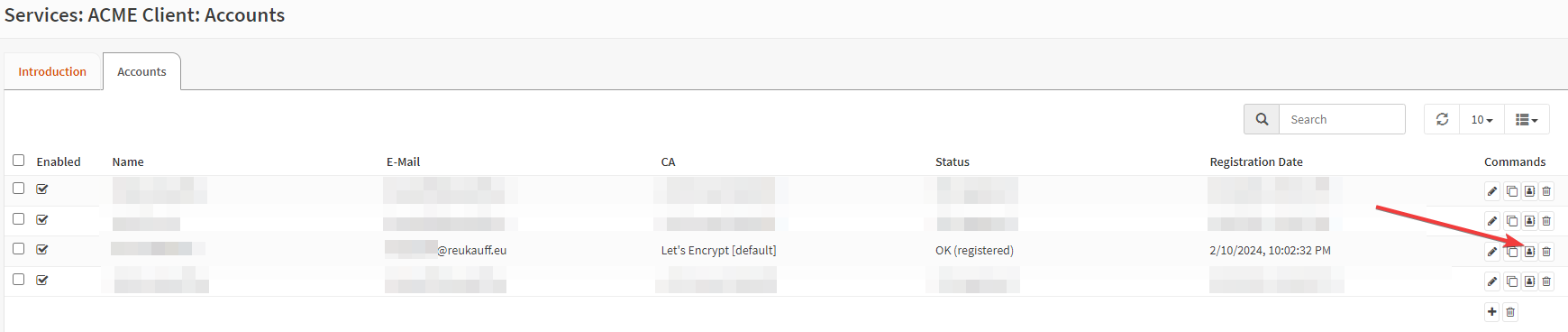
  <li>Speicher das neue Konto und klicke in der Verknüpfung des Kontos auf der rechten Seite auf die Schaltfläche <code class="language-plaintext highlighter-rouge">Konto registrieren</code>.<img src="/assets/images/2024-03-28-InstallMattermostBehindOPNsenseReverseProxy/PastedImage20240211141014.png" alt="" /></li>
  <li>Nach einigen Sekunden sollte die Spalte <code class="language-plaintext highlighter-rouge">Registration Date</code> den aktuellen Zeitstempel enthalten. Das Konto ist nun registriert.</li>
  <li>Gehe in OPNsense zu <code class="language-plaintext highlighter-rouge">Services</code> &gt; <code class="language-plaintext highlighter-rouge">ACME Client</code> &gt; <code class="language-plaintext highlighter-rouge">Settings</code> &gt; <code class="language-plaintext highlighter-rouge">Certificates</code>. Erstelle einen neuen Eintrag mit den folgenden Einstellungen:
    <ul>
      <li>Enabled: aktivieren</li>
      <li>Common Name: Die (Sub-)Domain von Mattermost</li>
      <li>ACME Account: Der zuvor erstellte Account</li>
      <li>Automations: <code class="language-plaintext highlighter-rouge">Restart Nginx</code></li>
    </ul>
  </li>
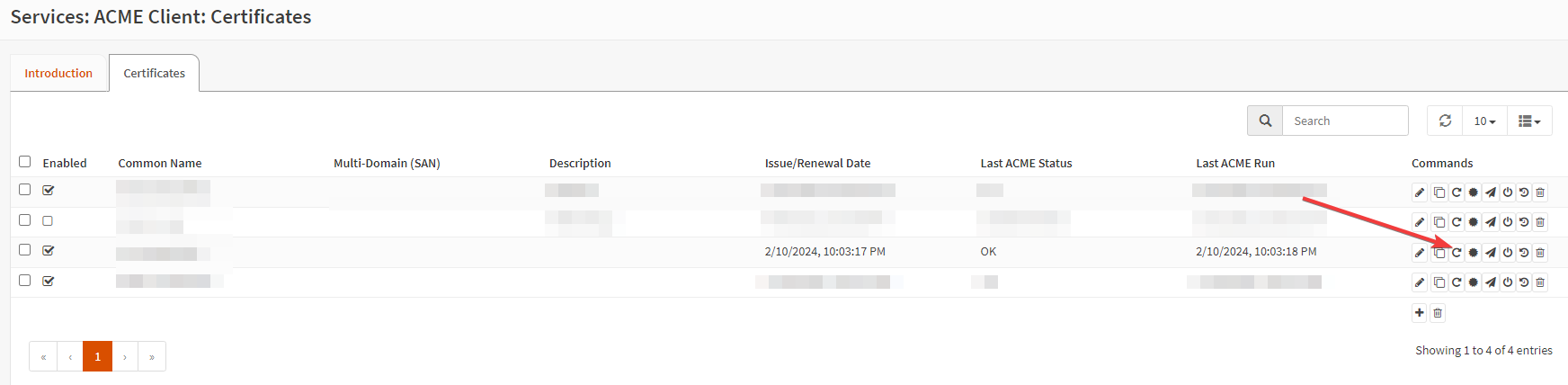
  <li>Speicher den neuen Zertifikatsantrag und klicke auf die Schaltfläche <code class="language-plaintext highlighter-rouge">Issue or renew certificate</code> rechts neben dem neuen Zertifikat.<img src="/assets/images/2024-03-28-InstallMattermostBehindOPNsenseReverseProxy/PastedImage20240211141410.png" alt="" /></li>
  <li>In OPNsense gehe zu <code class="language-plaintext highlighter-rouge">Services</code>&gt;<code class="language-plaintext highlighter-rouge">Nginx</code>&gt;<code class="language-plaintext highlighter-rouge">Configuration</code></li>
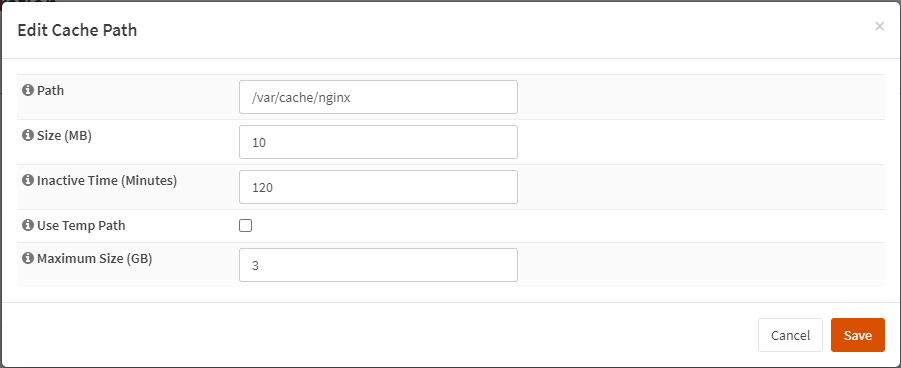
  <li>Wenn nicht bereits geschehen, aktiviere nginx auf der <code class="language-plaintext highlighter-rouge">General Settings</code> Seite den <code class="language-plaintext highlighter-rouge">Cache Path</code>. Erstelle einen neuen Eintrag mit folgenden Einstellungen:
    <ul>
      <li>Path: <code class="language-plaintext highlighter-rouge">/var/cache/nginx</code></li>
      <li>Size (MB): <code class="language-plaintext highlighter-rouge">10</code></li>
      <li>Inactive Time (Minutes): <code class="language-plaintext highlighter-rouge">120</code></li>
      <li>Use Temp Path: deaktivieren</li>
      <li>Maximum Size (GB): <code class="language-plaintext highlighter-rouge">3</code>
  <img src="/assets/images/2024-03-28-InstallMattermostBehindOPNsenseReverseProxy/PastedImage20240211121918.png" alt="" /></li>
    </ul>
  </li>
  <li>Jetzt das kleine Dreieck neben <code class="language-plaintext highlighter-rouge">HTTP(S)</code> im Tab-Titel anklicken und <code class="language-plaintext highlighter-rouge">Security Headers</code> auswählen. Einen neuen Eintrag mit folgendes Einstellungen im <code class="language-plaintext highlighter-rouge">General</code> Tab erstellen:
    <ul>
      <li>Description: <code class="language-plaintext highlighter-rouge">HSTS Age 15768000</code> oder ähnlich</li>
      <li>Time (Max Age): <code class="language-plaintext highlighter-rouge">15768000</code></li>
    </ul>
  </li>
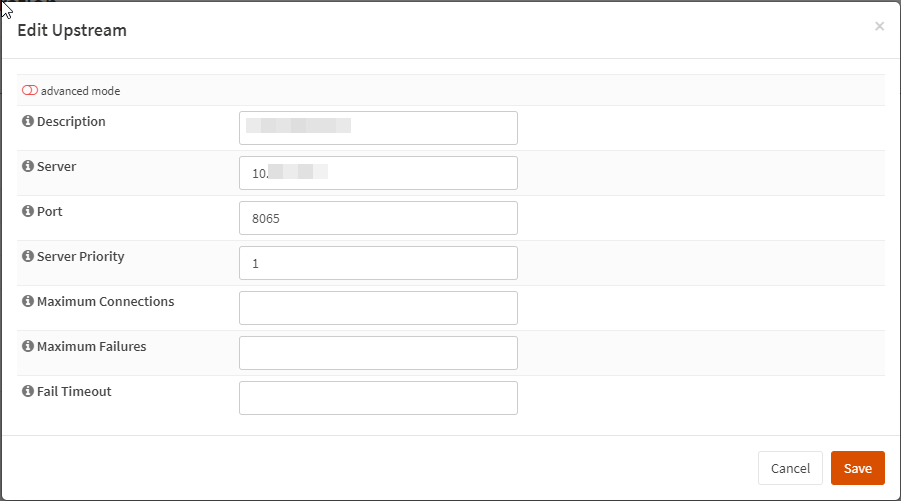
  <li>Gehe auf <code class="language-plaintext highlighter-rouge">Upstream Server</code> indem auf den <code class="language-plaintext highlighter-rouge">Upstream</code> Tab geklickt wird. Erstelle einen neuen Upstream und lege eine Beschreibung an (d.h. den Servernamen des Mattermost-Servers), die Server-IP-Adresse und den Port 8065 fest. Der Port 8065 ist der Port, auf dem die Mattermost-Anwendung nativ über HTTP läuft:   <img src="/assets/images/2024-03-28-InstallMattermostBehindOPNsenseReverseProxy/PastedImage20240211115433.png" alt="" /></li>
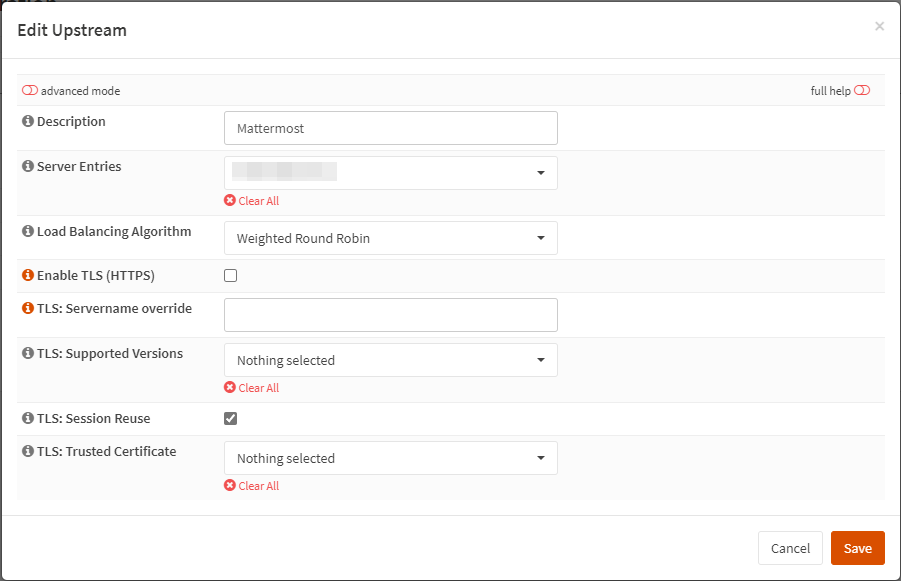
  <li>Klicke auf das kleine Dreieck neben dem Titel der Registerkarte <code class="language-plaintext highlighter-rouge">Upstream</code> und wähle <code class="language-plaintext highlighter-rouge">Upstream</code> aus dem Menü. Füge einen neuen Upstream hinzu. Gib eine Beschreibung ein (z. B. Mattermost) und wähle den Upstream-Server in der Combobox unter <code class="language-plaintext highlighter-rouge">Servereinträge</code> aus. Speichere die Einstellungen. <img src="/assets/images/2024-03-28-InstallMattermostBehindOPNsenseReverseProxy/PastedImage20240211115826.png" alt="" /></li>
  <li>Gehe zur Registerkarte <code class="language-plaintext highlighter-rouge">HTTP(S)</code>. Erstelle einen neuen Eintrag auf dieser Registerkarte (auf der Seite “Standort”). Ganz oben aktiviere den “erweiterten Modus”. Lege die folgenden Einstellungen fest:
    <ul>
      <li>Description: <code class="language-plaintext highlighter-rouge">Mattermost Main</code> (oder ähnlich)</li>
      <li>URL Pattern: <code class="language-plaintext highlighter-rouge">/</code></li>
      <li>Upstream Servers: Den zuvor erstellen Upstream Server</li>
      <li>Cache: Directory: Das zuvor erstellte Cache Directory</li>
      <li>Force HTTPS: aktivieren</li>
      <li>Enable HTTP/2 Preloading: aktivieren</li>
    </ul>
  </li>
  <li>Erstelle einen weiteren Eintrag mit folgenden Einstellungen:
    <ul>
      <li>Description: <code class="language-plaintext highlighter-rouge">Mattermost Websocket</code> (oder ähnlich)</li>
      <li>URL Pattern: <code class="language-plaintext highlighter-rouge">api/v[0-9]+/(users/)?websocket$</code></li>
      <li>Match Type: <code class="language-plaintext highlighter-rouge">Case Sensitive Match ("~")</code></li>
      <li>Upstream Servers: <code class="language-plaintext highlighter-rouge">Mattermost</code></li>
      <li>Force HTTPS: aktivieren</li>
      <li>Enable HTTP/2 Preloading: aktivieren</li>
    </ul>
  </li>
  <li>Klicke nun auf das kleine Dreieck neben dem Titel der Registerkarte <code class="language-plaintext highlighter-rouge">HTTP(S)</code> und wähle <code class="language-plaintext highlighter-rouge">HTTP-Server</code> aus. Erstelle einen neuen Eintrag mit den folgenden Einstellungen:
    <ul>
      <li>Den <code class="language-plaintext highlighter-rouge">advanced mode</code> aktivieren</li>
      <li>HTTP Listen Address: <code class="language-plaintext highlighter-rouge">80</code></li>
      <li>HTTPS Listen Address: <code class="language-plaintext highlighter-rouge">443</code></li>
      <li>Server Name: die (Sub-)Domain unter der Mattermost erreichbar ist (z.B. mattermost.reukauff.eu)</li>
      <li>Locations: <code class="language-plaintext highlighter-rouge">Mattermost Main</code> und <code class="language-plaintext highlighter-rouge">Mattermost Websocket</code> (oder wie auch immer sie genannt wurden)</li>
      <li>TLS Certificate: Das zuvor konfigurierte Zertifikat</li>
      <li>Client CA Certificate: <code class="language-plaintext highlighter-rouge">R3 (ACME Client)</code></li>
      <li>Zero RTT: aktivieren</li>
      <li>Enable Let’s Encrypt Plugin support: aktivieren</li>
      <li>Prefer server ciphers: aktivieren</li>
      <li>OCSP Stapling: aktivieren</li>
      <li>OCSP Verify: aktivieren</li>
      <li>Header Buffer Size (kB): <code class="language-plaintext highlighter-rouge">1</code></li>
      <li>Count Of Large Header Buffers: <code class="language-plaintext highlighter-rouge">4</code></li>
      <li>Size Of Large Header Buffers (kB): <code class="language-plaintext highlighter-rouge">8</code></li>
      <li>Security Header: Der erstellte Security Header</li>
    </ul>
  </li>
  <li>Danach muss Port 80 und 443 in der Firewall zugelassen werden. Andernfalls werden sie blockiert und erreichen nicht einmal den Reverse-Proxy auf OPNsense.</li>
  <li>Anschließend muss ein NAT (“Port forwarding”) für Port 8443 UDP und TCP zum Mattermost-Server konfiguriert werden. Dies ist erforderlich, um die Verbindungen für Anrufe zu ermöglichen.</li>
  <li>Das war’s. Mattermost läuft jetzt und OPNsense fungiert als Reverse Proxy und verwaltet auch die Let’s Encrypt Zertifikate. Wir können nun auf Mattermost auf der konfigurierten (Sub-)Domain zugreifen, den ersten Benutzer anlegen und den Server konfigurieren.</li>
</ul>

<h1 id="mattermost-konfigurieren">Mattermost konfigurieren</h1>
<p>Wenn man sich mit Mattermost verbindet und sich mit dem anfänglich erstellten Benutzer anmeldet, gibt es einige kleinere Dinge zu konfigurieren, die konfiguriert werden sollten, um eine voll funktionsfähige Umgebung zu haben.</p>
<h2 id="konfigurieren-der-mail-einstellungen">Konfigurieren der Mail-Einstellungen</h2>
<p>Klicke oben links auf den Kachelbutton und wähle <code class="language-plaintext highlighter-rouge">System Console</code>. In der Systemkonsole auf der linken Seite wähle <code class="language-plaintext highlighter-rouge">SMTP</code>. Konfiguriere die Mailserver-Einstellungen in diesem Dialog. Sie sind für jedes Setup individuell, daher kann ich keine Empfehlungen bezüglich der Einstellung geben, außer dass man eine dedizierte Mailadresse für Mattermost verwenden sollte.</p>

<h2 id="push-benachrichtigungsserver">Push-Benachrichtigungsserver</h2>
<p>Standardmäßig sind Push-Benachrichtigungen für die Apps deaktiviert. Um sie zu aktivieren, gehe in der Systemkonsole zu <code class="language-plaintext highlighter-rouge">Mobile Push Notifications</code>. Wähle die Einstellung <code class="language-plaintext highlighter-rouge">Use TPNS connection to send notifications to iOS and Android app</code>. Hinweis: Dies wird nur für unkritische Umgebungen empfohlen, da der TPNS-Dienst (<code class="language-plaintext highlighter-rouge">Test Push Notification Service</code>) keine SLAs bietet. Im schlimmsten Fall werden die Benachrichtigungen mit einer großen Verzögerung oder gar nicht gesendet.
Wenn eine kritische Umgebung vorliegt, prüfe den Hosted Push Notifications Service (HPNS) von Mattermost.</p>

<h2 id="lokalisierung">Lokalisierung</h2>
<p>Wenn für Benutzer andere Sprachen als die Standardsprache zur Verfügung stehen soll, kann in der Systemkonsole unter <code class="language-plaintext highlighter-rouge">Localization</code> die Verfügbarkeit anderer Sprachen ausgewählt werden. Hier können die Standard-Server- und Client-Sprache sowie zusätzliche Sprachen für Ihre Clients ausgewählt werden. Hinweis: Wenn unter <code class="language-plaintext highlighter-rouge">Verfügbare Sprachen</code> nichts ausgewählt ist, sind alle Sprachen verfügbar!</p>

<h2 id="registrierung--anmeldung">Registrierung / Anmeldung</h2>
<p>Standardmäßig kann jeder neue Konten auf dem Server erstellen, der eine Einladung von einem anderen Benutzer erhält. Unter <code class="language-plaintext highlighter-rouge">Signup</code> in der Systemkonsole kann dieses Verhalten strikter (d.h. Benutzer können nicht einladen oder die Registrierung auf bestimmte Domains beschränken) oder lockerer (jeder kann sich ohne Einladung registrieren) eingestellt werden.</p>

<h1 id="references">References</h1>
<p>Install Mattermost via Omnibus: <a href="https://docs.mattermost.com/install/installing-mattermost-omnibus.html#frequently-asked-questions">Install Mattermost Omnibus — Mattermost documentation</a>
Mattermost Calls Dokumentation: <a href="https://docs.mattermost.com/configure/calls-deployment.html">Calls self-hosted deployment — Mattermost documentation</a>
Mattermost Mobile Push Dokumentation: <a href="https://docs.mattermost.com/deploy/mobile-hpns.html?utm_source=mattermost&amp;utm_medium=in-product&amp;utm_content=push_settings&amp;uid=58xtsd5y5ifodp3omkuysdarro&amp;sid=scenwuujuj8x9yjp3m93d7w8he">Mobile push notifications — Mattermost documentation</a></p>]]></content><author><name></name></author><summary type="html"><![CDATA[Dieser Artikel beschreibt die Installation von Mattermost hinter einem OPNsense Reverse Proxy mit Ubuntu 22 (Jammy) LTS und der offiziellen Omnibus Deployment Methode von Mattermost.]]></summary></entry><entry><title type="html">Install Mattermost behind OPNsense Reverse Proxy</title><link href="https://reukauff.eu/2024/03/28/InstallMattermostBehindOPNsenseReverseProxyEN.html" rel="alternate" type="text/html" title="Install Mattermost behind OPNsense Reverse Proxy" /><published>2024-03-28T00:00:00+01:00</published><updated>2024-03-28T00:00:00+01:00</updated><id>https://reukauff.eu/2024/03/28/InstallMattermostBehindOPNsenseReverseProxyEN</id><content type="html" xml:base="https://reukauff.eu/2024/03/28/InstallMattermostBehindOPNsenseReverseProxyEN.html"><![CDATA[<p>This article is about installing mattermost behind a OPNsense reverse proxy using Ubuntu 22 (Jammy) LTS and the official Omnibus deployment method of Mattermost.</p>

<h1 id="prerequirements">Prerequirements</h1>
<ul>
  <li>A new Ubuntu Server 22.04 (Jammy)(min. 1 CPU and 2 GB RAM). At time of writing Ubuntu Server 23 (Mantic) is not supported by Omnibus.</li>
  <li>All OS updates installed</li>
  <li>A (sub-)domain where Mattermost will be reachable at (i.e. Mattermost.reukauff.eu).</li>
  <li>OPNsense with the nginix und let’s encrypt plugin installed in front of the new Ubuntu server.</li>
</ul>

<h1 id="install-mattermost">Install Mattermost</h1>
<p>This is the most easy part of the whole setup.
Run this commands to add the Mattermost repository to the local repositories and run the installation. The second command installs Mattermost without Let’s encrypt as we will use OPNsense for the HTTPS certificate stuff:</p>
<div class="language-shell highlighter-rouge"><div class="highlight"><pre class="highlight"><code>curl <span class="nt">-o-</span> https://deb.packages.mattermost.com/repo-setup.sh | <span class="nb">sudo </span>bash
<span class="nb">sudo</span> MMO_HTTPS<span class="o">=</span><span class="nb">false</span> apt install mattermost-omnibusrr
</code></pre></div></div>
<p>During the installation Omnibus will ask you for a domain name. Enter the domain name, you will use for Mattermost (i.e. mattermost.reukauff.eu). It also asks for the mail address for Let’s Encrypt. Enter a mailaddress, but a certificate will not being requested as we run the setup without HTTPS setup.</p>

<p>After the setup completed run the following command to open the configuration:</p>
<pre><code class="language-Shell">sudo mmctl --local config edit
</code></pre>

<p>A vi-editor opens.
Search for the line <code class="language-plaintext highlighter-rouge">AllowCorsFrom</code>.  Press <code class="language-plaintext highlighter-rouge">i</code> to change to edit mode of the vi editor. Change the value to <code class="language-plaintext highlighter-rouge">*</code>.</p>
<div class="language-plaintext highlighter-rouge"><div class="highlight"><pre class="highlight"><code>"AllowCorsFrom":"*"
</code></pre></div></div>
<p>Press <code class="language-plaintext highlighter-rouge">Ctrl+C</code> followed by typing <code class="language-plaintext highlighter-rouge">:wq</code> and press <code class="language-plaintext highlighter-rouge">Enter</code>.
The editor closes and you should see the line <code class="language-plaintext highlighter-rouge">Config updated successfully</code> after some seconds.
Now we need to enable plugin uploads. Run</p>
<pre><code class="language-Shell">sudo nano /etc/mattermost/mmomni.yml
</code></pre>
<p>Change the value for <code class="language-plaintext highlighter-rouge">enable_plugin_uploads</code> to <code class="language-plaintext highlighter-rouge">true</code> and save the file with <code class="language-plaintext highlighter-rouge">Ctrl+O</code> and quit with <code class="language-plaintext highlighter-rouge">Ctrl+X</code>
Finally reload Mattermost by run</p>
<div class="language-plaintext highlighter-rouge"><div class="highlight"><pre class="highlight"><code>sudo mmomni reconfigure
</code></pre></div></div>
<p>Mattermost is now setup and you can reach it already internally via http://yourserver:8065.</p>

<h1 id="setup-opnsense">Setup OPNsense</h1>
<p>Now the real pain starts as Mattermost is using many special settings in the nginx configuration. A blueprint of this settings can be found here in the Mattermost documentation: <a href="https://docs.mattermost.com/install/setup-nginx-proxy.html">Set up an NGINX proxy — Mattermost documentation</a></p>

<p>With the following setup we get as close as possible to the nginx config Mattermost describes in their documentation.</p>

<ul>
  <li>In OPNsense go to <code class="language-plaintext highlighter-rouge">Services</code> &gt; <code class="language-plaintext highlighter-rouge">ACME Client</code> &gt; <code class="language-plaintext highlighter-rouge">Settings</code> &gt; <code class="language-plaintext highlighter-rouge">Accounts</code></li>
  <li>Create a new entry. Enter for example the following settings:
    <ul>
      <li>Enabled: enable</li>
      <li>Name: the (sub-)domain you use for your Mattermost site. (i.e. <code class="language-plaintext highlighter-rouge">mattermost.reukauff.eu</code>)</li>
      <li>Description: Any description you like</li>
      <li>E-Mail Address: Your e-mail address</li>
      <li>ACME CA: <code class="language-plaintext highlighter-rouge">Let's Encrypt [default]</code></li>
    </ul>
  </li>
  <li>Save the new account and in the linke of the account at the right click on the <code class="language-plaintext highlighter-rouge">Register Account</code> button.<img src="/assets/images/2024-03-28-InstallMattermostBehindOPNsenseReverseProxy/Pasted image 20240211141014.png" alt="" /></li>
  <li>After some seconds the column <code class="language-plaintext highlighter-rouge">Registration Date</code> should have the current timestamp. The account is registered now.</li>
  <li>In OPNsense go to <code class="language-plaintext highlighter-rouge">Services</code> &gt; <code class="language-plaintext highlighter-rouge">ACME Client</code> &gt; <code class="language-plaintext highlighter-rouge">Settings</code> &gt; <code class="language-plaintext highlighter-rouge">Certificates</code>. Create a new entry with the following settings:
    <ul>
      <li>Enabled: enable</li>
      <li>Common Name: Your (sub-)domain of Mattermost</li>
      <li>ACME Account: the account just created before</li>
      <li>Automations: <code class="language-plaintext highlighter-rouge">Restart Nginx</code></li>
    </ul>
  </li>
  <li>Save the new certificate request and click on the <code class="language-plaintext highlighter-rouge">Issue or renew certificate</code> button at the right of your new certificate.<img src="/assets/images/2024-03-28-InstallMattermostBehindOPNsenseReverseProxy/Pasted image 20240211141410.png" alt="" /></li>
  <li>In OPNsense go to <code class="language-plaintext highlighter-rouge">Services</code>&gt;<code class="language-plaintext highlighter-rouge">Nginx</code>&gt;<code class="language-plaintext highlighter-rouge">Configuration</code></li>
  <li>If not already done, enable nginx on the <code class="language-plaintext highlighter-rouge">General Settings</code> Tab <code class="language-plaintext highlighter-rouge">Cache Path</code>. Create a new entry with the following settings:
    <ul>
      <li>Path: <code class="language-plaintext highlighter-rouge">/var/cache/nginx</code></li>
      <li>Size (MB): <code class="language-plaintext highlighter-rouge">10</code></li>
      <li>Inactive Time (Minutes): <code class="language-plaintext highlighter-rouge">120</code></li>
      <li>Use Temp Path: disable</li>
      <li>Maximum Size (GB): <code class="language-plaintext highlighter-rouge">3</code>
  <img src="/assets/images/2024-03-28-InstallMattermostBehindOPNsenseReverseProxy/Pasted image 20240211121918.png" alt="" /></li>
    </ul>
  </li>
  <li>Now click on the small triangle next to the <code class="language-plaintext highlighter-rouge">HTTP(S)</code> tab title and select <code class="language-plaintext highlighter-rouge">Security Headers</code>. Add a new entry with the following settings at the <code class="language-plaintext highlighter-rouge">General</code> tab:
    <ul>
      <li>Description: <code class="language-plaintext highlighter-rouge">HSTS Age 15768000</code> or similar</li>
      <li>Time (Max Age): <code class="language-plaintext highlighter-rouge">15768000</code></li>
    </ul>
  </li>
  <li>Now click on the small triangle next to the <code class="language-plaintext highlighter-rouge">HTTP(S)</code> tab title and select ``</li>
  <li>Change to <code class="language-plaintext highlighter-rouge">Upstream Server</code> by click on the <code class="language-plaintext highlighter-rouge">Upstream</code> tab. Create a new Upstream and set a Description (i.e. the server name of the Mattermost server), the Server IP address and the port to 8065. The port 8065 is the port where the Mattermost application is running natively via HTTP:   <img src="/assets/images/2024-03-28-InstallMattermostBehindOPNsenseReverseProxy/Pasted image 20240211115433.png" alt="" /></li>
  <li>Click the small triangle next to the <code class="language-plaintext highlighter-rouge">Upstream</code> tab title and select <code class="language-plaintext highlighter-rouge">Upstream</code> form the menu. Add a new Upstream. Enter a description (i.e. Mattermost) and select your Upstream Server in the combobox at <code class="language-plaintext highlighter-rouge">Server Entries</code>. Save the settings.   <img src="/assets/images/2024-03-28-InstallMattermostBehindOPNsenseReverseProxy/Pasted image 20240211115826.png" alt="" /></li>
  <li>Go to the <code class="language-plaintext highlighter-rouge">HTTP(S)</code> tab. Create a new entry on that tab (it’s the <code class="language-plaintext highlighter-rouge">Location</code> page). At the very top enable the <code class="language-plaintext highlighter-rouge">advanced mode</code>. Set the following settings:
    <ul>
      <li>Description: <code class="language-plaintext highlighter-rouge">Mattermost Main</code> (or similar)</li>
      <li>URL Pattern: <code class="language-plaintext highlighter-rouge">/</code></li>
      <li>Upstream Servers: The previously created upstream server</li>
      <li>Cache: Directory: the previously created cache directory</li>
      <li>Force HTTPS: enable</li>
      <li>Enable HTTP/2 Preloading: enable</li>
    </ul>
  </li>
  <li>Add another entry with the following settings:
    <ul>
      <li>Description: <code class="language-plaintext highlighter-rouge">Mattermost Websocket</code> (or similar)</li>
      <li>URL Pattern: <code class="language-plaintext highlighter-rouge">api/v[0-9]+/(users/)?websocket$</code></li>
      <li>Match Type: <code class="language-plaintext highlighter-rouge">Case Sensitive Match ("~")</code></li>
      <li>Upstream Servers: <code class="language-plaintext highlighter-rouge">Mattermost</code></li>
      <li>Force HTTPS: enable</li>
      <li>Enable HTTP/2 Preloading: enable</li>
    </ul>
  </li>
  <li>Now click on the small triangle next to the <code class="language-plaintext highlighter-rouge">HTTP(S)</code> tab title and select <code class="language-plaintext highlighter-rouge">HTTP Server</code>. Create a new entry with the following settings:
    <ul>
      <li>Enable advanced mode at the very top left</li>
      <li>HTTP Listen Address: <code class="language-plaintext highlighter-rouge">80</code></li>
      <li>HTTPS Listen Address: <code class="language-plaintext highlighter-rouge">443</code></li>
      <li>Server Name: your (Sub-)Domain where Mattermost should be reachable at (i.e. mattermost.reukauff.eu)</li>
      <li>Locations: <code class="language-plaintext highlighter-rouge">Mattermost Main</code> and <code class="language-plaintext highlighter-rouge">Mattermost Websocket</code> (or whatever you called it)</li>
      <li>TLS Certificate: The certificate configured before</li>
      <li>Client CA Certificate: <code class="language-plaintext highlighter-rouge">R3 (ACME Client)</code></li>
      <li>Zero RTT: enable</li>
      <li>Enable Let’s Encrypt Plugin support: enable</li>
      <li>Prefer server ciphers: enable</li>
      <li>OCSP Stapling: enable</li>
      <li>OCSP Verify: enable</li>
      <li>Header Buffer Size (kB): <code class="language-plaintext highlighter-rouge">1</code></li>
      <li>Count Of Large Header Buffers: <code class="language-plaintext highlighter-rouge">4</code></li>
      <li>Size Of Large Header Buffers (kB): <code class="language-plaintext highlighter-rouge">8</code></li>
      <li>Security Header: The created security Header</li>
    </ul>
  </li>
  <li>After that you need to allow port 80 and 443 in the firewall. Otherwise it is blocked and will not even reach the reverse proxy on OPNsense.</li>
  <li>And finally, you must configure a NAT (“Port forwarding”) for port 8443 UDP and TCP to the Mattermost server. This is required to enable the connections for calls.</li>
  <li>That’s it. Mattermost is running now and OPNsense is acting as reverse proxy and also handles the Let’s encrypt certificates. You can access Mattermost now on your configured (Sub-)domain, create the first user and configure your server.</li>
</ul>

<h1 id="configure-mattermost">Configure Mattermost</h1>
<p>When connecting to Mattermost and login using the initially created user, there are some minor things to configure, you should configure to have a full featured environment.</p>
<h2 id="configure-mail-settings">Configure mail settings</h2>
<p>At the very top left click on the tiles-button and select <code class="language-plaintext highlighter-rouge">System Console</code>. In the System Console on the left select <code class="language-plaintext highlighter-rouge">SMTP</code>. Configure your Mailserver settings in this dialog. They are individual for each setup, so I cannot make recommendations regarding the setting except that you should use a dedicated mail address for Mattermost.</p>

<h2 id="push-notification-server">Push Notification Server</h2>
<p>By default push notifications to the Apps are disabled. To enable them, in the System Console go to <code class="language-plaintext highlighter-rouge">Mobile push notifications</code>. Select the setting <code class="language-plaintext highlighter-rouge">Use TPNS connection to send notifications to iOS and Android app</code>. Note: This is only recommended for non-critical environments as the TPNS service (“Test Push Notification Service) does not offer any SLAs. In worst case the notifications are send with a huge delay or never.
If you have a critical environment, check the Hosted Push Notifications Service (HPNS) of Mattermost.</p>

<h2 id="localization">Localization</h2>
<p>If you want other languages to be available for your users than your default language you can go to <code class="language-plaintext highlighter-rouge">Localization</code> in the System Console. Here you can select the default Server and Client language as well as additional languages available for your clients. Note: If nothing is selected at <code class="language-plaintext highlighter-rouge">Available Languages</code> all languages are available!</p>

<h2 id="registration--signup">Registration / Signup</h2>
<p>By default everyone can create new accounts on your server that get an invite from another user. At <code class="language-plaintext highlighter-rouge">Signup</code> in the System Console you can change this behavior to be more strict (i.e. users cannot invite or limit registration on defined domains) or more relaxed (everyone can register without invitation).</p>

<h1 id="references">References</h1>
<p>Install Mattermost via Omnibus: <a href="https://docs.mattermost.com/install/installing-mattermost-omnibus.html#frequently-asked-questions">Install Mattermost Omnibus — Mattermost documentation</a>
Mattermost Calls documentation: <a href="https://docs.mattermost.com/configure/calls-deployment.html">Calls self-hosted deployment — Mattermost documentation</a>
Mattermost Mobile Push documentation: <a href="https://docs.mattermost.com/deploy/mobile-hpns.html?utm_source=mattermost&amp;utm_medium=in-product&amp;utm_content=push_settings&amp;uid=58xtsd5y5ifodp3omkuysdarro&amp;sid=scenwuujuj8x9yjp3m93d7w8he">Mobile push notifications — Mattermost documentation</a></p>]]></content><author><name></name></author><summary type="html"><![CDATA[This article is about installing mattermost behind a OPNsense reverse proxy using Ubuntu 22 (Jammy) LTS and the official Omnibus deployment method of Mattermost.]]></summary></entry><entry><title type="html">Cluster Shared Volume (CSV) has redirected access</title><link href="https://reukauff.eu/2024/01/17/RedirectedClusterSharedVolumes.html" rel="alternate" type="text/html" title="Cluster Shared Volume (CSV) has redirected access" /><published>2024-01-17T00:00:00+01:00</published><updated>2024-01-17T00:00:00+01:00</updated><id>https://reukauff.eu/2024/01/17/RedirectedClusterSharedVolumes</id><content type="html" xml:base="https://reukauff.eu/2024/01/17/RedirectedClusterSharedVolumes.html"><![CDATA[<h1 id="problem">Problem</h1>
<p>You have CSVs in a cluster, that have <code class="language-plaintext highlighter-rouge">redirected access</code> stated behind the <code class="language-plaintext highlighter-rouge">Online</code>-Status. In parallel you will have a warning event in the Windows System Eventlog with the IP 5125, Source FailoverClustering and Category <code class="language-plaintext highlighter-rouge">Cluster Shared Volume</code>.</p>

<p>The Eventlog states, that a Clustervolume of the devicestack has an active filter driver, that may have negative impact to CSV transactions. Because of this, the access is redirected via another cluster node. This may impact the performance.
It also possibly states one or more filter drivers, that may have something to do with it or, like in my case, just some random Chinese-looking characters.
This event is shown every 3 minutes for each affected volume.</p>
<h1 id="commands">Commands</h1>
<p>Get Cluster Shared Volumes and see the state as well the reason for the state:</p>
<div class="language-plaintext highlighter-rouge"><div class="highlight"><pre class="highlight"><code>Get-ClusterSharedVolumeState
</code></pre></div></div>
<p>Output is for example:</p>
<div class="language-plaintext highlighter-rouge"><div class="highlight"><pre class="highlight"><code>BlockRedirectedIOReason      : NotBlockRedirected
FileSystemRedirectedIOReason : IncompatibleFileSystemFilter
Name                         : SSD1
Node                         : SERVER1
StateInfo                    : FileSystemRedirected
VolumeFriendlyName           : DATASTORE1
VolumeName                   : \\?\Volume{27c9a590-5435-4e5b-b172-bcba55405aba}\
</code></pre></div></div>
<p>In the line starting with <code class="language-plaintext highlighter-rouge">FileSystemRedirectedIOReason</code> you see why it is redirected.</p>
<h2 id="userrequest">UserRequest</h2>
<p>the redirect was manually set by someone. You can disable it by selecting the volume in the Failovercluster-Manager. At the lower part of the window, right click on the graphical version of the volume and select <code class="language-plaintext highlighter-rouge">Turn Off Redirected Access</code>.</p>

<h2 id="incompatiblefilesystemfilter">IncompatibleFileSystemFilter</h2>
<p>This is a tricky one as it is related to a driver. This can by any kind of driver, that interopts with the disks.
To figure out which one it might be, run the command <code class="language-plaintext highlighter-rouge">fltmc instances</code>. It will show you all drivers. Check if you have drivers of a backup software or anti-virus program. It’s hard to identify them, as you only have the name in the first column to do so.
You can also run the command <code class="language-plaintext highlighter-rouge">Get-ClusterLog | fl</code> to get more Details.  It will return a file that is located at <code class="language-plaintext highlighter-rouge">\\localhost\admin$\Cluster\Reports\Cluster.log</code> by default and may be very large. Try to use Notepad++ or Wordpad to open the file. Scroll to the end. You will see additional log messages, that my help you.
My problem was, that the filter, that the eventlog and the log message are related to, are shown as <code class="language-plaintext highlighter-rouge">攀尀䠀愀爀搀搀椀猀欀嘀漀氀甀洀攀㄀㔀䤀䘀吀猀猀䘀氀爀猀欀</code>. To get some sense out of it, I converted the string to hex code and put converted it back to ASCII after. I used this page to convert the nonsense-Chinese to hex: <a href="https://www.rapidtables.com/convert/number/ascii-to-hex.html">ASCII to Hex | Text to Hex Code Converter (rapidtables.com)</a>
and after that another page on that site to convert it to text: <a href="https://www.rapidtables.com/convert/number/hex-to-ascii.html">Hex to ASCII Text String Converter (rapidtables.com)</a>
The result was something useful: <code class="language-plaintext highlighter-rouge">e\HarddiskVolume15IFTssFlrsk</code> The first part is the disk volume, that is affected. But after this (here after the <code class="language-plaintext highlighter-rouge">15</code>), the filter is mentioned. It is <code class="language-plaintext highlighter-rouge">IFTssFlrsk</code>. It is a <code class="language-plaintext highlighter-rouge">Generic File System Filter Driver</code> regarding the <code class="language-plaintext highlighter-rouge">iftssflr.sys</code> at <code class="language-plaintext highlighter-rouge">C:\Windows\system32\drivers</code>.
When checking the filter instances with <code class="language-plaintext highlighter-rouge">fltmc instances</code>, you see that this filter called <code class="language-plaintext highlighter-rouge">IFTssFlr</code>. That has, compared to the other filters, some strange parameters:</p>
<ul>
  <li>It has a floating number as weight</li>
  <li>It has no Instance name</li>
  <li>It has a <code class="language-plaintext highlighter-rouge">Prerelease</code> text as a Frame stated
After some research on the internet, I figured out, that his is a filter driver of our SAN vendor <code class="language-plaintext highlighter-rouge">Infortrend</code>. So basically it is a faulty driver/filter of the vendor or a misconfiguration by you. In my case we used the drivers SANWatch 3.0 v136. An update to SANWatch 3.0 v140 was available. After the update nothing changed.</li>
</ul>

<p>A workround is to disable the filter using the following command:
<code class="language-plaintext highlighter-rouge">fltmc unload IFTssFlr</code>
if you want to enable it later, you can do so by running <code class="language-plaintext highlighter-rouge">fltmc load IFTssFlr</code>.
With <code class="language-plaintext highlighter-rouge">fltmc filters</code> you can list all installed filter drivers.</p>

<p>What also works if the commands above are not working is running the following in Powershell to uninstall the driver from the system:</p>
<pre><code class="language-Powershell"># Get the driver
Get-CimInstance Win32_SystemDriver -Filter "name='IFTssFlr'"

# If the above returned a driver, run this to remove it
Get-CimInstance Win32_SystemDriver -Filter "name='IFTssFlr'" | Invoke-CimMethod -MethodName Delete

# Reboot the system
Restart-Computer
</code></pre>

<h1 id="references">References</h1>
<p><a href="https://techcommunity.microsoft.com/t5/failover-clustering/understanding-the-state-of-your-cluster-shared-volumes/ba-p/371889">Understanding the state of your Cluster Shared Volumes - Microsoft Community Hub</a>
<a href="https://chinnychukwudozie.com/2015/02/09/resolving-cluster-shared-volume-redirected-access-mode-error/#:~:text=Error%20Event%20id%205125%20with,network%20through%20another%20Cluster%20node.">Resolving Cluster Shared Volume “Redirected Access Mode” Error. | Chinny Chukwudozie, Cloud Solutions.</a>
<a href="https://yukselis.wordpress.com/2011/12/13/troubleshooting-redirected-access-on-a-cluster-shared-volume-csv/">Troubleshooting ‘Redirected Access’ on a Cluster Shared Volume (CSV) – Kurumsal Mimari Blog (wordpress.com)</a>
<a href="https://winservicehub.com/cmd-commands/system/fltmc/#:~:text=To%20disable%20a%20filter%20driver%20named%20%E2%80%9CMyFilter%E2%80%9D%2C%20the,following%20command%20can%20be%20used%3A%20fltmc%20-d%20MyFilter">Fltmc CMD: Windows System and Utilities Command Line Prompt (winservicehub.com)</a></p>]]></content><author><name></name></author><summary type="html"><![CDATA[Problem You have CSVs in a cluster, that have redirected access stated behind the Online-Status. In parallel you will have a warning event in the Windows System Eventlog with the IP 5125, Source FailoverClustering and Category Cluster Shared Volume.]]></summary></entry><entry><title type="html">BookStack Wiki Installieren</title><link href="https://reukauff.eu/2023/12/17/BookstackInstall.html" rel="alternate" type="text/html" title="BookStack Wiki Installieren" /><published>2023-12-17T00:00:00+01:00</published><updated>2023-12-17T00:00:00+01:00</updated><id>https://reukauff.eu/2023/12/17/BookstackInstall</id><content type="html" xml:base="https://reukauff.eu/2023/12/17/BookstackInstall.html"><![CDATA[<p>Zur Installation von Bookstack wird ein von Bookstack angebotenes Script genutzt, dass Bookstack, Apache, MySQL und PHP automatisch installiert.
Die jeweils aktuellen Versionen sind dazu hier beschrieben: <a href="https://www.bookstackapp.com/docs/admin/installation/#ubuntu-2204">Installation · BookStack (bookstackapp.com)</a></p>
<h1 id="voraussetzungen">Voraussetzungen</h1>
<p>Vorraussetzung ist in diesem Fall ein frisch installiertes und aktualisiertes Ubuntu 22.04 Server (ohne UI) mit Internetverbindung.</p>

<h1 id="installation">Installation</h1>
<p>Folgende drei Befehle führen die Installation aus. Dabei wird zuerst das Script heruntergeladen, anschließend die heruntergeladende Datei als ausführbar geflagged und anschließend die Datei ausgeführt:</p>
<pre><code class="language-Shell">wget https://raw.githubusercontent.com/BookStackApp/devops/main/scripts/installation-ubuntu-22.04.sh
chmod a+x installation-ubuntu-22.04.sh
sudo ./installation-ubuntu-22.04.sh
</code></pre>

<p>Das Skript fragt nun nach der Domäne oder IP, über die Bookstack erreichbar sein soll. z.B. docs.example.com.
Nun läuft das Skript einige Installationsschritte durch. Abschließend erfolgt eine Ausgabe mit den Informationen, wie BookStack nun erreichbar ist und wo weitere Infos zur Installation zu finden sind. z.B.</p>
<div class="language-plaintext highlighter-rouge"><div class="highlight"><pre class="highlight"><code>----------------------------------------------------------------
Setup finished, your BookStack instance should now be installed!
- Default login email: admin@admin.com
- Default login password: password
- Access URL: http://192.168.0.10 or http://docs.example.com/
- BookStack install path: /var/www/bookstack
- Install script log: /home/user/bookstack_install_1702768207.log
---------------------------------------------------------------
</code></pre></div></div>

<h1 id="e-mailserver-konfigurieren">E-Mailserver konfigurieren</h1>
<p>Im automatischen Installationsskript ist keine Konfiguration des E-Mail-Servers zum Versenden von Mails inkludiert.
Führe auf dem Server folgenden Befehl aus um die Konfiugrationsdatei von Bookstack zu editieren:</p>
<pre><code class="language-Shell">sudo nano /var/www/bookstack/.env
</code></pre>

<p>Ersetze folgende Werte mit den Werten für den eigenen Mailserver.</p>
<pre><code class="language-YAML">MAIL_FROM_NAME="Bookstack"
MAIL_FROM=anything@yourdomain.tld
MAIL_HOST=your.mailserver.com
MAIL_PORT=587
MAIL_USERNAME=null
MAIL_PASSWORD=null
MAIL_ENCRYPTION=null
</code></pre>
<p>Folgendes muss angepasst werden:</p>
<ul>
  <li><code class="language-plaintext highlighter-rouge">MAIL_FROM_NAME</code>: Der Name, der als Absender der E-Mails angezeigt wird</li>
  <li><code class="language-plaintext highlighter-rouge">MAIL_FROM</code>: Die E-Mailadresse, die als Absender verwendet wird</li>
  <li><code class="language-plaintext highlighter-rouge">MAIL_HOST</code>: Die MX-Adresse des zu verwendenden Mailservers</li>
  <li><code class="language-plaintext highlighter-rouge">MAIL_PORT</code>: Der Port, welcher zu nutzen ist. Standardports: 25 = SMTP (unverschlüsselt), 587 = StartTLS, 465 = TLS/SSL</li>
  <li><code class="language-plaintext highlighter-rouge">MAIL_USERNAME</code>: Benutzername, der zur Authentifizierung verwendet wird</li>
  <li><code class="language-plaintext highlighter-rouge">MAIL_PASSWORD</code>: Das dazugehörige Passwort</li>
  <li><code class="language-plaintext highlighter-rouge">MAIL_ENCRYPTION</code>: null = keine Verschlüsselung (unverschlüsseltes SMTP), tls = TLS/SSL verschlüsselt, starttls = StartTLS verschlüsselt</li>
</ul>

<p>Abschließend den Apache Dienst einmal neu starten um die Änderungen anzuwenden:</p>
<pre><code class="language-Shell">sudo systemctl restart apache2
</code></pre>

<h2 id="mailserver-mit-microsoft-365-einrichten">Mailserver mit Microsoft 365 einrichten</h2>
<p>Um einen Mailserver mit Microsoft 365 (ehemals Office 365) einzurichten, kann folgende Methode (Option 2) benutzt werden. Hierbei ist nur E-Mailversand innerhalb der eigenen Domäne(n) möglich. Es wird StartTLS über Port 25 oder unverschlüsseltes SMTP über Port 25 verwendet. Dafür wird keine extra Lizenz benötigt:
<a href="https://learn.microsoft.com/de-de/exchange/mail-flow-best-practices/how-to-set-up-a-multifunction-device-or-application-to-send-email-using-microsoft-365-or-office-365#option-2-send-mail-directly-from-your-printer-or-application-to-microsoft-365-or-office-365-direct-send">Einrichten eines Multifunktionsgeräts oder einer Anwendung zum Senden von E-Mails mithilfe von Microsoft 365 oder Office 365 | Microsoft Learn</a></p>

<p>Zusammengefasst müssen die E-Mail-Einstellung in der settings.yaml wie folgt gesetzt werden (Ersetze die Platzhalter entsprechend mit den Werten der zu nutzenden M365 Instanz):</p>
<div class="language-yaml highlighter-rouge"><div class="highlight"><pre class="highlight"><code><span class="s">MAIL_FROM_NAME="Bookstack"</span>
<span class="s">MAIL_FROM=anything@yourdomain.tld</span>
<span class="s">MAIL_HOST=your.mxendpoint.example.outlook.com</span>
<span class="s">MAIL_PORT=25</span>
<span class="s">MAIL_USERNAME=null</span>
<span class="s">MAIL_PASSWORD=null</span>
<span class="s">MAIL_ENCRYPTION=tls</span>
</code></pre></div></div>

<p>Um zu verhindern, dass die E-Mails als Spam deklariert werden, kann ein SPF-Eintrag in den DNS-Einstellungen der Domäne gesetzt werden, wenn eine statische IP für den Internetanschluss genutzt wird. Dazu folgenden TXT-DNS-Eintrag der SPF-Settings mit folgendem Wert ergänzen:
<code class="language-plaintext highlighter-rouge">v=spf1 ip4:&lt;Static IP Address&gt; include:spf.protection.outlook.com ~all</code>
Da es vom DNS Anbieter abhängig ist wie genau dies konfiguriert wird, kann an dieser Stelle nicht im Detail darauf eingegangen werden, wie dies geschieht. Ggf. bitte den DNS-Anbieter kontaktieren.</p>
<h1 id="auf-bookstack-zugreifen">Auf Bookstack zugreifen</h1>
<h2 id="erste-anmeldung">Erste Anmeldung</h2>
<p>Für die erste Anmeldung die Daten aus der Ausgabe der Konsole nutzen um auf Bookstack zuzugreifen und sich mit dem Admin via Browser anzumelden.</p>
<h3 id="neuen-admin-anlegen">Neuen Admin anlegen</h3>
<p>Aus Sicherheitsgründen sollte nun zunächst ein neuer Admin angelegt werden. Dazu rechts oben auf <code class="language-plaintext highlighter-rouge">Settings</code> klicken und anschließend auf den Reiter <code class="language-plaintext highlighter-rouge">Users</code>. Nun auf die Schaltfläche <code class="language-plaintext highlighter-rouge">Add new user</code> klicken.
<img src="Pasted image 20231217002650.png" alt="" />
Nun einen Namen für den neuen Admin definieren sowie dessen E-Mail-Adresse. Außerdem die Checkbox <code class="language-plaintext highlighter-rouge">Admin</code> aktivieren um diesen User auch wirklich zum Admin zu machen. Den Haken bei <code class="language-plaintext highlighter-rouge">Send user invite email</code> entfernen und in die beiden Passwort-Felder das neue Passwort es Users eingeben. Abschließend auf die Schaltfläche <code class="language-plaintext highlighter-rouge">Save</code> klicken.
<img src="Pasted image 20231217002849.png" alt="" />
Nachdem der neue Admin erstellt wurde, wird der vorhandene Admin gelöscht. Dies hat den Sinn, dass der Standard-Adminuser nun nicht mehr existiert und für mögliche Angriffe nicht mehr zur Verfügung steht.
Dazu den admin-user bearbeiten und auf die Schaltfläche <code class="language-plaintext highlighter-rouge">Delete User</code> klicken.
<img src="Pasted image 20231217115215.png" alt="" />
Nun folgt ein Bestätigungs-Dialog. Hier den neuen Adminuser als “Nachfolger” des Admins auswählen und mit <code class="language-plaintext highlighter-rouge">Confirm</code> bestätigen.
<img src="Pasted image 20231217115344.png" alt="" />
Da wir mit dem gelöschten User derzeit angemeldet sind, werden wir nun automatisch abgemeldet. Dafür können wir uns jetzt mit dem neuen Admin-User anmelden und fortfahren.</p>
<h3 id="zugriff-auf-bilddateien-erschweren">Zugriff auf Bilddateien erschweren</h3>
<p>Um die URLs für Bilder, die ggf. an Inhalten angehängt sind, nicht so leicht zu erraten, kann man eine Option aktivieren, die zufällige Zeichenfolge vor den Dateinamen schreibt. Generell können alle Leute mit Zugriff auf die BookStack-URL die Bild-URLs aufrufen - egal welche Rechte sie besitzen. Diese Option lässt sich hier aktivieren:
<img src="Pasted image 20231217003241.png" alt="" /></p>

<h3 id="bookstack-anpassen">BookStack anpassen</h3>
<p>in den <code class="language-plaintext highlighter-rouge">Settings</code> unter <code class="language-plaintext highlighter-rouge">Customization</code> lassen sich einige visuellen Aspekte von BookStack anpassen. Diese sind im Einzelnen:</p>
<ul>
  <li><code class="language-plaintext highlighter-rouge">Application Name</code>: Der Text, der links oben neben dem Icon angezeigt wird</li>
  <li><code class="language-plaintext highlighter-rouge">Default Page Editor</code>: Per Standard ist dies ein WYSIWYG (What You See Is What You Get) Editor eingestellt. Hier lassen sich Inhalte ähnlich wie in Word erstellen. Die Alternative, welche vor allem für technisch versierte Nutzer interessant ist, ist ein Markdown-Editor, welcher den Markdown-Syntax nutzt um Inhalte zu erstellen.</li>
  <li><code class="language-plaintext highlighter-rouge">Application Logo</code>: Das Icon, welches links oben und an einigen weiteren Stellen angezeigt wird</li>
  <li><code class="language-plaintext highlighter-rouge">Application Icon</code>: Das Icon, was im Browser z.B. bei der Anzeige von Tabs verwendet wird</li>
  <li><code class="language-plaintext highlighter-rouge">Application Color Scheme</code>: Hier lässt sich das Aussehen von Bookstack verändern. Wer hier Änderungen durchführen möchte, sollte sich Zeit nehmen um die Farben gut aufeinander abzustimmen.</li>
  <li><code class="language-plaintext highlighter-rouge">Application Homepage</code>: Welche Seite von Bookstack soll nach der Anmeldung angezeigt werden.</li>
  <li><code class="language-plaintext highlighter-rouge">Footer Links</code>: Am Ende der Seite von Bookstack lassen sich weitere Links platzieren. z.B. zu Datenschutzinformationen, Kontaktformularen, Impressum oder auch interne Unternehmenslinks.</li>
  <li><code class="language-plaintext highlighter-rouge">Custom HTML Head Content</code>: Hier können eigene Elemente in den &lt;head&gt;-HTML-Tag eingefügt werden. z.B. um Suchmaschinen zu steuern, CSS zu überschreiben oder Tracking zu implementieren.</li>
</ul>

<h1 id="bookstack-via-https-nutzen">Bookstack via HTTPS nutzen</h1>
<h2 id="zertifikat-erzeugen">Zertifikat erzeugen</h2>
<p>Es wird ein valides öffentliches Zertifikat benötigt (.pem), dem alle Clients, die zu Bookstack verbinden sollen, vertrauen. Ebenso der dazugehördende private Schlüssel (.key).
Wenn von einer Windows Zertifikatsstelle eine .pfx-Datei erzeugt wurde, welche sowohl das öffentliche Zertifikat als auch den privaten Schlüssel enthält, so können wie folgt die .pem- und .key-Dateien daraus erzeugt werden:</p>

<p>Das öffentliche Zertifikat extrahieren (.pem):</p>
<pre><code class="language-Shell">openssl pkcs12 -in cert.pfx -out cert.pem -nokeys -clcerts
</code></pre>
<p>Den privaten Schlüssel extrahieren (.key):</p>
<pre><code class="language-Shell">openssl pkcs12 -in cert.pfx -out cert.key -nocerts -nodes
</code></pre>
<p>Wenn die .pem nicht die vollständige Zertifizierungskette enthält, z.B. weil diese aus der .pfx-Datei extrahiert wurde, dann muss das öffentlichen Stammzertifizierungsstellenzertifikat der .pem-Datei noch angefügt werden (z.B. mit nano).
Die .pem-Datei sieht dann am Ende wie folgt aus (ggf. sind am Begin noch einige Attribute enthalten):</p>
<div class="language-plaintext highlighter-rouge"><div class="highlight"><pre class="highlight"><code>-----BEGIN CERTIFICATE-----
MIIF9zCCBN+gAwIBAgITGwAAAAjgOR0bKF2AlwAAAAAACDANBgkqhkiG9w0BAQsF
...
inNyFgDzqdN8Y182+Da3iyQ4fz7pjySjyJlwk9GCJAwZLQtaudyKGInBKg==
-----END CERTIFICATE-----

-----BEGIN CERTIFICATE-----
MIIDZzCCAk+gAwIBAgIQbwVSTbcyOrhIUgWXRTgKvDANBgkqhkiG9w0BAQsFADBF
...
38qV3rsb6mxhdgQ=
-----END CERTIFICATE-----
</code></pre></div></div>
<p>Das erste Zertifikat ist das öffentliche Zertifikat des Bookstack-Servers. Das zweite Zertifikat ist das Zertifikat der Stammzertifizierungsstelle.</p>

<p>Kopiere diese beiden Dateien nach <code class="language-plaintext highlighter-rouge">/etc/ssl/</code> mit den Befehlen <code class="language-plaintext highlighter-rouge">sudo cp cert.pem /etc/ssl</code> und <code class="language-plaintext highlighter-rouge">sudo cp cert.key /etc/ssl</code>.</p>

<p>Apache config anpassen
Nun die Apache-Konfigurationsdatei sichern:</p>
<pre><code class="language-Shell">sudo mv /etc/apache2/sites-available/bookstack.conf /etc/apache2/sites-available/bookstack.conf.old
</code></pre>

<p>und eine Neue erstellen:</p>
<pre><code class="language-Shell">sudo nano /etc/apache2/sites-available/bookstack.conf
</code></pre>

<p>Hier nun folgenden Inhalt einfügen und ServerName und SSLCertificate ggf. anpassen:</p>

<pre><code class="language-Apache">&lt;VirtualHost *:80&gt;
    ServerName YOUR-DOMAIN-HERE
    RewriteEngine On
    RewriteRule ^(.*)$ https://%{HTTP_HOST}$1 [R=301,L]
&lt;/VirtualHost&gt;

&lt;VirtualHost *:443&gt;
	ServerName YOUR-DOMAIN-HERE
	ServerAdmin webmaster@localhost
	DocumentRoot /var/www/bookstack/public/

    SSLEngine on
    SSLCertificateFile      /etc/ssl/cert.pem
    SSLCertificateKeyFile   /etc/ssl/cert.key

    &lt;Directory /var/www/bookstack/public/&gt;
        Options Indexes FollowSymLinks
        AllowOverride None
        Require all granted
        &lt;IfModule mod_rewrite.c&gt;
            &lt;IfModule mod_negotiation.c&gt;
                Options -MultiViews -Indexes
            &lt;/IfModule&gt;
            RewriteEngine On
            # Handle Authorization Header
            RewriteCond %{HTTP:Authorization} .
            RewriteRule .* - [E=HTTP_AUTHORIZATION:%{HTTP:Authorization}]
            # Redirect Trailing Slashes If Not A Folder...
            RewriteCond %{REQUEST_FILENAME} !-d
            RewriteCond %{REQUEST_URI} (.+)/$
            RewriteRule ^ %1 [L,R=301]
            # Handle Front Controller...
            RewriteCond %{REQUEST_FILENAME} !-d
            RewriteCond %{REQUEST_FILENAME} !-f
            RewriteRule ^ index.php [L]
        &lt;/IfModule&gt;
    &lt;/Directory&gt;

	ErrorLog ${APACHE_LOG_DIR}/error.log
	CustomLog ${APACHE_LOG_DIR}/access.log combined
&lt;/VirtualHost&gt;
</code></pre>

<p>Des Weiteren benötigt noch der Apache des SSL Modul:</p>
<pre><code class="language-Shell">sudo a2enmod ssl
</code></pre>

<p>Nun die config testen:</p>
<pre><code class="language-Shell">sudo apachectl configtest
</code></pre>
<p>Das Ergebnis sollte <code class="language-plaintext highlighter-rouge">Syntax OK</code> beinhalten.</p>

<p>Jetzt die Bookstack-Config editieren:</p>
<div class="language-plaintext highlighter-rouge"><div class="highlight"><pre class="highlight"><code>sudo nano /var/www/bookstack/.env
</code></pre></div></div>
<p>und dort die <code class="language-plaintext highlighter-rouge">APP_URL</code>-Variable auf <code class="language-plaintext highlighter-rouge">https://....</code> ändern.</p>

<p>Zuletzt den Apache neu starten:</p>

<pre><code class="language-Shell">sudo systemctl restart apache2
</code></pre>

<p>Fertig.</p>]]></content><author><name></name></author><summary type="html"><![CDATA[Zur Installation von Bookstack wird ein von Bookstack angebotenes Script genutzt, dass Bookstack, Apache, MySQL und PHP automatisch installiert. Die jeweils aktuellen Versionen sind dazu hier beschrieben: Installation · BookStack (bookstackapp.com) Voraussetzungen Vorraussetzung ist in diesem Fall ein frisch installiertes und aktualisiertes Ubuntu 22.04 Server (ohne UI) mit Internetverbindung.]]></summary></entry><entry><title type="html">Psono Passwortmanager install guide</title><link href="https://reukauff.eu/2023/12/16/PsonoInstallEN.html" rel="alternate" type="text/html" title="Psono Passwortmanager install guide" /><published>2023-12-16T00:00:00+01:00</published><updated>2023-12-16T00:00:00+01:00</updated><id>https://reukauff.eu/2023/12/16/PsonoInstallEN</id><content type="html" xml:base="https://reukauff.eu/2023/12/16/PsonoInstallEN.html"><![CDATA[<p>This documentation contains the installation of the Psono password manager in a step-by-step way without the Psono fileserver. Sadly the offical documentation has some lacks in details, so I wrote this guide to make it a bit easier for beginners by adding this missing details.
In general the installation of the Community Edition (CE) and the Enterprise Edition (EE) is the same. Only the setting-file is different, which is mentioned in this documentation.</p>

<p>Psono required 2 servers. For small installations with 100 users or less you require</p>
<ul>
  <li>A database server with 1 CPU, 1.5GB memory and 20GB disk space.</li>
  <li>An application server with 1 CPU, 1GB memory and 10GB disk space.
For setups with more than 100 users, you can find the requirements here: <a href="https://doc.psono.com/admin/installation/install-preparation.html">Installation Preparation | Psono Documentation</a>.</li>
</ul>

<h1 id="setup-datenbankserver">Setup Datenbankserver</h1>
<h3 id="prerequirements">Prerequirements</h3>
<ul>
  <li>Debina or Ubuntu server with the latest version and all updates. CentOS is also possible, but not mentioned in this documentation.</li>
  <li>An internet connection during the installation.</li>
</ul>

<h3 id="setup">Setup</h3>
<p>The database server utilizes a PostreSQL database with version 13 or above. To set it up for Psono, run the follwowing commands:</p>
<pre><code class="language-Bash">sudo apt -y install vim bash-completion wget gnupg lsb-release
wget --quiet -O - https://www.postgresql.org/media/keys/ACCC4CF8.asc | sudo apt-key add -
echo "deb http://apt.postgresql.org/pub/repos/apt/ `lsb_release -cs`-pgdg main" | sudo tee  /etc/apt/sources.list.d/pgdg.list
sudo apt -y update
sudo apt -y install postgresql-13 postgresql-client-13
</code></pre>

<p>Switch to the postgres user</p>
<pre><code class="language-Bash">sudo -iu postgres
</code></pre>

<p>Create the new DB</p>
<pre><code class="language-Bash">createdb psono
</code></pre>

<p>Open the postgres command prompt</p>
<pre><code class="language-Bash">psql psono
</code></pre>

<p>Create the psono datebase user and grant the privileges. Replace the password in the command with a secure secret password you created by yourself.</p>
<pre><code class="language-SQL">CREATE USER psono WITH PASSWORD 'password';
GRANT ALL PRIVILEGES ON DATABASE "psono" to psono;
</code></pre>

<p>Install the required postgres extensions.</p>
<pre><code class="language-SQL">CREATE EXTENSION IF NOT EXISTS ltree;
CREATE EXTENSION IF NOT EXISTS "pgcrypto";
</code></pre>

<p>Exit the postgres shell</p>
<div class="language-plaintext highlighter-rouge"><div class="highlight"><pre class="highlight"><code>\q (or Ctrl+D)
</code></pre></div></div>

<p>Exit the postgres user command prompt and go back to your original one</p>
<pre><code class="language-Bash">exit
</code></pre>

<p>Now we need to configure the pg_hba.conf. This file contains the hosts that are allowed to access which database with which user. By default it is not allowed to connect for external systems to the postgres databases running on a server. So we need to configure it. This is where the official documentation has a lack of information.
Open the file with the following command:</p>
<pre><code class="language-Bash">sudo nano /etc/postgresql/13/main/pg_hba.conf
</code></pre>

<p>At the end of the file add the following lines and replace <code class="language-plaintext highlighter-rouge">&lt;IP&gt;</code> with the IP of the Psono application server:</p>
<div class="language-plaintext highlighter-rouge"><div class="highlight"><pre class="highlight"><code>host    psono     psono     127.0.0.1/32      md5
host    psono     psono     ::1/128           md5
host    psono     psono     &lt;IP&gt;/32           md5
</code></pre></div></div>

<p>Now we also need to allow remoteconnections in general run this command to open the <code class="language-plaintext highlighter-rouge">postgresql.conf</code> file:</p>
<pre><code class="language-Bash">sudo nano /etc/postgresql/13/main/postgresql.conf
</code></pre>

<p>Press <code class="language-plaintext highlighter-rouge">Ctrl</code> + <code class="language-plaintext highlighter-rouge">W</code> to search for the word <code class="language-plaintext highlighter-rouge">listen</code>. The first or second result should be a line, that is not commented out (starts with a <code class="language-plaintext highlighter-rouge">#</code>). Replace the line with the following: <code class="language-plaintext highlighter-rouge">listen_addresses = '*'</code></p>

<p>Finally restart the database service and the configuration is done:</p>
<pre><code class="language-Bash">sudo systemctl restart postresql
</code></pre>

<h1 id="install-psono-application-server">Install Psono application server</h1>
<h3 id="voraussetzungen">Voraussetzungen</h3>
<ul>
  <li>Ein Debian oder Ubuntu Server in der aktuellsten Version inkl. aller Updates. Die Installation unter CentOS ist ebenfalls möglich. Darauf gehe ich hier aber nicht ein.</li>
  <li>Eine Internetverbindung des Servers während der Installation.</li>
</ul>

<h3 id="installation">Installation</h3>
<p>Install docker:</p>
<pre><code class="language-Shell">sudo apt install docker.io -y
</code></pre>

<p>Run the following command and copy the output to a notepad (or similar) on your local system. This will be required in the next step when creating the settings.yaml.</p>
<pre><code class="language-Shell">docker run --rm -ti psono/psono-combo:latest python3 ./psono/manage.py generateserverkeys
</code></pre>

<p>Create and open a new <code class="language-plaintext highlighter-rouge">settings.yaml</code> file at <code class="language-plaintext highlighter-rouge">/opt/docker/psono</code>:</p>
<pre><code class="language-Bash">sudo mkdir /opt/docker
sudo mkdir /opt/docker/psono
sudo nano /opt/docker/psono/settings.yaml
</code></pre>

<h4 id="settings-file-psono-community-edition-ce">Settings file Psono Community Edition (CE)</h4>
<p>This is referencing to <a href="https://doc.psono.com/admin/installation/install-psono-ce.html#installation">Install Psono’s combo CE image | Psono Documentation</a>
Paste the following content to the file for Psono Community Edition (CE) (for Enterprise Edition see after that block and skip this):</p>
<div class="language-yaml highlighter-rouge"><div class="highlight"><pre class="highlight"><code><span class="c1"># generate the following six parameters with the following command</span>
<span class="c1"># docker run --rm -ti psono/psono-combo:latest python3 ./psono/manage.py generateserverkeys</span>
<span class="na">SECRET_KEY</span><span class="pi">:</span> <span class="s1">'</span><span class="s">SOME</span><span class="nv"> </span><span class="s">SUPER</span><span class="nv"> </span><span class="s">SECRET</span><span class="nv"> </span><span class="s">KEY</span><span class="nv"> </span><span class="s">THAT</span><span class="nv"> </span><span class="s">SHOULD</span><span class="nv"> </span><span class="s">BE</span><span class="nv"> </span><span class="s">RANDOM</span><span class="nv"> </span><span class="s">AND</span><span class="nv"> </span><span class="s">32</span><span class="nv"> </span><span class="s">OR</span><span class="nv"> </span><span class="s">MORE</span><span class="nv"> </span><span class="s">DIGITS</span><span class="nv"> </span><span class="s">LONG'</span>
<span class="na">ACTIVATION_LINK_SECRET</span><span class="pi">:</span> <span class="s1">'</span><span class="s">SOME</span><span class="nv"> </span><span class="s">SUPER</span><span class="nv"> </span><span class="s">SECRET</span><span class="nv"> </span><span class="s">ACTIVATION</span><span class="nv"> </span><span class="s">LINK</span><span class="nv"> </span><span class="s">SECRET</span><span class="nv"> </span><span class="s">THAT</span><span class="nv"> </span><span class="s">SHOULD</span><span class="nv"> </span><span class="s">BE</span><span class="nv"> </span><span class="s">RANDOM</span><span class="nv"> </span><span class="s">AND</span><span class="nv"> </span><span class="s">32</span><span class="nv"> </span><span class="s">OR</span><span class="nv"> </span><span class="s">MORE</span><span class="nv"> </span><span class="s">DIGITS</span><span class="nv"> </span><span class="s">LONG'</span>
<span class="na">DB_SECRET</span><span class="pi">:</span> <span class="s1">'</span><span class="s">SOME</span><span class="nv"> </span><span class="s">SUPER</span><span class="nv"> </span><span class="s">SECRET</span><span class="nv"> </span><span class="s">DB</span><span class="nv"> </span><span class="s">SECRET</span><span class="nv"> </span><span class="s">THAT</span><span class="nv"> </span><span class="s">SHOULD</span><span class="nv"> </span><span class="s">BE</span><span class="nv"> </span><span class="s">RANDOM</span><span class="nv"> </span><span class="s">AND</span><span class="nv"> </span><span class="s">32</span><span class="nv"> </span><span class="s">OR</span><span class="nv"> </span><span class="s">MORE</span><span class="nv"> </span><span class="s">DIGITS</span><span class="nv"> </span><span class="s">LONG'</span>
<span class="na">EMAIL_SECRET_SALT</span><span class="pi">:</span> <span class="s1">'</span><span class="s">$2b$12$XUG.sKxC2jmkUvWQjg53.e'</span>
<span class="na">PRIVATE_KEY</span><span class="pi">:</span> <span class="s1">'</span><span class="s">02...0b'</span>
<span class="na">PUBLIC_KEY</span><span class="pi">:</span> <span class="s1">'</span><span class="s">02...0b'</span>

<span class="c1"># The URL of the web client (path to e.g activate.html without the trailing slash)</span>
<span class="c1"># WEB_CLIENT_URL: 'https://psono.example.com'</span>

<span class="c1"># Switch DEBUG to false if you go into production</span>
<span class="na">DEBUG</span><span class="pi">:</span> <span class="s">False</span>

<span class="c1"># Adjust this according to Django Documentation https://docs.djangoproject.com/en/2.2/ref/settings/</span>
<span class="na">ALLOWED_HOSTS</span><span class="pi">:</span> <span class="pi">[</span><span class="s1">'</span><span class="s">*'</span><span class="pi">]</span>

<span class="c1"># Should be your domain without "www.". Will be the last part of the username</span>
<span class="na">ALLOWED_DOMAINS</span><span class="pi">:</span> <span class="pi">[</span><span class="s1">'</span><span class="s">example.com'</span><span class="pi">]</span>

<span class="c1"># If you want to disable registration, you can comment in the following line</span>
<span class="c1"># ALLOW_REGISTRATION: False</span>

<span class="c1"># If you want to disable the lost password functionality, you can comment in the following line</span>
<span class="c1"># ALLOW_LOST_PASSWORD: False</span>

<span class="c1"># If you want to enforce that the email address and username needs to match upon registration</span>
<span class="c1"># ENFORCE_MATCHING_USERNAME_AND_EMAIL: False</span>

<span class="c1"># If you want to restrict registration to some email addresses you can specify here a list of domains to filter</span>
<span class="c1"># REGISTRATION_EMAIL_FILTER: ['company1.com', 'company2.com']</span>

<span class="c1"># Should be the URL of the host under which the host is reachable</span>
<span class="c1"># If you open the url and append /info/ to it you should have a text similar to {"info":"{\"version\": \"....}</span>
<span class="na">HOST_URL</span><span class="pi">:</span> <span class="s1">'</span><span class="s">https://psono.example.com/server'</span>

<span class="c1"># The email used to send emails, e.g. for activation</span>
<span class="c1"># ATTENTION: If executed in a docker container, then "localhost" will resolve to the docker container, so</span>
<span class="c1"># "localhost" will not work as host. Use the public IP or DNS record of the server.</span>
<span class="na">EMAIL_FROM</span><span class="pi">:</span> <span class="s1">'</span><span class="s">the-mail-for-for-example-useraccount-activations@test.com'</span>
<span class="na">EMAIL_HOST</span><span class="pi">:</span> <span class="s1">'</span><span class="s">smtp.example.com'</span>
<span class="na">EMAIL_HOST_USER</span><span class="pi">:</span> <span class="s1">'</span><span class="s">'</span>
<span class="na">EMAIL_HOST_PASSWORD </span><span class="pi">:</span> <span class="s1">'</span><span class="s">'</span>
<span class="na">EMAIL_PORT</span><span class="pi">:</span> <span class="m">25</span>
<span class="na">EMAIL_SUBJECT_PREFIX</span><span class="pi">:</span> <span class="s1">'</span><span class="s">'</span>
<span class="na">EMAIL_USE_TLS</span><span class="pi">:</span> <span class="s">False</span>
<span class="na">EMAIL_USE_SSL</span><span class="pi">:</span> <span class="s">False</span>
<span class="na">EMAIL_SSL_CERTFILE</span><span class="pi">:</span>
<span class="na">EMAIL_SSL_KEYFILE</span><span class="pi">:</span>
<span class="na">EMAIL_TIMEOUT</span><span class="pi">:</span> <span class="m">10</span>

<span class="c1"># In case one wants to use mailgun, comment in below lines and provide the mailgun access key and server name</span>
<span class="c1"># EMAIL_BACKEND: 'anymail.backends.mailgun.EmailBackend'</span>
<span class="c1"># MAILGUN_ACCESS_KEY: ''</span>
<span class="c1"># MAILGUN_SERVER_NAME: ''</span>

<span class="c1"># In case you want to offer Yubikey support, create a pair of credentials here https://upgrade.yubico.com/getapikey/</span>
<span class="c1"># and update the following two lines before commenting them in</span>
<span class="c1"># YUBIKEY_CLIENT_ID: '123456'</span>
<span class="c1"># YUBIKEY_SECRET_KEY: '8I65IA6ASDFIUHGIH5021FKJA='</span>

<span class="c1"># If you have your own Yubico servers, you can specify here the urls as a list</span>
<span class="c1"># YUBICO_API_URLS: ['https://api.yubico.com/wsapi/2.0/verify']</span>

<span class="c1"># Cache enabled without belows Redis may lead to unexpected behaviour</span>

<span class="c1"># Cache with Redis</span>
<span class="c1"># By default you should use something different than database 0 or 1, e.g. 13 (default max is 16, can be configured in</span>
<span class="c1"># redis.conf) possible URLS are:</span>
<span class="c1">#    redis://[:password]@localhost:6379/0</span>
<span class="c1">#    rediss://[:password]@localhost:6379/0</span>
<span class="c1">#    unix://[:password]@/path/to/socket.sock?db=0</span>
<span class="c1"># CACHE_ENABLE: False</span>
<span class="c1"># CACHE_REDIS: False</span>
<span class="c1"># CACHE_REDIS_LOCATION: 'redis://127.0.0.1:6379/13'</span>

<span class="c1"># Enables the management API, required for the psono-admin-client / admin portal (Default is set to False)</span>
<span class="na">MANAGEMENT_ENABLED</span><span class="pi">:</span> <span class="s">True</span>

<span class="c1"># Enables the fileserver API, required for the psono-fileserver</span>
<span class="c1"># FILESERVER_HANDLER_ENABLED: False</span>

<span class="c1"># Enables files for the client</span>
<span class="c1"># FILES_ENABLED: False</span>

<span class="c1"># Allows that users can search for partial usernames</span>
<span class="c1"># ALLOW_USER_SEARCH_BY_USERNAME_PARTIAL: True</span>

<span class="c1"># Allows that users can search for email addresses too</span>
<span class="c1"># ALLOW_USER_SEARCH_BY_EMAIL: True</span>

<span class="c1"># Disables central security reports</span>
<span class="c1"># DISABLE_CENTRAL_SECURITY_REPORTS: True</span>

<span class="c1"># Configures a system wide DUO connection for all clients</span>
<span class="c1"># DUO_INTEGRATION_KEY: ''</span>
<span class="c1"># DUO_SECRET_KEY: ''</span>
<span class="c1"># DUO_API_HOSTNAME: ''</span>

<span class="c1"># If you are using the DUO proxy, you can configure here the necessary HTTP proxy</span>
<span class="c1"># DUO_PROXY_HOST: 'the-ip-or-dns-name-goes-here'</span>
<span class="c1"># DUO_PROXY_PORT: 80</span>
<span class="c1"># DUO_PROXY_TYPE: 'CONNECT'</span>
<span class="c1"># If your proxy requires specific headers you can also configure these here</span>
<span class="c1"># DUO_PROXY_HEADERS: ''</span>

<span class="c1"># Normally only one of the configured second factors needs to be solved. Setting this to True forces the client to solve all</span>
<span class="c1"># MULTIFACTOR_ENABLED: True</span>

<span class="c1"># Allows admins to limit the offered second factors in the client</span>
<span class="c1"># ALLOWED_SECOND_FACTORS: ['yubikey_otp', 'google_authenticator', 'duo', 'webauthn']</span>

<span class="c1"># Your Postgres Database credentials</span>
<span class="c1"># ATTENTION: If executed in a docker container, then "localhost" will resolve to the docker container, so</span>
<span class="c1"># "localhost" will not work as host. Use the public IP or DNS record of the server.</span>
<span class="na">DATABASES</span><span class="pi">:</span>
    <span class="na">default</span><span class="pi">:</span>
        <span class="s1">'</span><span class="s">ENGINE'</span><span class="err">:</span> <span class="s1">'</span><span class="s">django.db.backends.postgresql_psycopg2'</span>
        <span class="s1">'</span><span class="s">NAME'</span><span class="err">:</span> <span class="s1">'</span><span class="s">psono'</span>
        <span class="s1">'</span><span class="s">USER'</span><span class="err">:</span> <span class="s1">'</span><span class="s">psono'</span>
        <span class="s1">'</span><span class="s">PASSWORD'</span><span class="err">:</span> <span class="s1">'</span><span class="s">password'</span>
        <span class="s1">'</span><span class="s">HOST'</span><span class="err">:</span> <span class="s1">'</span><span class="s">localhost'</span>
        <span class="s1">'</span><span class="s">PORT'</span><span class="err">:</span> <span class="s1">'</span><span class="s">5432'</span>
<span class="c1"># for master / slave replication setup comment in the following (all reads will be redirected to the slave</span>
<span class="c1">#    slave:</span>
<span class="c1">#        'ENGINE': 'django.db.backends.postgresql_psycopg2'</span>
<span class="c1">#        'NAME': 'YourPostgresDatabase'</span>
<span class="c1">#        'USER': 'YourPostgresUser'</span>
<span class="c1">#        'PASSWORD': 'YourPostgresPassword'</span>
<span class="c1">#        'HOST': 'YourPostgresHost'</span>
<span class="c1">#        'PORT': 'YourPostgresPort'</span>

<span class="c1"># The path to the template folder can be "shadowed" if required later</span>
<span class="na">TEMPLATES</span><span class="pi">:</span> <span class="pi">[</span>
    <span class="pi">{</span>
        <span class="s1">'</span><span class="s">BACKEND'</span><span class="pi">:</span> <span class="s1">'</span><span class="s">django.template.backends.django.DjangoTemplates'</span><span class="pi">,</span>
        <span class="s1">'</span><span class="s">DIRS'</span><span class="pi">:</span> <span class="pi">[</span><span class="s1">'</span><span class="s">/root/psono/templates'</span><span class="pi">],</span>
        <span class="s1">'</span><span class="s">APP_DIRS'</span><span class="pi">:</span> <span class="nv">True</span><span class="pi">,</span>
        <span class="s1">'</span><span class="s">OPTIONS'</span><span class="pi">:</span> <span class="pi">{</span>
            <span class="s1">'</span><span class="s">context_processors'</span><span class="pi">:</span> <span class="pi">[</span>
                <span class="s1">'</span><span class="s">django.template.context_processors.debug'</span><span class="pi">,</span>
                <span class="s1">'</span><span class="s">django.template.context_processors.request'</span><span class="pi">,</span>
                <span class="s1">'</span><span class="s">django.contrib.auth.context_processors.auth'</span><span class="pi">,</span>
                <span class="s1">'</span><span class="s">django.contrib.messages.context_processors.messages'</span><span class="pi">,</span>
            <span class="pi">],</span>
        <span class="pi">},</span>
    <span class="pi">},</span>
<span class="pi">]</span>
</code></pre></div></div>

<p>Change the following things in this setting file:</p>
<ul>
  <li>Replace the first 6 lines with the secrets and keys with the values you created before.</li>
  <li>Set <code class="language-plaintext highlighter-rouge">ALLOWED_DOMAINS</code> to your domain. This can be an internal domain for internal systems or the external public domain in case your system is reachable from the internet.</li>
  <li>Set <code class="language-plaintext highlighter-rouge">HOST_URL</code> to the URL that will be used to access the server. The “/server” suffix must stay at the end of the URL.</li>
  <li>The next thing is to configure mail settings, which may be the most challenging thing on the configuration.
    <ul>
      <li>Set <code class="language-plaintext highlighter-rouge">EMAIL_FROM</code> to the mail-address that will be shown as the sender.</li>
      <li>Set <code class="language-plaintext highlighter-rouge">EMAIL_HOST</code> to the SMTP-Servers address</li>
      <li>Set <code class="language-plaintext highlighter-rouge">EMAIL_HOST_USER</code> to the user, that is used to authenticate at the SMTP-Server.</li>
      <li>Set <code class="language-plaintext highlighter-rouge">EMAIL_HOST_PASSWORD</code> to the users password</li>
      <li>Set <code class="language-plaintext highlighter-rouge">EMAIL_PORT</code> to the port used. 25 is the unencrypted SMTP port. 587 is default for StartTLS, 465 is default for SSL encrypted connections.</li>
      <li>Set <code class="language-plaintext highlighter-rouge">EMAIL_SUBJECT_PREFIX</code> to a prefix, if you like, that will be shown in front of all mail titles send by Psonso.</li>
      <li>Set <code class="language-plaintext highlighter-rouge">EMAIL_USE_TLS</code> to <code class="language-plaintext highlighter-rouge">True</code>, if you use StartTLS encrypted SMTP connections. Otherwise set to <code class="language-plaintext highlighter-rouge">False</code>.</li>
      <li>Set <code class="language-plaintext highlighter-rouge">EMAIL_USE_SSL</code> to <code class="language-plaintext highlighter-rouge">True</code>, if you use SSL encrypted SMTP connections. Otherwise set to <code class="language-plaintext highlighter-rouge">False</code>.</li>
      <li>If you have SSL certificates for the SSL encrypted connections, set the values to a local path (i.e. <code class="language-plaintext highlighter-rouge">/opt/docker/psono/cert.pem</code> and <code class="language-plaintext highlighter-rouge">/opt/docker/psono/cert.key</code>) where you store the certificate and key for the settings <code class="language-plaintext highlighter-rouge">EMAIL_SSL_CERTFILE</code> and <code class="language-plaintext highlighter-rouge">EMAIL_SSL_KEYFILE</code>.</li>
      <li>Leave <code class="language-plaintext highlighter-rouge">EMAIL_TIMEOUT</code> at the default value of 10 (seconds). If you have a really slow internet connections or other plausible reason to set another value, feel free to do so.</li>
    </ul>
  </li>
  <li>At the <code class="language-plaintext highlighter-rouge">DATABASES</code> settings part set the <code class="language-plaintext highlighter-rouge">PASSWORD</code> to the password you configured at the setup of the database server for the psono-user.</li>
  <li>Also at <code class="language-plaintext highlighter-rouge">DATAGBASES</code> set the <code class="language-plaintext highlighter-rouge">HOST</code> value to the IP of the Database Server.</li>
</ul>

<p>Press <code class="language-plaintext highlighter-rouge">Ctrl+O</code> to write the changes and <code class="language-plaintext highlighter-rouge">Ctrl+X</code> to exit nano.</p>
<h4 id="settingsyaml-for-psono-enterprise-edition-ee">Settings.yaml for Psono Enterprise Edition (EE)</h4>
<p>This is referencing to <a href="https://doc.psono.com/admin/installation/install-psono-ee.html#installation">Install Psono’s combo EE | Psono Documentation</a>.
Paste the following content to the file for Psono Enterprise Edition (EE) (skip this, if you want to install the Community Edition):</p>

<div class="language-yaml highlighter-rouge"><div class="highlight"><pre class="highlight"><code><span class="c1"># generate the following six parameters with the following command</span>
<span class="c1"># docker run --rm -ti psono/psono-combo:latest python3 ./psono/manage.py generateserverkeys</span>
<span class="na">SECRET_KEY</span><span class="pi">:</span> <span class="s1">'</span><span class="s">SOME</span><span class="nv"> </span><span class="s">SUPER</span><span class="nv"> </span><span class="s">SECRET</span><span class="nv"> </span><span class="s">KEY</span><span class="nv"> </span><span class="s">THAT</span><span class="nv"> </span><span class="s">SHOULD</span><span class="nv"> </span><span class="s">BE</span><span class="nv"> </span><span class="s">RANDOM</span><span class="nv"> </span><span class="s">AND</span><span class="nv"> </span><span class="s">32</span><span class="nv"> </span><span class="s">OR</span><span class="nv"> </span><span class="s">MORE</span><span class="nv"> </span><span class="s">DIGITS</span><span class="nv"> </span><span class="s">LONG'</span>
<span class="na">ACTIVATION_LINK_SECRET</span><span class="pi">:</span> <span class="s1">'</span><span class="s">SOME</span><span class="nv"> </span><span class="s">SUPER</span><span class="nv"> </span><span class="s">SECRET</span><span class="nv"> </span><span class="s">ACTIVATION</span><span class="nv"> </span><span class="s">LINK</span><span class="nv"> </span><span class="s">SECRET</span><span class="nv"> </span><span class="s">THAT</span><span class="nv"> </span><span class="s">SHOULD</span><span class="nv"> </span><span class="s">BE</span><span class="nv"> </span><span class="s">RANDOM</span><span class="nv"> </span><span class="s">AND</span><span class="nv"> </span><span class="s">32</span><span class="nv"> </span><span class="s">OR</span><span class="nv"> </span><span class="s">MORE</span><span class="nv"> </span><span class="s">DIGITS</span><span class="nv"> </span><span class="s">LONG'</span>
<span class="na">DB_SECRET</span><span class="pi">:</span> <span class="s1">'</span><span class="s">SOME</span><span class="nv"> </span><span class="s">SUPER</span><span class="nv"> </span><span class="s">SECRET</span><span class="nv"> </span><span class="s">DB</span><span class="nv"> </span><span class="s">SECRET</span><span class="nv"> </span><span class="s">THAT</span><span class="nv"> </span><span class="s">SHOULD</span><span class="nv"> </span><span class="s">BE</span><span class="nv"> </span><span class="s">RANDOM</span><span class="nv"> </span><span class="s">AND</span><span class="nv"> </span><span class="s">32</span><span class="nv"> </span><span class="s">OR</span><span class="nv"> </span><span class="s">MORE</span><span class="nv"> </span><span class="s">DIGITS</span><span class="nv"> </span><span class="s">LONG'</span>
<span class="na">EMAIL_SECRET_SALT</span><span class="pi">:</span> <span class="s1">'</span><span class="s">$2b$12$XUG.sKxC2jmkUvWQjg53.e'</span>
<span class="na">PRIVATE_KEY</span><span class="pi">:</span> <span class="s1">'</span><span class="s">02...0b'</span>
<span class="na">PUBLIC_KEY</span><span class="pi">:</span> <span class="s1">'</span><span class="s">02...0b'</span>

<span class="c1"># The URL of the web client (path to e.g activate.html without the trailing slash)</span>
<span class="c1"># WEB_CLIENT_URL: 'https://psono.example.com'</span>

<span class="c1"># Switch DEBUG to false if you go into production</span>
<span class="na">DEBUG</span><span class="pi">:</span> <span class="s">False</span>

<span class="c1"># Adjust this according to Django Documentation https://docs.djangoproject.com/en/2.2/ref/settings/</span>
<span class="na">ALLOWED_HOSTS</span><span class="pi">:</span> <span class="pi">[</span><span class="s1">'</span><span class="s">*'</span><span class="pi">]</span>

<span class="c1"># Should be your domain without "www.". Will be the last part of the username</span>
<span class="na">ALLOWED_DOMAINS</span><span class="pi">:</span> <span class="pi">[</span><span class="s1">'</span><span class="s">example.com'</span><span class="pi">]</span>

<span class="c1"># If you want to disable registration, you can comment in the following line</span>
<span class="c1"># ALLOW_REGISTRATION: False</span>

<span class="c1"># If you want to disable the lost password functionality, you can comment in the following line</span>
<span class="c1"># ALLOW_LOST_PASSWORD: False</span>

<span class="c1"># If you want to enforce that the email address and username needs to match upon registration</span>
<span class="c1"># ENFORCE_MATCHING_USERNAME_AND_EMAIL: False</span>

<span class="c1"># If you want to restrict registration to some email addresses you can specify here a list of domains to filter</span>
<span class="c1"># REGISTRATION_EMAIL_FILTER: ['company1.com', 'company2.com']</span>

<span class="c1"># Should be the URL of the host under which the host is reachable</span>
<span class="c1"># If you open the url and append /info/ to it you should have a text similar to {"info":"{\"version\": \"....}</span>
<span class="na">HOST_URL</span><span class="pi">:</span> <span class="s1">'</span><span class="s">https://psono.example.com/server'</span>

<span class="c1"># The email used to send emails, e.g. for activation</span>
<span class="c1"># ATTENTION: If executed in a docker container, then "localhost" will resolve to the docker container, so</span>
<span class="c1"># "localhost" will not work as host. Use the public IP or DNS record of the server.</span>
<span class="na">EMAIL_FROM</span><span class="pi">:</span> <span class="s1">'</span><span class="s">the-mail-for-for-example-useraccount-activations@test.com'</span>
<span class="na">EMAIL_HOST</span><span class="pi">:</span> <span class="s1">'</span><span class="s">smtp.example.com'</span>
<span class="na">EMAIL_HOST_USER</span><span class="pi">:</span> <span class="s1">'</span><span class="s">'</span>
<span class="na">EMAIL_HOST_PASSWORD </span><span class="pi">:</span> <span class="s1">'</span><span class="s">'</span>
<span class="na">EMAIL_PORT</span><span class="pi">:</span> <span class="m">25</span>
<span class="na">EMAIL_SUBJECT_PREFIX</span><span class="pi">:</span> <span class="s1">'</span><span class="s">'</span>
<span class="na">EMAIL_USE_TLS</span><span class="pi">:</span> <span class="s">False</span>
<span class="na">EMAIL_USE_SSL</span><span class="pi">:</span> <span class="s">False</span>
<span class="na">EMAIL_SSL_CERTFILE</span><span class="pi">:</span>
<span class="na">EMAIL_SSL_KEYFILE</span><span class="pi">:</span>
<span class="na">EMAIL_TIMEOUT</span><span class="pi">:</span> <span class="m">10</span>

<span class="c1"># In case one wants to use mailgun, comment in below lines and provide the mailgun access key and server name</span>
<span class="c1"># EMAIL_BACKEND: 'anymail.backends.mailgun.EmailBackend'</span>
<span class="c1"># MAILGUN_ACCESS_KEY: ''</span>
<span class="c1"># MAILGUN_SERVER_NAME: ''</span>

<span class="c1"># In case you want to offer Yubikey support, create a pair of credentials here https://upgrade.yubico.com/getapikey/</span>
<span class="c1"># and update the following two lines before commenting them in</span>
<span class="c1"># YUBIKEY_CLIENT_ID: '123456'</span>
<span class="c1"># YUBIKEY_SECRET_KEY: '8I65IA6ASDFIUHGIH5021FKJA='</span>

<span class="c1"># If you have your own Yubico servers, you can specify here the urls as a list</span>
<span class="c1"># YUBICO_API_URLS: ['https://api.yubico.com/wsapi/2.0/verify']</span>

<span class="c1"># Cache enabled without belows Redis may lead to unexpected behaviour</span>

<span class="c1"># Cache with Redis</span>
<span class="c1"># By default you should use something different than database 0 or 1, e.g. 13 (default max is 16, can be configured in</span>
<span class="c1"># redis.conf) possible URLS are:</span>
<span class="c1">#    redis://[:password]@localhost:6379/0</span>
<span class="c1">#    rediss://[:password]@localhost:6379/0</span>
<span class="c1">#    unix://[:password]@/path/to/socket.sock?db=0</span>
<span class="c1"># CACHE_ENABLE: False</span>
<span class="c1"># CACHE_REDIS: False</span>
<span class="c1"># CACHE_REDIS_LOCATION: 'redis://127.0.0.1:6379/13'</span>

<span class="c1"># The server will automatically connect to the license server to get a license for 10 users.</span>
<span class="c1"># For paying customers we offer the opportunity to get an offline license code.</span>
<span class="c1">#</span>
<span class="c1"># LICENSE_CODE: |</span>
<span class="c1">#   0abcdefg...</span>
<span class="c1">#   1abcdefg...</span>
<span class="c1">#   2abcdefg...</span>
<span class="c1">#   3abcdefg...</span>
<span class="c1">#   4abcdefg...</span>
<span class="c1">#   5abcdefg...</span>
<span class="c1">#   6abcdefg...</span>
<span class="c1">#   7abcdefg...</span>
<span class="c1">#   8abcdefg...</span>

<span class="c1"># Enables the management API, required for the psono-admin-client / admin portal (Default is set to False)</span>
<span class="na">MANAGEMENT_ENABLED</span><span class="pi">:</span> <span class="s">True</span>

<span class="c1"># Enables the fileserver API, required for the psono-fileserver</span>
<span class="c1"># FILESERVER_HANDLER_ENABLED: False</span>

<span class="c1"># Enables files for the client</span>
<span class="c1"># FILES_ENABLED: False</span>

<span class="c1"># Allows that users can search for partial usernames</span>
<span class="c1"># ALLOW_USER_SEARCH_BY_USERNAME_PARTIAL: True</span>

<span class="c1"># Allows that users can search for email addresses too</span>
<span class="c1"># ALLOW_USER_SEARCH_BY_EMAIL: True</span>

<span class="c1"># Disables central security reports</span>
<span class="c1"># DISABLE_CENTRAL_SECURITY_REPORTS: True</span>

<span class="c1"># Configures a system wide DUO connection for all clients</span>
<span class="c1"># DUO_INTEGRATION_KEY: ''</span>
<span class="c1"># DUO_SECRET_KEY: ''</span>
<span class="c1"># DUO_API_HOSTNAME: ''</span>

<span class="c1"># If you are using the DUO proxy, you can configure here the necessary HTTP proxy</span>
<span class="c1"># DUO_PROXY_HOST: 'the-ip-or-dns-name-goes-here'</span>
<span class="c1"># DUO_PROXY_PORT: 80</span>
<span class="c1"># DUO_PROXY_TYPE: 'CONNECT'</span>
<span class="c1"># If your proxy requires specific headers you can also configure these here</span>
<span class="c1"># DUO_PROXY_HEADERS: ''</span>

<span class="c1"># Normally only one of the configured second factors needs to be solved. Setting this to True forces the client to solve all</span>
<span class="c1"># MULTIFACTOR_ENABLED: True</span>

<span class="c1"># Allows admins to limit the offered second factors in the client</span>
<span class="c1"># ALLOWED_SECOND_FACTORS: ['yubikey_otp', 'google_authenticator', 'duo', 'webauthn']</span>

<span class="c1"># If you want to use LDAP, then you can configure it like this</span>
<span class="c1">#</span>
<span class="c1"># 		LDAP_URL: Any valid LDAP string, preferable with ldaps. usual urls are 'ldaps://example.com:636' or 'ldap://192.168.0.1:389'</span>
<span class="c1">#		LDAP_DOMAIN: Your LDAP domain, is added at the end of the username to form the full username</span>
<span class="c1">#		LDAP_BIND_DN: One User that can be used to search your LDAP</span>
<span class="c1">#		LDAP_BIND_PASS: The password of the user specified in LDAP_BIND_DN</span>
<span class="c1">#		LDAP_ATTR_GUID: The uuid attribute. e.g. on Windows 'objectGUID', but common are 'GUID' or 'entryUUID', default 'objectGUID'</span>
<span class="c1">#		LDAP_OBJECT_CLASS_USER: The objectClass value to filter user objects e.g. on Windows 'user', default 'user'</span>
<span class="c1">#		LDAP_OBJECT_CLASS_GROUP: The objectClass value to filter group objects e.g. on Windows 'group', default 'group'</span>
<span class="c1">#		LDAP_SEARCH_USER_DN: The "root" from which downwards we search for the users</span>
<span class="c1">#		LDAP_SEARCH_GROUP_DN: The "root" from which downwards we search for the groups</span>
<span class="c1">#		LDAP_ATTR_USERNAME: The username attribute to try to match against. e.g. on Windows 'sAMAccountName', default 'sAMAccountName'</span>
<span class="c1">#		LDAP_ATTR_EMAIL: The attribute of the user objects that holds the mail address e.g. on Windows 'mail', default 'mail'</span>
<span class="c1">#		LDAP_ATTR_GROUPS: The attribute of the user objects that holds the groups e.g. on Windows 'memberOf', default 'memberOf'</span>
<span class="c1">#		LDAP_REQUIRED_GROUP : The attribute to restrict access / usage. Only members of these groups can connect e.g. ['CN=groupname,OU=something,DC=example,DC=com'], default []</span>
<span class="c1">#		LDAP_CA_CERT_FILE: If you want to use ldaps and don't have a publicly trusted and signed certificate you can specify here the path to your ca certificate</span>
<span class="c1">#</span>
<span class="c1">#		LDAP_MEMBER_OF_OVERLAY: If your server has not this memberOf overlay, you can switch modes with this flag.</span>
<span class="c1">#                               Users will be mapped (based on their LDAP_ATTR_GROUP_MEMBER_ATTRIBUTE attribute) to groups (based on their LDAP_ATTR_MEMBERS attribute), default True</span>
<span class="c1">#		LDAP_ATTR_GROUP_MEMBER_ATTRIBUTE: The user attribute that will be used to map the group memberships, default 'uid'</span>
<span class="c1">#		LDAP_ATTR_MEMBERS: The group attribute that will be used to map the to the users LDAP_ATTR_GROUP_MEMBER_ATTRIBUTE attribute, default 'memberUid'</span>
<span class="c1">#</span>
<span class="c1"># To help you setup LDAP, we have created a small "testldap" command that should make things a lot easier. You can execute it like:</span>
<span class="c1"># docker run --rm \</span>
<span class="c1">#  -v /opt/docker/psono/settings.yaml:/root/.psono_server/settings.yaml \</span>
<span class="c1">#  -ti psono/psono-combo-enterprise:latest python3 psono/manage.py testldap username@something.com thePassWord</span>
<span class="c1">#</span>
<span class="c1"># For Windows AD it could look like this:</span>
<span class="c1">#</span>
<span class="c1"># LDAP : [</span>
<span class="c1">#     {</span>
<span class="c1">#         'LDAP_URL': 'ldaps://192.168.0.1:636',</span>
<span class="c1">#         'LDAP_DOMAIN': 'example.com',</span>
<span class="c1">#         'LDAP_BIND_DN': 'CN=LDAPPsono,OU=UsersTech,OU=example.com,DC=example,DC=com',</span>
<span class="c1">#         'LDAP_BIND_PASS': 'hopefully_not_123456',</span>
<span class="c1">#         'LDAP_SEARCH_USER_DN': 'OU=Users,OU=example.com,DC=example,DC=com',</span>
<span class="c1">#         'LDAP_SEARCH_GROUP_DN': 'OU=Groups,OU=example.com,DC=example,DC=com',</span>
<span class="c1">#     },</span>
<span class="c1"># ]</span>
<span class="c1">#</span>
<span class="c1"># If your server does not have the memberOf overlay, then you can also do something like this</span>
<span class="c1">#</span>
<span class="c1"># LDAP : [</span>
<span class="c1">#     {</span>
<span class="c1">#         'LDAP_URL': 'ldaps://192.168.0.1:636',</span>
<span class="c1">#         'LDAP_DOMAIN': 'example.com',</span>
<span class="c1">#         'LDAP_BIND_DN': 'CN=LDAPPsono,OU=UsersTech,OU=example.com,DC=example,DC=com',</span>
<span class="c1">#         'LDAP_BIND_PASS': 'hopefully_not_123456',</span>
<span class="c1">#         'LDAP_SEARCH_USER_DN': 'OU=Users,OU=example.com,DC=example,DC=com',</span>
<span class="c1">#         'LDAP_SEARCH_GROUP_DN': 'OU=Groups,OU=example.com,DC=example,DC=com',</span>
<span class="c1">#         'LDAP_OBJECT_CLASS_USER': 'posixAccount',</span>
<span class="c1">#         'LDAP_OBJECT_CLASS_GROUP': 'posixGroup',</span>
<span class="c1">#         'LDAP_ATTR_USERNAME': 'uid',</span>
<span class="c1">#         'LDAP_ATTR_GUID': 'entryUUID',</span>
<span class="c1">#         'LDAP_MEMBER_OF_OVERLAY': False,</span>
<span class="c1">#         'LDAP_ATTR_GROUP_MEMBER_ATTRIBUTE': 'uid',</span>
<span class="c1">#         'LDAP_ATTR_MEMBERS': 'memberUid',</span>
<span class="c1">#     },</span>
<span class="c1"># ]</span>
<span class="c1">#</span>
<span class="c1"># ATTENTION: API kays currently bypass LDAP authentication, that means API keys can still access secrets even if the</span>
<span class="c1"># user was disabled in LDAP. API keys can be disabled with COMPLIANCE_DISABLE_API_KEYS</span>

<span class="c1"># You also have to comment in the line below if you want to use LDAP (default: ['AUTHKEY'])</span>
<span class="c1"># For SAML authentication, you also have to add 'SAML' to the array.</span>
<span class="c1"># AUTHENTICATION_METHODS: ['AUTHKEY', 'LDAP']</span>

<span class="c1"># Enable Audit logging</span>
<span class="c1"># LOGGING_AUDIT: True</span>

<span class="c1"># To log to another destination you can specify this here, default '/var/log/psono'</span>
<span class="c1"># Never really necessary, as we will run the Psono server in a docker container and can mount /var/log/psono to any</span>
<span class="c1"># location on the underlying docker host.</span>
<span class="c1"># LOGGING_AUDIT_FOLDER: '/var/log/psono'</span>

<span class="c1"># If you prefer server time over utc, you can do that like below (default 'time_utc')</span>
<span class="c1"># LOGGING_AUDIT_TIME: 'time_server'</span>

<span class="c1"># If the server logs too much for you can either whitelist or blacklist events by their event code. (default: [])</span>
<span class="c1"># LOGGING_AUDIT_WHITELIST: []</span>
<span class="c1"># LOGGING_AUDIT_BLACKLIST: []</span>

<span class="c1"># If you are having Splunk and don't have a Splunk forwarder that can ship the logs, you can use Psono's native Splunk</span>
<span class="c1"># implementation to ship the logs for you. In order for that to work you need a Splunk HTTP EVent Collector to be</span>
<span class="c1"># configured as explained here https://dev.splunk.com/enterprise/docs/devtools/httpeventcollector/</span>
<span class="c1"># Afterwards configure the following variables:</span>
<span class="c1"># </span>
<span class="c1"># SPLUNK_HOST The host, e.g. an ip or a domain</span>
<span class="c1"># SPLUNK_PORT The port, e.g. 8088 that you configured in the splunk http event collector</span>
<span class="c1"># SPLUNK_TOKEN The token of your splunk http event collector</span>
<span class="c1"># SPLUNK_INDEX The splunk index that you want the events to end up in By default 'main'</span>
<span class="c1"># SPLUNK_PROTOCOL 'http' or 'https' to indicate the protocol. By default 'https'</span>
<span class="c1"># SPLUNK_VERIFY True or False to indicate whether to verify certificates. By default True</span>
<span class="c1"># SPLUNK_SOURCETYPE The source type. By default 'psono:auditLog' (that one is compatible with the provided splunk addons)</span>
<span class="c1">#</span>
<span class="c1"># More infos can be found here https://github.com/zach-taylor/splunk_handler</span>

<span class="c1"># If you are having Logstash running and no way to ship logs with an external agent, you can use Psono's native Logstash</span>
<span class="c1"># implementation to ship the logs for you. In order for that to work you need a Splunk HTTP EVent Collector to be</span>
<span class="c1"># configured as explained here https://dev.splunk.com/enterprise/docs/devtools/httpeventcollector/</span>
<span class="c1"># Afterwards configure the following variables:</span>
<span class="c1"># </span>
<span class="c1"># LOGSTASH_HANDLER Shipping logs either async (logstash_async.handler.AsynchronousLogstashHandler) or in sync (logstash_async.handler.SynchronousLogstashHandler). By default 'logstash_async.handler.SynchronousLogstashHandler'</span>
<span class="c1"># LOGSTASH_TRANSPORT The transport to use. TCP: logstash_async.transport.TcpTransport or UDP: logstash_async.transport.UdpTransport or Beats logstash_async.transport.BeatsTransport or HTTP logstash_async.transport.HttpTransport. Defaults to 'logstash_async.transport.TcpTransport'</span>
<span class="c1"># LOGSTASH_HOST The host, e.g. an ip or a domain</span>
<span class="c1"># LOGSTASH_PORT The port, e.g. 5959 that you configured the. By default 5959</span>
<span class="c1"># LOGSTASH_SSL_ENABLED Wether you want to use SSL or not. By default True</span>
<span class="c1"># LOGSTASH_SSL_VERIFY True or False whether to verify certificates. By default True</span>
<span class="c1"># LOGSTASH_CA_CERTS If you want a custom CA, you can specify here a path to the file with the certs</span>
<span class="c1"># LOGSTASH_CERFILE The path to the cert file</span>
<span class="c1"># LOGSTASH_KEYFILE The path to the key file</span>
<span class="c1">#</span>
<span class="c1"># More infos can be found here https://python-logstash-async.readthedocs.io/en/stable/index.html</span>

<span class="c1"># If you want to use SAML, then you can configure it like this as a dictionary.</span>
<span class="c1">#</span>
<span class="c1"># About the parameters:</span>
<span class="c1">#   idp-&gt;entityId: Thats the url to the metadata of your IDP</span>
<span class="c1">#   idp-&gt;singleLogoutService-&gt;url: Thats the url to the logout service of your IDP</span>
<span class="c1">#   idp-&gt;singleSignOnService-&gt;url: Thats the url to the single sign-on service of your IDP</span>
<span class="c1">#   idp-&gt;x509cert: Thats the certificate of your IDP</span>
<span class="c1">#   idp-&gt;groups_attribute: The attribute in the SAML response that holds your groups</span>
<span class="c1">#   idp-&gt;username_attribute: The attribute in the SAML response that holds the username. If you put here null, then it will use the NameID</span>
<span class="c1">#   idp-&gt;email_attribute: The attribute in the SAML response that holds the email address.</span>
<span class="c1">#   idp-&gt;username_domain: The domain that is appended to the provided username, if the provided username is not already in email format.</span>
<span class="c1">#   idp-&gt;required_group: A list of group names (casesensitive) in order to restrict who can use SAML login with this installation. Leave empty for no restriction.</span>
<span class="c1">#   idp-&gt;is_adfs: If you are using ADFS.</span>
<span class="c1">#   idp-&gt;honor_multifactors: Multifactor authentication can be bypassed with this flag for all SAML users (e.g. when you already enforce multifactor on the SAML provider).</span>
<span class="c1">#   idp-&gt;max_session_lifetime: The time in seconds that a session created throught SAML will live</span>
<span class="c1">#</span>
<span class="c1">#   sp-&gt;NameIDFormat: The normal nameformat parameter. (should only be set to transient if you have set a username attribute with username_attribute)</span>
<span class="c1">#   sp-&gt;attributeConsumingService: Only necessary if the IDP needs to be told to send some specific attributes</span>
<span class="c1">#   sp-&gt;x509cert: The X.509 cert</span>
<span class="c1">#   sp-&gt;privateKey: The corresponding private key of the X.509 cert</span>
<span class="c1">#</span>
<span class="c1"># There are a couple of more options next to those required ones below.</span>
<span class="c1"># More information can be found here https://github.com/onelogin/python3-saml</span>
<span class="c1">#</span>
<span class="c1"># A self-signed certificate can be generated with:</span>
<span class="c1"># openssl req -new -newkey rsa:2048 -x509 -days 3650 -nodes -sha256 -out sp_x509cert.crt -keyout sp_private_key.key</span>
<span class="c1">#</span>
<span class="c1"># To help you setup SAML, we have created a small "testsaml" command that should make things easier. You can execute it like:</span>
<span class="c1"># docker run --rm \</span>
<span class="c1">#  -v /opt/docker/psono/settings.yaml:/root/.psono_server/settings.yaml \</span>
<span class="c1">#  -ti psono/psono-combo-enterprise:latest python3 psono/manage.py testsaml</span>
<span class="c1">#</span>
<span class="c1"># The number 1 in line 2 is the provider id. Users are matched by the constructed username.</span>
<span class="c1">#</span>
<span class="c1"># SAML_CONFIGURATIONS:</span>
<span class="c1">#     1:</span>
<span class="c1">#         idp:</span>
<span class="c1">#             entityId: "https://idp.exampple.com/metadata.php"</span>
<span class="c1">#             singleLogoutService:</span>
<span class="c1">#                 binding: "urn:oasis:names:tc:SAML:2.0:bindings:HTTP-Redirect"</span>
<span class="c1">#                 url: "https://idp.exampple.com/SingleLogoutService.php"</span>
<span class="c1">#             singleSignOnService:</span>
<span class="c1">#                 binding: "urn:oasis:names:tc:SAML:2.0:bindings:HTTP-Redirect"</span>
<span class="c1">#                 url: "https://idp.exampple.com/SingleSignOnService.php"</span>
<span class="c1">#             x509cert: "ABC...=="</span>
<span class="c1">#             groups_attribute: "groups"</span>
<span class="c1">#             username_attribute: 'username'</span>
<span class="c1">#             email_attribute: 'email'</span>
<span class="c1">#             username_domain: 'example.com'</span>
<span class="c1">#             required_group: []</span>
<span class="c1">#             is_adfs: false</span>
<span class="c1">#             honor_multifactors: true</span>
<span class="c1">#             max_session_lifetime: 86400</span>
<span class="c1">#         sp:</span>
<span class="c1">#             NameIDFormat: "urn:oasis:names:tc:SAML:2.0:nameid-format:persistent"</span>
<span class="c1">#             assertionConsumerService:</span>
<span class="c1">#                 binding: "urn:oasis:names:tc:SAML:2.0:bindings:HTTP-POST"</span>
<span class="c1">#             attributeConsumingService:</span>
<span class="c1">#                 serviceName: "Psono"</span>
<span class="c1">#                 serviceDescription: "Psono password manager"</span>
<span class="c1">#                 requestedAttributes:</span>
<span class="c1">#                     -</span>
<span class="c1">#                         attributeValue: []</span>
<span class="c1">#                         friendlyName: ""</span>
<span class="c1">#                         isRequired: false</span>
<span class="c1">#                         name: "attribute-that-has-to-be-requested-explicitely"</span>
<span class="c1">#                         nameFormat: ""</span>
<span class="c1">#             privateKey: "ABC...=="</span>
<span class="c1">#             singleLogoutService:</span>
<span class="c1">#                 binding: "urn:oasis:names:tc:SAML:2.0:bindings:HTTP-Redirect"</span>
<span class="c1">#             x509cert: "ABC...=="</span>
<span class="c1">#         strict: true</span>
<span class="c1">#</span>
<span class="c1"># You need a couple of urls to configure the IDP correctly. If the server is accessible under https://example.com/server</span>
<span class="c1"># (e.g. https://example.com/server/healthcheck/ shows some json output) and the provider id is 1 as in the example</span>
<span class="c1"># above the folling urls are valid:</span>
<span class="c1">#</span>
<span class="c1"># for metadata :                   https://example.com/server/saml/1/metadata/</span>
<span class="c1"># for assertion consumer service : https://example.com/server/saml/1/acs/</span>
<span class="c1"># for single logout service :      https://example.com/server/saml/1/sls/</span>
<span class="c1">#</span>
<span class="c1"># ATTENTION: API kays currently bypass SAML authentication, that means API keys can still access secrets even if the</span>
<span class="c1"># user was disabled in SAML. API keys can be disabled with COMPLIANCE_DISABLE_API_KEYS</span>

<span class="c1"># If you want to use OIDC, then you can configure it like this as a dictionary.</span>
<span class="c1"># OIDC_CONFIGURATIONS:</span>
<span class="c1">#     1:</span>
<span class="c1">#         OIDC_RP_SIGN_ALGO: 'RS256'</span>
<span class="c1">#         OIDC_RP_CLIENT_ID: 'whatever client id was provided'</span>
<span class="c1">#         OIDC_RP_CLIENT_SECRET: 'whatever secret was provided'</span>
<span class="c1">#         OIDC_OP_JWKS_ENDPOINT: 'https://example.com/jwks'</span>
<span class="c1">#         OIDC_OP_AUTHORIZATION_ENDPOINT: 'https://example.com/authorize'</span>
<span class="c1">#         OIDC_OP_TOKEN_ENDPOINT: 'https://example.com/token'</span>
<span class="c1">#         OIDC_OP_USER_ENDPOINT: 'https://example.com/userinfo'</span>
<span class="c1">#</span>
<span class="c1"># Standard parameters explained:</span>
<span class="c1"># OIDC_RP_SIGN_ALGO defaults to HS256 and needs to match the algo of your IDP</span>
<span class="c1"># OIDC_RP_CLIENT_ID the client id that is provided by your IDP</span>
<span class="c1"># OIDC_RP_CLIENT_SECRET the secret that is provided by your IDP</span>
<span class="c1"># OIDC_OP_JWKS_ENDPOINT The JWKS endpoint of your IDP</span>
<span class="c1"># OIDC_OP_AUTHORIZATION_ENDPOINT The authorization endpoint of your IDP</span>
<span class="c1"># OIDC_OP_TOKEN_ENDPOINT The token endpoint of your IDP</span>
<span class="c1"># </span>
<span class="c1"># other parameters are:</span>
<span class="c1"># OIDC_VERIFY_JWT defaults to true, Controls whether Psono verifies the signature of the JWT tokens</span>
<span class="c1"># OIDC_USE_NONCE defaults to true, Controls whether Psono uses nonce verification</span>
<span class="c1"># OIDC_VERIFY_SSL defaults to true, Controls whether Psono verifies the SSL certificate of the IDP responses</span>
<span class="c1"># OIDC_TIMEOUT defaults to 10, Defines a timeout for all requests in seconds to the IDP (fetch JWS, retrieve JWT tokens, userinfo endpoint))</span>
<span class="c1"># OIDC_PROXY defaults to None, Defines a proxy for all requests to the IDP (fetch JWS, retrieve JWT tokens, Userinfo Endpoint). More infos can be found here https://requests.readthedocs.io/en/master/user/advanced/#proxies</span>
<span class="c1"># OIDC_RP_SCOPES defaults to 'openid email', The OpenID Connect scopes to request during login.</span>
<span class="c1"># OIDC_AUTH_REQUEST_EXTRA_PARAMS defaults to {}, Additional parameters to include in the initial authorization request.</span>
<span class="c1"># OIDC_RP_IDP_SIGN_KEY defaults to None, Sets the key the IDP uses to sign ID tokens in the case of an RSA sign algorithm. Should be the signing key in PEM or DER format.</span>
<span class="c1"># OIDC_ALLOW_UNSECURED_JWT defaults to False, Controls whether the Psono is going to allow unsecured JWT tokens (tokens with header {"alg":"none"}). This needs to be set to True if the IDP is returning unsecured JWT tokens and you want to accept them. See also https://tools.ietf.org/html/rfc7519#section-6</span>
<span class="c1"># OIDC_TOKEN_USE_BASIC_AUTH defaults to False, Use HTTP Basic Authentication instead of sending the client secret in token request POST body.</span>

<span class="c1"># Your Postgres Database credentials</span>
<span class="c1"># ATTENTION: If executed in a docker container, then "localhost" will resolve to the docker container, so</span>
<span class="c1"># "localhost" will not work as host. Use the public IP or DNS record of the server.</span>
<span class="na">DATABASES</span><span class="pi">:</span>
    <span class="na">default</span><span class="pi">:</span>
        <span class="s1">'</span><span class="s">ENGINE'</span><span class="err">:</span> <span class="s1">'</span><span class="s">django.db.backends.postgresql_psycopg2'</span>
        <span class="s1">'</span><span class="s">NAME'</span><span class="err">:</span> <span class="s1">'</span><span class="s">psono'</span>
        <span class="s1">'</span><span class="s">USER'</span><span class="err">:</span> <span class="s1">'</span><span class="s">psono'</span>
        <span class="s1">'</span><span class="s">PASSWORD'</span><span class="err">:</span> <span class="s1">'</span><span class="s">password'</span>
        <span class="s1">'</span><span class="s">HOST'</span><span class="err">:</span> <span class="s1">'</span><span class="s">localhost'</span>
        <span class="s1">'</span><span class="s">PORT'</span><span class="err">:</span> <span class="s1">'</span><span class="s">5432'</span>
<span class="c1"># for master / slave replication setup comment in the following (all reads will be redirected to the slave</span>
<span class="c1">#    slave:</span>
<span class="c1">#        'ENGINE': 'django.db.backends.postgresql_psycopg2'</span>
<span class="c1">#        'NAME': 'YourPostgresDatabase'</span>
<span class="c1">#        'USER': 'YourPostgresUser'</span>
<span class="c1">#        'PASSWORD': 'YourPostgresPassword'</span>
<span class="c1">#        'HOST': 'YourPostgresHost'</span>
<span class="c1">#        'PORT': 'YourPostgresPort'</span>

<span class="c1"># The path to the template folder can be "shadowed" if required later</span>
<span class="na">TEMPLATES</span><span class="pi">:</span> <span class="pi">[</span>
    <span class="pi">{</span>
        <span class="s1">'</span><span class="s">BACKEND'</span><span class="pi">:</span> <span class="s1">'</span><span class="s">django.template.backends.django.DjangoTemplates'</span><span class="pi">,</span>
        <span class="s1">'</span><span class="s">DIRS'</span><span class="pi">:</span> <span class="pi">[</span><span class="s1">'</span><span class="s">/root/psono/templates'</span><span class="pi">],</span>
        <span class="s1">'</span><span class="s">APP_DIRS'</span><span class="pi">:</span> <span class="nv">True</span><span class="pi">,</span>
        <span class="s1">'</span><span class="s">OPTIONS'</span><span class="pi">:</span> <span class="pi">{</span>
            <span class="s1">'</span><span class="s">context_processors'</span><span class="pi">:</span> <span class="pi">[</span>
                <span class="s1">'</span><span class="s">django.template.context_processors.debug'</span><span class="pi">,</span>
                <span class="s1">'</span><span class="s">django.template.context_processors.request'</span><span class="pi">,</span>
                <span class="s1">'</span><span class="s">django.contrib.auth.context_processors.auth'</span><span class="pi">,</span>
                <span class="s1">'</span><span class="s">django.contrib.messages.context_processors.messages'</span><span class="pi">,</span>
            <span class="pi">],</span>
        <span class="pi">},</span>
    <span class="pi">},</span>
<span class="pi">]</span>
</code></pre></div></div>

<p>Change the following things in this setting file:</p>
<ul>
  <li>Replace the first 6 lines with the secrets and keys with the values you created before.</li>
  <li>Set <code class="language-plaintext highlighter-rouge">ALLOWED_DOMAINS</code> to your domain. This can be an internal domain for internal systems or the external public domain in case your system is reachable from the internet.</li>
  <li>Set <code class="language-plaintext highlighter-rouge">HOST_URL</code> to the URL that will be used to access the server. The “/server” suffix must stay at the end of the URL.</li>
  <li>The next thing is to configure mail settings, which may be the most challenging thing on the configuration.
    <ul>
      <li>Set <code class="language-plaintext highlighter-rouge">EMAIL_FROM</code> to the mail-address that will be shown as the sender.</li>
      <li>Set <code class="language-plaintext highlighter-rouge">EMAIL_HOST</code> to the SMTP-Servers address</li>
      <li>Set <code class="language-plaintext highlighter-rouge">EMAIL_HOST_USER</code> to the user, that is used to authenticate at the SMTP-Server.</li>
      <li>Set <code class="language-plaintext highlighter-rouge">EMAIL_HOST_PASSWORD</code> to the users password</li>
      <li>Set <code class="language-plaintext highlighter-rouge">EMAIL_PORT</code> to the port used. 25 is the unencrypted SMTP port. 587 is default for StartTLS, 465 is default for SSL encrypted connections.</li>
      <li>Set <code class="language-plaintext highlighter-rouge">EMAIL_SUBJECT_PREFIX</code> to a prefix, if you like, that will be shown in front of all mail titles send by Psonso.</li>
      <li>Set <code class="language-plaintext highlighter-rouge">EMAIL_USE_TLS</code> to <code class="language-plaintext highlighter-rouge">True</code>, if you use StartTLS encrypted SMTP connections. Otherwise set to <code class="language-plaintext highlighter-rouge">False</code>.</li>
      <li>Set <code class="language-plaintext highlighter-rouge">EMAIL_USE_SSL</code> to <code class="language-plaintext highlighter-rouge">True</code>, if you use SSL encrypted SMTP connections. Otherwise set to <code class="language-plaintext highlighter-rouge">False</code>.</li>
      <li>If you have SSL certificates for the SSL encrypted connections, set the values to a local path (i.e. <code class="language-plaintext highlighter-rouge">/opt/docker/psono/cert.pem</code> and <code class="language-plaintext highlighter-rouge">/opt/docker/psono/cert.key</code>) where you store the certificate and key for the settings <code class="language-plaintext highlighter-rouge">EMAIL_SSL_CERTFILE</code> and <code class="language-plaintext highlighter-rouge">EMAIL_SSL_KEYFILE</code>.</li>
      <li>Leave <code class="language-plaintext highlighter-rouge">EMAIL_TIMEOUT</code> at the default value of 10 (seconds). If you have a really slow internet connections or other plausible reason to set another value, feel free to do so.</li>
    </ul>
  </li>
  <li>At the <code class="language-plaintext highlighter-rouge">DATABASES</code> settings part set the <code class="language-plaintext highlighter-rouge">PASSWORD</code> to the password you configured at the setup of the database server for the psono-user.</li>
  <li>Also at <code class="language-plaintext highlighter-rouge">DATAGBASES</code> set the <code class="language-plaintext highlighter-rouge">HOST</code> value to the IP of the Database Server.</li>
  <li>If you want to enable auditing: Replace the line <code class="language-plaintext highlighter-rouge"># LOGGING_AUDIT: True</code> with <code class="language-plaintext highlighter-rouge">LOGGING_AUDIT: True</code> (remove the <code class="language-plaintext highlighter-rouge">#</code>)</li>
  <li>Later, after everything runs, you can go threw the settings file and check i.e. for LDAP settings, detailed audit settings etc.</li>
</ul>

<p>Press <code class="language-plaintext highlighter-rouge">Ctrl+O</code> to write the changes and <code class="language-plaintext highlighter-rouge">Ctrl+X</code> to exit nano.</p>

<p>After setting up the settings.yaml, create a directory for the audit logs:</p>
<pre><code class="language-Shell">sudo mkdir -p /var/log/psono
</code></pre>

<h4 id="mailsettings-for-m365-domains">Mailsettings for M365 domains</h4>
<p>If you are using Microsoft 365 (formerly known as Office 365) to host your mails, you can follow this guide from Microsoft and use Option 2:
<a href="https://learn.microsoft.com/de-de/exchange/mail-flow-best-practices/how-to-set-up-a-multifunction-device-or-application-to-send-email-using-microsoft-365-or-office-365#option-2-send-mail-directly-from-your-printer-or-application-to-microsoft-365-or-office-365-direct-send">Einrichten eines Multifunktionsgeräts oder einer Anwendung zum Senden von E-Mails mit Microsoft 365 oder Office 365 | Microsoft Learn</a>
In summary you need to set the mail settings in the <code class="language-plaintext highlighter-rouge">settings.yaml</code> as follows (replace the placeholders with your ones from M365):</p>
<div class="language-yaml highlighter-rouge"><div class="highlight"><pre class="highlight"><code><span class="na">EMAIL_FROM</span><span class="pi">:</span> <span class="s1">'</span><span class="s">&lt;anything&gt;@&lt;yourdomain&gt;.&lt;tld&gt;'</span>
<span class="na">EMAIL_HOST</span><span class="pi">:</span> <span class="s1">'</span><span class="s">&lt;your</span><span class="nv"> </span><span class="s">MX-Endpoint&gt;'</span> <span class="c1"># i.e. contoso-com.mail.protection.outlook.com</span>
<span class="c1"># EMAIL_HOST_USER: ''        # No authentication</span>
<span class="c1"># EMAIL_HOST_PASSWORD : ''   # No authentication</span>
<span class="na">EMAIL_PORT</span><span class="pi">:</span> <span class="m">25</span>               <span class="c1"># Port 25 used for SMTP and StartTLS</span>
<span class="na">EMAIL_USE_TLS</span><span class="pi">:</span> <span class="s">True</span>
<span class="na">EMAIL_USE_SSL</span><span class="pi">:</span> <span class="s">False</span>
</code></pre></div></div>

<p>To avoid, that the mails send are defined as Spam, you can set a SPF entry in your DNS-Settings in case you have a static IP. Add this to the TXT DNS entry that defines the SPF:
<code class="language-plaintext highlighter-rouge">v=spf1 ip4:&lt;Static IP Address&gt; include:spf.protection.outlook.com ~all</code>
As it varies how to set this from DNS provider to DNS provider, I cannot give you more details about how to do this.</p>

<h4 id="testing-mail-settings">Testing mail settings</h4>
<p>Test, if your mails can be send without any problems. This is essential. Otherwise you cannot even start testing! Replace the <code class="language-plaintext highlighter-rouge">testuser@testdomain.com</code> with a valid receiver and run the following command:</p>
<pre><code class="language-Shell">sudo docker run --rm -v /opt/docker/psono/settings.yaml:/root/.psono_server/settings.yaml -ti psono/psono-combo-enterprise:latest python3 ./psono/manage.py sendtestmail testuser@testdomain.com
</code></pre>

<h4 id="prepare-the-database">Prepare the database</h4>
<p>To fill the database with your settings run the following command:</p>
<h5 id="psono-ce">Psono CE</h5>
<pre><code class="language-Shell">sudo docker run --rm -v /opt/docker/psono/settings.yaml:/root/.psono_server/settings.yaml -ti psono/psono-combo:latest python3 ./psono/manage.py migrate
</code></pre>

<h5 id="psono-ee">Psono EE</h5>
<pre><code class="language-Shell">sudo docker run --rm -v /opt/docker/psono/settings.yaml:/root/.psono_server/settings.yaml -ti psono/psono-combo-enterprise:latest python3 ./psono/manage.py migrate
</code></pre>

<h4 id="create-config">Create config</h4>
<p>Create folder for the Psono client (the website) and a new configfile:</p>
<pre><code class="language-Bash">sudo mkdir /opt/docker/psono-client/
sudo nano /opt/docker/psono-client/config.json
</code></pre>

<p>Paste the following into the file</p>
<div class="language-json highlighter-rouge"><div class="highlight"><pre class="highlight"><code><span class="p">{</span><span class="w">
  </span><span class="nl">"backend_servers"</span><span class="p">:</span><span class="w"> </span><span class="p">[{</span><span class="w">
    </span><span class="nl">"title"</span><span class="p">:</span><span class="w"> </span><span class="s2">"Psono.pw"</span><span class="p">,</span><span class="w">
    </span><span class="nl">"url"</span><span class="p">:</span><span class="w"> </span><span class="s2">"https://psono.example.com/server"</span><span class="w">
  </span><span class="p">}],</span><span class="w">
  </span><span class="nl">"base_url"</span><span class="p">:</span><span class="w"> </span><span class="s2">"https://psono.example.com/"</span><span class="p">,</span><span class="w">
  </span><span class="nl">"allow_custom_server"</span><span class="p">:</span><span class="w"> </span><span class="kc">true</span><span class="p">,</span><span class="w">
  </span><span class="nl">"allow_registration"</span><span class="p">:</span><span class="w"> </span><span class="kc">true</span><span class="p">,</span><span class="w">
  </span><span class="nl">"allow_lost_password"</span><span class="p">:</span><span class="w"> </span><span class="kc">true</span><span class="p">,</span><span class="w">
  </span><span class="nl">"disable_download_bar"</span><span class="p">:</span><span class="w"> </span><span class="kc">false</span><span class="p">,</span><span class="w">
  </span><span class="nl">"authentication_methods"</span><span class="p">:</span><span class="w"> </span><span class="p">[</span><span class="s2">"AUTHKEY"</span><span class="p">,</span><span class="w"> </span><span class="s2">"LDAP"</span><span class="p">],</span><span class="w">
  </span><span class="nl">"saml_provider"</span><span class="p">:</span><span class="w"> </span><span class="p">[]</span><span class="w">
</span><span class="p">}</span><span class="w">
</span></code></pre></div></div>

<p>Change the content as follows:</p>
<ul>
  <li><code class="language-plaintext highlighter-rouge">title</code> to the text that will be shown when people are accessing the Psono website</li>
  <li><code class="language-plaintext highlighter-rouge">url</code> to the same as <code class="language-plaintext highlighter-rouge">HOST_URL</code> in the <code class="language-plaintext highlighter-rouge">settings.yaml</code></li>
  <li><code class="language-plaintext highlighter-rouge">base_url</code> to the same as <code class="language-plaintext highlighter-rouge">url</code> but without the <code class="language-plaintext highlighter-rouge">/server</code></li>
</ul>

<p>Press <code class="language-plaintext highlighter-rouge">Ctrl+O</code> to write the changes and <code class="language-plaintext highlighter-rouge">Ctrl+X</code> to exit nano.</p>
<h4 id="start-psono">Start Psono</h4>
<p>Run the following command to start the Psono Docker container</p>
<pre><code class="language-Shell">sudo docker run --name psono-combo-enterprise \
    --sysctl net.core.somaxconn=65535 \
    -v /opt/docker/psono/settings.yaml:/root/.psono_server/settings.yaml \
    -v /opt/docker/psono-client/config.json:/usr/share/nginx/html/config.json \
    -v /opt/docker/psono-client/config.json:/usr/share/nginx/html/portal/config.json \
    -v /path/to/log/folder:/var/log/psono \
    -d --restart=unless-stopped -p 10200:80 psono/psono-combo-enterprise:latest
</code></pre>

<p>After that try to open the following URL in your browser: <code class="language-plaintext highlighter-rouge">http://&lt;your server IP&gt;:10200/server/info/</code>. If everything is running well, you will see an output starting with <code class="language-plaintext highlighter-rouge">{"info":"{\"version\": ...</code>. If you don’t see it, check your firewall first.</p>

<h4 id="maintenance-task">Maintenance task</h4>
<p>To cleanup the Psono database from time to time setup a cronjob by running the following:</p>
<pre><code class="language-Shell">sudo crontab -e
</code></pre>
<p>if you are asked which editor you want to use, I recommend <code class="language-plaintext highlighter-rouge">nano</code>.
Add the following line at the end:</p>
<pre><code class="language-cronjob">30 2 * * * docker run --rm -v /opt/docker/psono/settings.yaml:/root/.psono_server/settings.yaml -ti psono/psono-combo-enterprise:latest python3 ./psono/manage.py cleartoken &gt;&gt; /var/log/cron.log 2&gt;&amp;1
</code></pre>
<p>Press <code class="language-plaintext highlighter-rouge">Ctrl+O</code> to write the changes and <code class="language-plaintext highlighter-rouge">Ctrl+X</code> to exit nano.</p>

<h3 id="setup-reverse-proxy">Setup Reverse Proxy</h3>
<p>Right now Psono is running on port 80, which is not good. We will setup a reverse Proxy, that will be the endpoint for your clients and that will manage and secure the traffic with a SSL certificate to Psono. This can be done at any reverse proxy in your network. If you don’t have one, you can install one at the Psono application server as follows.</p>

<h4 id="prerequirements-1">Prerequirements</h4>
<p>You will only need a valid public certificate (.pem) and the private key (.key) for that certificate and the public certificate from the root authority.
If you have a .pfx file from a Windows Certification Authority or from your certificate provider, you can extract the .pem and .key as follows:</p>

<p>Get the public certificate (.pem):</p>
<pre><code class="language-Shell">openssl pkcs12 -in cert.pfx -out cert.pem -nokeys -clcerts
</code></pre>

<p>Get the private key (.key):</p>
<pre><code class="language-Shell">openssl pkcs12 -in cert.pfx -out cert.key -nocerts -nodes
</code></pre>

<p>If your .pem is not a full chain certificate (i.e. because you did the extraction above), you need to add the content of your root authority certificate to the end of the .pem file.
The .pem should finally looks like this (there can be some more attributes at the beginning):</p>
<div class="language-plaintext highlighter-rouge"><div class="highlight"><pre class="highlight"><code>-----BEGIN CERTIFICATE-----
MIIF9zCCBN+gAwIBAgITGwAAAAjgOR0bKF2AlwAAAAAACDANBgkqhkiG9w0BAQsF
...
inNyFgDzqdN8Y182+Da3iyQ4fz7pjySjyJlwk9GCJAwZLQtaudyKGInBKg==
-----END CERTIFICATE-----

-----BEGIN CERTIFICATE-----
MIIDZzCCAk+gAwIBAgIQbwVSTbcyOrhIUgWXRTgKvDANBgkqhkiG9w0BAQsFADBF
...
38qV3rsb6mxhdgQ=
-----END CERTIFICATE-----
</code></pre></div></div>

<p>The first certificate is your public certificate and the second one is the root authority public certificate.</p>

<p>Copy the two files to <code class="language-plaintext highlighter-rouge">/etc/ssl/</code> with <code class="language-plaintext highlighter-rouge">sudo cp cert.pem /etc/ssl</code> and <code class="language-plaintext highlighter-rouge">sudo cp cert.key /etc/ssl</code>.</p>

<h4 id="install-nginx">Install nginx</h4>
<pre><code class="language-Shell">sudo apt-get install nginx
</code></pre>

<h4 id="create-site-config">Create site config</h4>
<p>run the following command to create the nginx config:</p>
<pre><code class="language-Shell">sudo nano /etc/nginx/sites-available/psono.conf
</code></pre>

<div class="language-nginx highlighter-rouge"><div class="highlight"><pre class="highlight"><code><span class="k">server</span> <span class="p">{</span>
    <span class="kn">listen</span> <span class="mi">80</span><span class="p">;</span>
    <span class="kn">server_name</span> <span class="s">psono.example.com</span><span class="p">;</span>
    <span class="kn">return</span> <span class="mi">301</span> <span class="s">https://</span><span class="nv">$host$request_uri</span><span class="p">;</span>
<span class="p">}</span>

<span class="k">server</span> <span class="p">{</span>
    <span class="kn">listen</span> <span class="mi">443</span> <span class="s">ssl</span> <span class="s">http2</span><span class="p">;</span>
    <span class="kn">server_name</span> <span class="s">psono.example.com</span><span class="p">;</span>

    <span class="kn">ssl_protocols</span> <span class="s">TLSv1.2</span><span class="p">;</span>
    <span class="kn">ssl_prefer_server_ciphers</span> <span class="no">on</span><span class="p">;</span>
    <span class="kn">ssl_session_cache</span> <span class="s">shared:SSL:10m</span><span class="p">;</span>
    <span class="kn">ssl_session_tickets</span> <span class="no">off</span><span class="p">;</span>
    <span class="kn">ssl_stapling</span> <span class="no">on</span><span class="p">;</span>
    <span class="kn">ssl_stapling_verify</span> <span class="no">on</span><span class="p">;</span>
    <span class="kn">ssl_session_timeout</span> <span class="s">1d</span><span class="p">;</span>
    <span class="kn">resolver</span> <span class="mi">8</span><span class="s">.8.8.8</span> <span class="mi">8</span><span class="s">.8.4.4</span> <span class="s">valid=300s</span><span class="p">;</span>
    <span class="kn">resolver_timeout</span> <span class="s">5s</span><span class="p">;</span>
    <span class="kn">ssl_ciphers</span> <span class="s">'ECDHE-ECDSA-AES256-GCM-SHA384:ECDHE-RSA-AES256-GCM-SHA384:ECDHE-ECDSA-CHACHA20-POLY1305:ECDHE-RSA-CHACHA20-POLY1305:ECDHE-ECDSA-AES128-GCM-SHA256:ECDHE-RSA-AES128-GCM-SHA256:ECDHE-ECDSA-AES256-SHA384:ECDHE-RSA-AES256-SHA384:ECDHE-ECDSA-AES128-SHA256:ECDHE-RSA-AES128-SHA256'</span><span class="p">;</span>

    <span class="c1"># Comment this in if you know what you are doing</span>
    <span class="c1"># add_header Strict-Transport-Security "max-age=63072000; includeSubdomains; preload";</span>

    <span class="kn">add_header</span> <span class="s">Referrer-Policy</span> <span class="s">same-origin</span><span class="p">;</span>
    <span class="kn">add_header</span> <span class="s">X-Frame-Options</span> <span class="s">DENY</span><span class="p">;</span>
    <span class="kn">add_header</span> <span class="s">X-Content-Type-Options</span> <span class="s">nosniff</span><span class="p">;</span>
    <span class="kn">add_header</span> <span class="s">X-XSS-Protection</span> <span class="s">"1</span><span class="p">;</span> <span class="kn">mode=block"</span><span class="p">;</span>

    <span class="c1"># If you have the fileserver too, then you have to add your fileserver URL e.g. https://fs01.example.com as connect-src too:</span>
    <span class="kn">add_header</span> <span class="s">Content-Security-Policy</span> <span class="s">"default-src</span> <span class="s">'none'</span><span class="p">;</span>  <span class="kn">manifest-src</span> <span class="s">'self'</span><span class="p">;</span> <span class="kn">connect-src</span> <span class="s">'self'</span> <span class="s">https://static.psono.com</span> <span class="s">https://api.pwnedpasswords.com</span> <span class="s">https://storage.googleapis.com</span> <span class="s">https://*.digitaloceanspaces.com</span> <span class="s">https://*.blob.core.windows.net</span> <span class="s">https://*.s3.amazonaws.com</span><span class="p">;</span> <span class="kn">font-src</span> <span class="s">'self'</span><span class="p">;</span> <span class="kn">img-src</span> <span class="s">'self'</span> <span class="s">data:</span><span class="p">;</span> <span class="kn">script-src</span> <span class="s">'self'</span><span class="p">;</span> <span class="kn">style-src</span> <span class="s">'self'</span> <span class="s">'unsafe-inline'</span><span class="p">;</span> <span class="kn">object-src</span> <span class="s">'self'</span><span class="p">;</span> <span class="kn">child-src</span> <span class="s">'self'"</span><span class="p">;</span>

    <span class="kn">ssl_certificate</span> <span class="n">/etc/ssl/fullchain.pem</span><span class="p">;</span>
    <span class="kn">ssl_certificate_key</span> <span class="n">/etc/ssl/privkey.key</span><span class="p">;</span>

    <span class="kn">client_max_body_size</span> <span class="mi">256m</span><span class="p">;</span>

    <span class="kn">gzip</span> <span class="no">on</span><span class="p">;</span>
    <span class="kn">gzip_disable</span> <span class="s">"msie6"</span><span class="p">;</span>

    <span class="kn">gzip_vary</span> <span class="no">on</span><span class="p">;</span>
    <span class="kn">gzip_proxied</span> <span class="s">any</span><span class="p">;</span>
    <span class="kn">gzip_comp_level</span> <span class="mi">6</span><span class="p">;</span>
    <span class="kn">gzip_buffers</span> <span class="mi">16</span> <span class="mi">8k</span><span class="p">;</span>
    <span class="kn">gzip_http_version</span> <span class="mi">1</span><span class="s">.1</span><span class="p">;</span>
    <span class="kn">gzip_min_length</span> <span class="mi">256</span><span class="p">;</span>
    <span class="kn">gzip_types</span> <span class="nc">text/plain</span> <span class="nc">text/css</span> <span class="nc">application/json</span> <span class="nc">application/x-javascript</span> <span class="nc">application/javascript</span> <span class="nc">text/xml</span> <span class="nc">application/xml</span> <span class="nc">application/xml</span><span class="s">+rss</span> <span class="nc">text/javascript</span> <span class="nc">application/vnd</span><span class="s">.ms-fontobject</span> <span class="nc">application/x-font-ttf</span> <span class="nc">font/opentype</span> <span class="nc">image/svg</span><span class="s">+xml</span> <span class="nc">image/x-icon</span><span class="p">;</span>

    <span class="kn">root</span> <span class="n">/var/www/html</span><span class="p">;</span>

    <span class="kn">location</span> <span class="p">~</span><span class="sr">*</span> <span class="err">\</span><span class="s">.(?:ico|css|js|gif|jpe?g|png|eot|woff|woff2|ttf|svg|otf)</span>$ <span class="p">{</span>
        <span class="kn">expires</span> <span class="s">30d</span><span class="p">;</span>
        <span class="kn">add_header</span> <span class="s">Pragma</span> <span class="s">public</span><span class="p">;</span>
        <span class="kn">add_header</span> <span class="s">Cache-Control</span> <span class="s">"public"</span><span class="p">;</span>

        <span class="kn">proxy_set_header</span>        <span class="s">Host</span> <span class="nv">$host</span><span class="p">;</span>
        <span class="kn">proxy_set_header</span>        <span class="s">X-Real-IP</span> <span class="nv">$remote_addr</span><span class="p">;</span>
        <span class="kn">proxy_set_header</span>        <span class="s">X-Forwarded-For</span> <span class="nv">$proxy_add_x_forwarded_for</span><span class="p">;</span>
        <span class="kn">proxy_set_header</span>        <span class="s">X-Forwarded-Proto</span> <span class="nv">$scheme</span><span class="p">;</span>
        <span class="kn">proxy_hide_header</span> <span class="s">Content-Security-Policy</span><span class="p">;</span>
        
        <span class="kn">proxy_pass</span>          <span class="s">http://localhost:10200</span><span class="p">;</span>
        <span class="kn">proxy_redirect</span>      <span class="s">http://localhost:10200</span> <span class="s">https://psono.example.com</span><span class="p">;</span>
    <span class="p">}</span>


    <span class="kn">location</span> <span class="n">/</span> <span class="p">{</span>
        <span class="kn">proxy_set_header</span>        <span class="s">Host</span> <span class="nv">$host</span><span class="p">;</span>
        <span class="kn">proxy_set_header</span>        <span class="s">X-Real-IP</span> <span class="nv">$remote_addr</span><span class="p">;</span>
        <span class="kn">proxy_set_header</span>        <span class="s">X-Forwarded-For</span> <span class="nv">$proxy_add_x_forwarded_for</span><span class="p">;</span>
        <span class="kn">proxy_set_header</span>        <span class="s">X-Forwarded-Proto</span> <span class="nv">$scheme</span><span class="p">;</span>
        <span class="kn">proxy_hide_header</span> <span class="s">Content-Security-Policy</span><span class="p">;</span>
	
        <span class="kn">proxy_pass</span>          <span class="s">http://localhost:10200</span><span class="p">;</span>
        <span class="kn">proxy_read_timeout</span>  <span class="mi">90</span><span class="p">;</span>
	
        <span class="kn">proxy_redirect</span>      <span class="s">http://localhost:10200</span> <span class="s">https://psono.example.com</span><span class="p">;</span>
    <span class="p">}</span>
<span class="p">}</span>
</code></pre></div></div>

<p>Change the following in this file:</p>
<ul>
  <li>Change the two settings <code class="language-plaintext highlighter-rouge">ssl_certificate</code> and <code class="language-plaintext highlighter-rouge">ssl_certificate_key</code> to the path where the certificates are. For example:
    <div class="language-nginx highlighter-rouge"><div class="highlight"><pre class="highlight"><code>  <span class="k">ssl_certificate</span> <span class="n">/etc/ssl/cert.pem</span><span class="p">;</span>
  <span class="k">ssl_certificate_key</span> <span class="n">/etc/ssl/cert.key</span><span class="p">;</span>
</code></pre></div>    </div>
  </li>
  <li>Replace <code class="language-plaintext highlighter-rouge">psono.example.com</code> with the domain, you will use to access this server at EVERY place. If you are accessing this server just internally, enter just the FQDN of that server from your internal domain.</li>
  <li>If you have your server running internally and you are using an alias or hostname like “psono” to access the server and you want that your users are able to access psono by entering just this name into the address bar, you need to add two more entries to the top of the file, that will forward the users automatically to the FQDN of the host. Otherwise you will get the message <code class="language-plaintext highlighter-rouge">Server offline</code> when you try to register or logon. Add this at the beginning and replace <code class="language-plaintext highlighter-rouge">psono</code> with the alias/hostname you are using, <code class="language-plaintext highlighter-rouge">FQDN</code> with the FQDN name of your server as well as the certificate path/name:
```nginx
server {
  listen 80;
  server_name psono;
  return 301 https://FQDN;
}</li>
</ul>

<p>server {
    listen 443 ssl http2;
    server_name psono;
    return 301 https://FQDN;</p>

<div class="language-plaintext highlighter-rouge"><div class="highlight"><pre class="highlight"><code>ssl_protocols TLSv1.2;
ssl_prefer_server_ciphers on;
ssl_session_cache shared:SSL:10m;
ssl_session_tickets off;
ssl_stapling on;
ssl_stapling_verify on;
ssl_session_timeout 1d;
resolver 8.8.8.8 8.8.4.4 valid=300s;
resolver_timeout 5s;
ssl_ciphers 'ECDHE-ECDSA-AES256-GCM-SHA384:ECDHE-RSA-AES256-GCM-SHA384:ECDHE-ECDSA-CHACHA20-POLY1305:ECDHE-RSA-CHACHA20-POLY1305:ECDHE-ECDSA-AES128-GCM-SHA256:ECDHE-RSA-AES128-GCM-SHA256:ECDHE-ECDSA-AES256-SHA384:ECDHE-RSA-AES256-SHA384:ECDHE-ECDSA-AES128-SHA256:ECDHE-RSA-AES128-SHA256';

ssl_certificate /etc/ssl/cert.pem;
ssl_certificate_key /etc/ssl/cert.key; } ```
</code></pre></div></div>

<h4 id="enable-site-configuration">Enable site configuration</h4>
<p>Create a symlink to the site configuration. Adjust the filename to your configfile name.</p>
<pre><code class="language-Shell">sudo ln -s /etc/nginx/sites-available/psono.example.com.conf /etc/nginx/sites-enabled/
</code></pre>

<h4 id="test-configuration">Test configuration</h4>
<p>Run the following command to test the nginx configuration you configured above:</p>
<pre><code class="language-Shell">sudo nginx -t
</code></pre>
<p>The output should tell you the test was successful. If not, it will show you what is wrong.</p>

<h4 id="apply-configuration">Apply configuration</h4>
<p>To apply the configuration, you need to restart nginx</p>
<pre><code class="language-Shell">sudo service nginx restart
</code></pre>

<p>After that, you can access Psono again by trying to access the following URL in your browser: <code class="language-plaintext highlighter-rouge">https://YourDomainOrFqdnOrHostname/server/info/</code>. The output should start with <code class="language-plaintext highlighter-rouge">{"info":"{\"version\":...</code>.</p>

<h1 id="setup-first-user-and-administrator">Setup first user and administrator</h1>
<h3 id="register-user">Register user</h3>
<p>Go to https://yourDomainOrFqdnOrHostname in your browser. Click on <code class="language-plaintext highlighter-rouge">Register</code> and walk through the standard registration process. Finally confirm the verification mail you receive by clicking the included link. After that you should be able to logon at Psono with your registered credentials.
If the logon was successful, the startup page of Psono will be shown.</p>
<h3 id="promote-the-first-user-to-administrator">Promote the first user to administrator</h3>
<p>The first administrator must be promoted via console, as there is no administrator that can do this via GUI. To do so, run this command at the Psono application server and replace the example.com-Mail address:</p>
<pre><code class="language-Shell">sudo docker run --rm \
  -v /opt/docker/psono/settings.yaml:/root/.psono_server/settings.yaml \
  -ti psono/psono-combo:latest python3 ./psono/manage.py promoteuser username@example.com superuser
</code></pre>
<p>No go to  https://yourDomainOrFqdnOrHostname/portal . This is the admin page of Psono. You can logon with the same credentials you used before.</p>

<p>You are done.</p>]]></content><author><name></name></author><summary type="html"><![CDATA[This documentation contains the installation of the Psono password manager in a step-by-step way without the Psono fileserver. Sadly the offical documentation has some lacks in details, so I wrote this guide to make it a bit easier for beginners by adding this missing details. In general the installation of the Community Edition (CE) and the Enterprise Edition (EE) is the same. Only the setting-file is different, which is mentioned in this documentation.]]></summary></entry><entry><title type="html">Psono Passwortmanager installieren</title><link href="https://reukauff.eu/2023/12/16/PsonoInstallDE.html" rel="alternate" type="text/html" title="Psono Passwortmanager installieren" /><published>2023-12-16T00:00:00+01:00</published><updated>2023-12-16T00:00:00+01:00</updated><id>https://reukauff.eu/2023/12/16/PsonoInstallDE</id><content type="html" xml:base="https://reukauff.eu/2023/12/16/PsonoInstallDE.html"><![CDATA[<p>Diese Anleitung umfasst die Installation des Psono Passwortmanagers step-by-step ohne Fileserver. Leider ist die offizielle Anleitung nicht in allen Details vollständig, sodass ich hier auch Schritte und fehlende Einstellungen erwähne, die in der offiziellen Anleitung nicht auftauchen.
Generell ist die Installation der Community Edition (CE) und er Enterprise Edition (EE) sehr ähnlich. Ich gehen an die Unterschiede an entsprechender Stelle ein.</p>

<p>Für Psono werden 2 Server benötigt. Für kleine installation wird für den Datenbankserver mindesten 1 CPU, 1,5GB RAM und 20GB HDD benötigt. Der zweite Server ist der eigentliche Applikationsserver, welcher 1 CPU, 1GB RAM und 10GB HDD benötigt. Für Installationen mit mehr als 100 Nutzern gelten andere Anforderungen. Siehe <a href="https://doc.psono.com/admin/installation/install-preparation.html">Installation Preparation | Psono Documentation</a>.</p>

<h1 id="installation-datenbankserver">Installation Datenbankserver</h1>
<h3 id="voraussetzungen">Voraussetzungen</h3>
<ul>
  <li>Ein Debian oder Ubuntu Server in der aktuellsten Version inkl. aller Updates. Die Installation unter CentOS ist ebenfalls möglich. Darauf gehe ich hier aber nicht ein.</li>
  <li>Eine Internetverbindung des Servers während der Installation.</li>
</ul>

<h3 id="installation">Installation</h3>
<p>Der Datenbankserver betreibt eine PostreSQL Datenbank. Um diese in der Version 13 (Mindestanforderung) zu installieren und für Psono vorzubereiten sind folgende Befehle nötig:</p>
<pre><code class="language-Bash">sudo apt -y install vim bash-completion wget gnupg lsb-release
wget --quiet -O - https://www.postgresql.org/media/keys/ACCC4CF8.asc | sudo apt-key add -
echo "deb http://apt.postgresql.org/pub/repos/apt/ `lsb_release -cs`-pgdg main" | sudo tee  /etc/apt/sources.list.d/pgdg.list
sudo apt -y update
sudo apt -y install postgresql-13 postgresql-client-13
</code></pre>

<p>Wechseln zum postgres user</p>
<pre><code class="language-Bash">sudo -iu postgres
</code></pre>

<p>Eine neue Datenbank erstellen</p>
<pre><code class="language-Bash">createdb psono
</code></pre>

<p>Zum postgres Shell wechseln</p>
<pre><code class="language-Bash">psql psono
</code></pre>

<p>Den psono Datenbankbenutzer erstellen und die Berechtigungen vergeben. Ersetze das Passwort mit einem geheimen und sicheren Passwort.</p>
<pre><code class="language-SQL">CREATE USER psono WITH PASSWORD 'password';
GRANT ALL PRIVILEGES ON DATABASE "psono" to psono;
</code></pre>

<p>Die benötigen Postgres Erweiterungen installieren:</p>
<pre><code class="language-SQL">CREATE EXTENSION IF NOT EXISTS ltree;
CREATE EXTENSION IF NOT EXISTS "pgcrypto";
</code></pre>

<p>Die Postgres Shell verlassen:</p>
<div class="language-plaintext highlighter-rouge"><div class="highlight"><pre class="highlight"><code>\q (or Ctrl+D)
</code></pre></div></div>

<p>Den postgres Benutzerkontext verlassen und zurück zum originalen Benutzerkontext wechseln</p>
<pre><code class="language-Bash">exit
</code></pre>

<p>Nun muss die pg_hba.conf konfiguriert werden. Diese Datei enthält welche hosts, mit welchem Benutzer auf welche Datenbanken zugreifen dürfen. Standardmäßig darf nur der lokale Host auf Datenbanken zugreifen. Daher müssen wir nun konfigurieren, dass der Psono Applicationserver auf die psono Datenbank zugreifen darf. Dies fehlt in der offiziellen Dokumentation.
Öffne die pg_hba.conf mit folgendem Befehl:</p>
<pre><code class="language-Bash">sudo nano /etc/postgresql/13/main/pg_hba.conf
</code></pre>

<p>Am Ende der Datei folgende Zeilen einfügen. Ersetze dabei <code class="language-plaintext highlighter-rouge">&lt;IP&gt;</code> mit der IP des Psono Applicationservers:</p>
<div class="language-plaintext highlighter-rouge"><div class="highlight"><pre class="highlight"><code>host    psono     psono     127.0.0.1/32      md5
host    psono     psono     ::1/128           md5
host    psono     psono     &lt;IP&gt;/32           md5
</code></pre></div></div>

<p>Auch in der postresql.conf wird eingeschränkt welche Server verbinden dürfen. Um dies zu ändern öffnen wir die postgresql.conf:</p>
<pre><code class="language-Bash">sudo nano /etc/postgresql/13/main/postgresql.conf
</code></pre>

<p>Drücke <code class="language-plaintext highlighter-rouge">Strg</code> + <code class="language-plaintext highlighter-rouge">W</code> um nach dem Wort <code class="language-plaintext highlighter-rouge">listen</code> zu suchen. Das erste oder zweite Ergebniss sollte eine Zeile sein, die nicht auskommentiert ist. Ersetze die Zeile mit dem folgenden um allen Hosts zu erlauben Verbindungen herzustellen: <code class="language-plaintext highlighter-rouge">listen_addresses = '*'</code></p>

<p>Nun noch den Datenbankdienst neustarten und die Konfiguration ist erledigt:</p>
<pre><code class="language-Bash">sudo systemctl restart postgresql
</code></pre>

<h1 id="psono-application-server-installieren">Psono Application Server installieren</h1>
<h3 id="voraussetzungen-1">Voraussetzungen</h3>
<ul>
  <li>Ein Debian oder Ubuntu Server in der aktuellsten Version inkl. aller Updates. Die Installation unter CentOS ist ebenfalls möglich. Darauf gehe ich hier aber nicht ein.</li>
  <li>Eine Internetverbindung des Servers während der Installation.</li>
</ul>

<h3 id="installation-1">Installation</h3>
<p>Als erstes Docker installieren:</p>
<pre><code class="language-Shell">sudo apt install docker.io -y
</code></pre>

<p>Führe nun die folgenden Befehle aus und Kopiere die Ausgabe in ein Notepad oder ähnliches auf dem lokalen System. Wir benötigen diese später für die Konfiguration der settings.yaml.</p>
<pre><code class="language-Shell">docker run --rm -ti psono/psono-combo:latest python3 ./psono/manage.py generateserverkeys
</code></pre>

<p>Erstelle und öffne die <code class="language-plaintext highlighter-rouge">settings.yaml</code> Datei unter <code class="language-plaintext highlighter-rouge">/opt/docker/psono</code>:</p>
<pre><code class="language-Bash">sudo mkdir /opt/docker
sudo mkdir /opt/docker/psono
sudo nano /opt/docker/psono/settings.yaml
</code></pre>

<h4 id="settings-file-für-psono-community-edition-ce">Settings file für Psono Community Edition (CE)</h4>
<p>Dies stammt aus der offiziellen Doku: <a href="https://doc.psono.com/admin/installation/install-psono-ce.html#installation">Install Psono’s combo CE image | Psono Documentation</a>
Füge folgenden Inhalt in die settings.yaml für die Psono Community Edition (CE) ein. Für die Enterprise Edition (EE) diesen Schritt überspringen.</p>
<div class="language-yaml highlighter-rouge"><div class="highlight"><pre class="highlight"><code><span class="c1"># generate the following six parameters with the following command</span>
<span class="c1"># docker run --rm -ti psono/psono-combo:latest python3 ./psono/manage.py generateserverkeys</span>
<span class="na">SECRET_KEY</span><span class="pi">:</span> <span class="s1">'</span><span class="s">SOME</span><span class="nv"> </span><span class="s">SUPER</span><span class="nv"> </span><span class="s">SECRET</span><span class="nv"> </span><span class="s">KEY</span><span class="nv"> </span><span class="s">THAT</span><span class="nv"> </span><span class="s">SHOULD</span><span class="nv"> </span><span class="s">BE</span><span class="nv"> </span><span class="s">RANDOM</span><span class="nv"> </span><span class="s">AND</span><span class="nv"> </span><span class="s">32</span><span class="nv"> </span><span class="s">OR</span><span class="nv"> </span><span class="s">MORE</span><span class="nv"> </span><span class="s">DIGITS</span><span class="nv"> </span><span class="s">LONG'</span>
<span class="na">ACTIVATION_LINK_SECRET</span><span class="pi">:</span> <span class="s1">'</span><span class="s">SOME</span><span class="nv"> </span><span class="s">SUPER</span><span class="nv"> </span><span class="s">SECRET</span><span class="nv"> </span><span class="s">ACTIVATION</span><span class="nv"> </span><span class="s">LINK</span><span class="nv"> </span><span class="s">SECRET</span><span class="nv"> </span><span class="s">THAT</span><span class="nv"> </span><span class="s">SHOULD</span><span class="nv"> </span><span class="s">BE</span><span class="nv"> </span><span class="s">RANDOM</span><span class="nv"> </span><span class="s">AND</span><span class="nv"> </span><span class="s">32</span><span class="nv"> </span><span class="s">OR</span><span class="nv"> </span><span class="s">MORE</span><span class="nv"> </span><span class="s">DIGITS</span><span class="nv"> </span><span class="s">LONG'</span>
<span class="na">DB_SECRET</span><span class="pi">:</span> <span class="s1">'</span><span class="s">SOME</span><span class="nv"> </span><span class="s">SUPER</span><span class="nv"> </span><span class="s">SECRET</span><span class="nv"> </span><span class="s">DB</span><span class="nv"> </span><span class="s">SECRET</span><span class="nv"> </span><span class="s">THAT</span><span class="nv"> </span><span class="s">SHOULD</span><span class="nv"> </span><span class="s">BE</span><span class="nv"> </span><span class="s">RANDOM</span><span class="nv"> </span><span class="s">AND</span><span class="nv"> </span><span class="s">32</span><span class="nv"> </span><span class="s">OR</span><span class="nv"> </span><span class="s">MORE</span><span class="nv"> </span><span class="s">DIGITS</span><span class="nv"> </span><span class="s">LONG'</span>
<span class="na">EMAIL_SECRET_SALT</span><span class="pi">:</span> <span class="s1">'</span><span class="s">$2b$12$XUG.sKxC2jmkUvWQjg53.e'</span>
<span class="na">PRIVATE_KEY</span><span class="pi">:</span> <span class="s1">'</span><span class="s">02...0b'</span>
<span class="na">PUBLIC_KEY</span><span class="pi">:</span> <span class="s1">'</span><span class="s">02...0b'</span>

<span class="c1"># The URL of the web client (path to e.g activate.html without the trailing slash)</span>
<span class="c1"># WEB_CLIENT_URL: 'https://psono.example.com'</span>

<span class="c1"># Switch DEBUG to false if you go into production</span>
<span class="na">DEBUG</span><span class="pi">:</span> <span class="s">False</span>

<span class="c1"># Adjust this according to Django Documentation https://docs.djangoproject.com/en/2.2/ref/settings/</span>
<span class="na">ALLOWED_HOSTS</span><span class="pi">:</span> <span class="pi">[</span><span class="s1">'</span><span class="s">*'</span><span class="pi">]</span>

<span class="c1"># Should be your domain without "www.". Will be the last part of the username</span>
<span class="na">ALLOWED_DOMAINS</span><span class="pi">:</span> <span class="pi">[</span><span class="s1">'</span><span class="s">example.com'</span><span class="pi">]</span>

<span class="c1"># If you want to disable registration, you can comment in the following line</span>
<span class="c1"># ALLOW_REGISTRATION: False</span>

<span class="c1"># If you want to disable the lost password functionality, you can comment in the following line</span>
<span class="c1"># ALLOW_LOST_PASSWORD: False</span>

<span class="c1"># If you want to enforce that the email address and username needs to match upon registration</span>
<span class="c1"># ENFORCE_MATCHING_USERNAME_AND_EMAIL: False</span>

<span class="c1"># If you want to restrict registration to some email addresses you can specify here a list of domains to filter</span>
<span class="c1"># REGISTRATION_EMAIL_FILTER: ['company1.com', 'company2.com']</span>

<span class="c1"># Should be the URL of the host under which the host is reachable</span>
<span class="c1"># If you open the url and append /info/ to it you should have a text similar to {"info":"{\"version\": \"....}</span>
<span class="na">HOST_URL</span><span class="pi">:</span> <span class="s1">'</span><span class="s">https://psono.example.com/server'</span>

<span class="c1"># The email used to send emails, e.g. for activation</span>
<span class="c1"># ATTENTION: If executed in a docker container, then "localhost" will resolve to the docker container, so</span>
<span class="c1"># "localhost" will not work as host. Use the public IP or DNS record of the server.</span>
<span class="na">EMAIL_FROM</span><span class="pi">:</span> <span class="s1">'</span><span class="s">the-mail-for-for-example-useraccount-activations@test.com'</span>
<span class="na">EMAIL_HOST</span><span class="pi">:</span> <span class="s1">'</span><span class="s">smtp.example.com'</span>
<span class="na">EMAIL_HOST_USER</span><span class="pi">:</span> <span class="s1">'</span><span class="s">'</span>
<span class="na">EMAIL_HOST_PASSWORD </span><span class="pi">:</span> <span class="s1">'</span><span class="s">'</span>
<span class="na">EMAIL_PORT</span><span class="pi">:</span> <span class="m">25</span>
<span class="na">EMAIL_SUBJECT_PREFIX</span><span class="pi">:</span> <span class="s1">'</span><span class="s">'</span>
<span class="na">EMAIL_USE_TLS</span><span class="pi">:</span> <span class="s">False</span>
<span class="na">EMAIL_USE_SSL</span><span class="pi">:</span> <span class="s">False</span>
<span class="na">EMAIL_SSL_CERTFILE</span><span class="pi">:</span>
<span class="na">EMAIL_SSL_KEYFILE</span><span class="pi">:</span>
<span class="na">EMAIL_TIMEOUT</span><span class="pi">:</span> <span class="m">10</span>

<span class="c1"># In case one wants to use mailgun, comment in below lines and provide the mailgun access key and server name</span>
<span class="c1"># EMAIL_BACKEND: 'anymail.backends.mailgun.EmailBackend'</span>
<span class="c1"># MAILGUN_ACCESS_KEY: ''</span>
<span class="c1"># MAILGUN_SERVER_NAME: ''</span>

<span class="c1"># In case you want to offer Yubikey support, create a pair of credentials here https://upgrade.yubico.com/getapikey/</span>
<span class="c1"># and update the following two lines before commenting them in</span>
<span class="c1"># YUBIKEY_CLIENT_ID: '123456'</span>
<span class="c1"># YUBIKEY_SECRET_KEY: '8I65IA6ASDFIUHGIH5021FKJA='</span>

<span class="c1"># If you have your own Yubico servers, you can specify here the urls as a list</span>
<span class="c1"># YUBICO_API_URLS: ['https://api.yubico.com/wsapi/2.0/verify']</span>

<span class="c1"># Cache enabled without belows Redis may lead to unexpected behaviour</span>

<span class="c1"># Cache with Redis</span>
<span class="c1"># By default you should use something different than database 0 or 1, e.g. 13 (default max is 16, can be configured in</span>
<span class="c1"># redis.conf) possible URLS are:</span>
<span class="c1">#    redis://[:password]@localhost:6379/0</span>
<span class="c1">#    rediss://[:password]@localhost:6379/0</span>
<span class="c1">#    unix://[:password]@/path/to/socket.sock?db=0</span>
<span class="c1"># CACHE_ENABLE: False</span>
<span class="c1"># CACHE_REDIS: False</span>
<span class="c1"># CACHE_REDIS_LOCATION: 'redis://127.0.0.1:6379/13'</span>

<span class="c1"># Enables the management API, required for the psono-admin-client / admin portal (Default is set to False)</span>
<span class="na">MANAGEMENT_ENABLED</span><span class="pi">:</span> <span class="s">True</span>

<span class="c1"># Enables the fileserver API, required for the psono-fileserver</span>
<span class="c1"># FILESERVER_HANDLER_ENABLED: False</span>

<span class="c1"># Enables files for the client</span>
<span class="c1"># FILES_ENABLED: False</span>

<span class="c1"># Allows that users can search for partial usernames</span>
<span class="c1"># ALLOW_USER_SEARCH_BY_USERNAME_PARTIAL: True</span>

<span class="c1"># Allows that users can search for email addresses too</span>
<span class="c1"># ALLOW_USER_SEARCH_BY_EMAIL: True</span>

<span class="c1"># Disables central security reports</span>
<span class="c1"># DISABLE_CENTRAL_SECURITY_REPORTS: True</span>

<span class="c1"># Configures a system wide DUO connection for all clients</span>
<span class="c1"># DUO_INTEGRATION_KEY: ''</span>
<span class="c1"># DUO_SECRET_KEY: ''</span>
<span class="c1"># DUO_API_HOSTNAME: ''</span>

<span class="c1"># If you are using the DUO proxy, you can configure here the necessary HTTP proxy</span>
<span class="c1"># DUO_PROXY_HOST: 'the-ip-or-dns-name-goes-here'</span>
<span class="c1"># DUO_PROXY_PORT: 80</span>
<span class="c1"># DUO_PROXY_TYPE: 'CONNECT'</span>
<span class="c1"># If your proxy requires specific headers you can also configure these here</span>
<span class="c1"># DUO_PROXY_HEADERS: ''</span>

<span class="c1"># Normally only one of the configured second factors needs to be solved. Setting this to True forces the client to solve all</span>
<span class="c1"># MULTIFACTOR_ENABLED: True</span>

<span class="c1"># Allows admins to limit the offered second factors in the client</span>
<span class="c1"># ALLOWED_SECOND_FACTORS: ['yubikey_otp', 'google_authenticator', 'duo', 'webauthn']</span>

<span class="c1"># Your Postgres Database credentials</span>
<span class="c1"># ATTENTION: If executed in a docker container, then "localhost" will resolve to the docker container, so</span>
<span class="c1"># "localhost" will not work as host. Use the public IP or DNS record of the server.</span>
<span class="na">DATABASES</span><span class="pi">:</span>
    <span class="na">default</span><span class="pi">:</span>
        <span class="s1">'</span><span class="s">ENGINE'</span><span class="err">:</span> <span class="s1">'</span><span class="s">django.db.backends.postgresql_psycopg2'</span>
        <span class="s1">'</span><span class="s">NAME'</span><span class="err">:</span> <span class="s1">'</span><span class="s">psono'</span>
        <span class="s1">'</span><span class="s">USER'</span><span class="err">:</span> <span class="s1">'</span><span class="s">psono'</span>
        <span class="s1">'</span><span class="s">PASSWORD'</span><span class="err">:</span> <span class="s1">'</span><span class="s">password'</span>
        <span class="s1">'</span><span class="s">HOST'</span><span class="err">:</span> <span class="s1">'</span><span class="s">localhost'</span>
        <span class="s1">'</span><span class="s">PORT'</span><span class="err">:</span> <span class="s1">'</span><span class="s">5432'</span>
<span class="c1"># for master / slave replication setup comment in the following (all reads will be redirected to the slave</span>
<span class="c1">#    slave:</span>
<span class="c1">#        'ENGINE': 'django.db.backends.postgresql_psycopg2'</span>
<span class="c1">#        'NAME': 'YourPostgresDatabase'</span>
<span class="c1">#        'USER': 'YourPostgresUser'</span>
<span class="c1">#        'PASSWORD': 'YourPostgresPassword'</span>
<span class="c1">#        'HOST': 'YourPostgresHost'</span>
<span class="c1">#        'PORT': 'YourPostgresPort'</span>

<span class="c1"># The path to the template folder can be "shadowed" if required later</span>
<span class="na">TEMPLATES</span><span class="pi">:</span> <span class="pi">[</span>
    <span class="pi">{</span>
        <span class="s1">'</span><span class="s">BACKEND'</span><span class="pi">:</span> <span class="s1">'</span><span class="s">django.template.backends.django.DjangoTemplates'</span><span class="pi">,</span>
        <span class="s1">'</span><span class="s">DIRS'</span><span class="pi">:</span> <span class="pi">[</span><span class="s1">'</span><span class="s">/root/psono/templates'</span><span class="pi">],</span>
        <span class="s1">'</span><span class="s">APP_DIRS'</span><span class="pi">:</span> <span class="nv">True</span><span class="pi">,</span>
        <span class="s1">'</span><span class="s">OPTIONS'</span><span class="pi">:</span> <span class="pi">{</span>
            <span class="s1">'</span><span class="s">context_processors'</span><span class="pi">:</span> <span class="pi">[</span>
                <span class="s1">'</span><span class="s">django.template.context_processors.debug'</span><span class="pi">,</span>
                <span class="s1">'</span><span class="s">django.template.context_processors.request'</span><span class="pi">,</span>
                <span class="s1">'</span><span class="s">django.contrib.auth.context_processors.auth'</span><span class="pi">,</span>
                <span class="s1">'</span><span class="s">django.contrib.messages.context_processors.messages'</span><span class="pi">,</span>
            <span class="pi">],</span>
        <span class="pi">},</span>
    <span class="pi">},</span>
<span class="pi">]</span>
</code></pre></div></div>

<p>Folgende Dinge müssen an der settings.yaml geändert werden:</p>
<ul>
  <li>Die ersten 6 Zeilen mit den secrets und keys müssen mit den Werten ersetzt werden, welche zuvor generiert wurden.*</li>
  <li>Setze <code class="language-plaintext highlighter-rouge">ALLOWED_DOMAINS</code> zu der künftigen Domäne. Dies kann eine interne Domäne sein oder eine externe öffentliche Domäne, falls das System aus dem Internet erreichbar sein soll.</li>
  <li>Setze die <code class="language-plaintext highlighter-rouge">HOST_URL</code> zu der URL, die genutzt wird um auf den Server zuzugreifen. Das “/server” Suffix am Ende muss bestehen bleiben.</li>
  <li>Als nächstes müssen die E-Mail-Settings konfiguriert werden. Dies kann eine sehr herausfordernde Prozedur sein. Für den Fall, dass Microsoft 365 eingesetzt wird: Siehe das folgende Kapitel “Mail-Einstellungen für M365 Domänen”.
    <ul>
      <li>Setze <code class="language-plaintext highlighter-rouge">EMAIL_FROM</code> auf die E-Mail-Addresse, die als Absender der E-Mails von Psono angezeigt werden soll.</li>
      <li>Setze <code class="language-plaintext highlighter-rouge">EMAIL_HOST</code> zur SMTP-Server Addresse.</li>
      <li>Setze <code class="language-plaintext highlighter-rouge">EMAIL_HOST_USER</code> auf den Benutzer, der für die Authentifizierung am SMTP-Server erforderlich ist.</li>
      <li>Setze <code class="language-plaintext highlighter-rouge">EMAIL_HOST_PASSWORD</code> auf das Passwort des Users</li>
      <li>Setze <code class="language-plaintext highlighter-rouge">EMAIL_PORT</code> auf den zu nutzenden Port. Port 25 ist der unverschlüsselte SMTP Port. Port 587 ist Standard für StartTLS, 465 ist Standard für SSL verschlüsselte Verbindungen.</li>
      <li>Setze <code class="language-plaintext highlighter-rouge">EMAIL_SUBJECT_PREFIX</code> zu einem Prefix, wenn gewünscht, der bei jeder E-Mail vor dem Titel steht, die Psono sendet.</li>
      <li>Setze <code class="language-plaintext highlighter-rouge">EMAIL_USE_TLS</code> auf <code class="language-plaintext highlighter-rouge">True</code>, wenn StartTLS verschlüsselte SMTP-Verbindungen verwendet werden sollen. Ansonsten auf <code class="language-plaintext highlighter-rouge">False</code>.</li>
      <li>Setze <code class="language-plaintext highlighter-rouge">EMAIL_USE_SSL</code> auf <code class="language-plaintext highlighter-rouge">True</code>, wenn SSL verschlüsselte SMTP-Verbindungen verwendet werden sollen. Ansonsten auf <code class="language-plaintext highlighter-rouge">False</code>.</li>
      <li>Wen ein SSL Zeritifkat für SSL verschlüsselte Verbindungen vorhanden ist, muss der Pfad zum Zeritifikat hier angegeben werden. z.B. <code class="language-plaintext highlighter-rouge">/opt/docker/psono/cert.pem</code> und <code class="language-plaintext highlighter-rouge">/opt/docker/psono/cert.key</code>. Dies muss in dein Einstellungen <code class="language-plaintext highlighter-rouge">EMAIL_SSL_CERTFILE</code> und <code class="language-plaintext highlighter-rouge">EMAIL_SSL_KEYFILE</code> geschehen.</li>
      <li>Lasse <code class="language-plaintext highlighter-rouge">EMAIL_TIMEOUT</code> auf dem Standardwert von 10 (Sekunden). Wenn eine wirklich langsame Internetverbindung besteht oder es andere berechtigte Gründe für eine Anpassung gibt, passe den Wert an.</li>
    </ul>
  </li>
  <li>Bei den <code class="language-plaintext highlighter-rouge">DATABASES</code> Einstellungen, setze den Wert für <code class="language-plaintext highlighter-rouge">PASSWORD</code> auf das Passwort, dass für den Psono-Datenbankuser bei der Datenbankserverinstallation gesetzt wurde.</li>
  <li>Außerdem ebenfalls bei <code class="language-plaintext highlighter-rouge">DATABASES</code> den Wert <code class="language-plaintext highlighter-rouge">HOST</code> auf die IP des Datenbankservers.</li>
  <li>Wenn das Auditing aktiviert werden soll:</li>
</ul>

<p>Drücke <code class="language-plaintext highlighter-rouge">Strg+O</code> um die Änderungen zu speichern und <code class="language-plaintext highlighter-rouge">Strg+X</code> um nano zu schließen.</p>
<h4 id="settingsyaml-für-psono-enterprise-edition-ee">Settings.yaml für Psono Enterprise Edition (EE)</h4>
<p>Die Inhalte der settings.yaml stammen aus der offiziellen Psono Dokumentation <a href="https://doc.psono.com/admin/installation/install-psono-ee.html#installation">Install Psono’s combo EE | Psono Documentation</a>.
Füge den folgenden Inhalt in die neue settings.yaml ein. Überspringe diesen Schritt, wenn die Psono Community Edition genutzt werden soll.</p>

<div class="language-yaml highlighter-rouge"><div class="highlight"><pre class="highlight"><code><span class="c1"># generate the following six parameters with the following command</span>
<span class="c1"># docker run --rm -ti psono/psono-combo:latest python3 ./psono/manage.py generateserverkeys</span>
<span class="na">SECRET_KEY</span><span class="pi">:</span> <span class="s1">'</span><span class="s">SOME</span><span class="nv"> </span><span class="s">SUPER</span><span class="nv"> </span><span class="s">SECRET</span><span class="nv"> </span><span class="s">KEY</span><span class="nv"> </span><span class="s">THAT</span><span class="nv"> </span><span class="s">SHOULD</span><span class="nv"> </span><span class="s">BE</span><span class="nv"> </span><span class="s">RANDOM</span><span class="nv"> </span><span class="s">AND</span><span class="nv"> </span><span class="s">32</span><span class="nv"> </span><span class="s">OR</span><span class="nv"> </span><span class="s">MORE</span><span class="nv"> </span><span class="s">DIGITS</span><span class="nv"> </span><span class="s">LONG'</span>
<span class="na">ACTIVATION_LINK_SECRET</span><span class="pi">:</span> <span class="s1">'</span><span class="s">SOME</span><span class="nv"> </span><span class="s">SUPER</span><span class="nv"> </span><span class="s">SECRET</span><span class="nv"> </span><span class="s">ACTIVATION</span><span class="nv"> </span><span class="s">LINK</span><span class="nv"> </span><span class="s">SECRET</span><span class="nv"> </span><span class="s">THAT</span><span class="nv"> </span><span class="s">SHOULD</span><span class="nv"> </span><span class="s">BE</span><span class="nv"> </span><span class="s">RANDOM</span><span class="nv"> </span><span class="s">AND</span><span class="nv"> </span><span class="s">32</span><span class="nv"> </span><span class="s">OR</span><span class="nv"> </span><span class="s">MORE</span><span class="nv"> </span><span class="s">DIGITS</span><span class="nv"> </span><span class="s">LONG'</span>
<span class="na">DB_SECRET</span><span class="pi">:</span> <span class="s1">'</span><span class="s">SOME</span><span class="nv"> </span><span class="s">SUPER</span><span class="nv"> </span><span class="s">SECRET</span><span class="nv"> </span><span class="s">DB</span><span class="nv"> </span><span class="s">SECRET</span><span class="nv"> </span><span class="s">THAT</span><span class="nv"> </span><span class="s">SHOULD</span><span class="nv"> </span><span class="s">BE</span><span class="nv"> </span><span class="s">RANDOM</span><span class="nv"> </span><span class="s">AND</span><span class="nv"> </span><span class="s">32</span><span class="nv"> </span><span class="s">OR</span><span class="nv"> </span><span class="s">MORE</span><span class="nv"> </span><span class="s">DIGITS</span><span class="nv"> </span><span class="s">LONG'</span>
<span class="na">EMAIL_SECRET_SALT</span><span class="pi">:</span> <span class="s1">'</span><span class="s">$2b$12$XUG.sKxC2jmkUvWQjg53.e'</span>
<span class="na">PRIVATE_KEY</span><span class="pi">:</span> <span class="s1">'</span><span class="s">02...0b'</span>
<span class="na">PUBLIC_KEY</span><span class="pi">:</span> <span class="s1">'</span><span class="s">02...0b'</span>

<span class="c1"># The URL of the web client (path to e.g activate.html without the trailing slash)</span>
<span class="c1"># WEB_CLIENT_URL: 'https://psono.example.com'</span>

<span class="c1"># Switch DEBUG to false if you go into production</span>
<span class="na">DEBUG</span><span class="pi">:</span> <span class="s">False</span>

<span class="c1"># Adjust this according to Django Documentation https://docs.djangoproject.com/en/2.2/ref/settings/</span>
<span class="na">ALLOWED_HOSTS</span><span class="pi">:</span> <span class="pi">[</span><span class="s1">'</span><span class="s">*'</span><span class="pi">]</span>

<span class="c1"># Should be your domain without "www.". Will be the last part of the username</span>
<span class="na">ALLOWED_DOMAINS</span><span class="pi">:</span> <span class="pi">[</span><span class="s1">'</span><span class="s">example.com'</span><span class="pi">]</span>

<span class="c1"># If you want to disable registration, you can comment in the following line</span>
<span class="c1"># ALLOW_REGISTRATION: False</span>

<span class="c1"># If you want to disable the lost password functionality, you can comment in the following line</span>
<span class="c1"># ALLOW_LOST_PASSWORD: False</span>

<span class="c1"># If you want to enforce that the email address and username needs to match upon registration</span>
<span class="c1"># ENFORCE_MATCHING_USERNAME_AND_EMAIL: False</span>

<span class="c1"># If you want to restrict registration to some email addresses you can specify here a list of domains to filter</span>
<span class="c1"># REGISTRATION_EMAIL_FILTER: ['company1.com', 'company2.com']</span>

<span class="c1"># Should be the URL of the host under which the host is reachable</span>
<span class="c1"># If you open the url and append /info/ to it you should have a text similar to {"info":"{\"version\": \"....}</span>
<span class="na">HOST_URL</span><span class="pi">:</span> <span class="s1">'</span><span class="s">https://psono.example.com/server'</span>

<span class="c1"># The email used to send emails, e.g. for activation</span>
<span class="c1"># ATTENTION: If executed in a docker container, then "localhost" will resolve to the docker container, so</span>
<span class="c1"># "localhost" will not work as host. Use the public IP or DNS record of the server.</span>
<span class="na">EMAIL_FROM</span><span class="pi">:</span> <span class="s1">'</span><span class="s">the-mail-for-for-example-useraccount-activations@test.com'</span>
<span class="na">EMAIL_HOST</span><span class="pi">:</span> <span class="s1">'</span><span class="s">smtp.example.com'</span>
<span class="na">EMAIL_HOST_USER</span><span class="pi">:</span> <span class="s1">'</span><span class="s">'</span>
<span class="na">EMAIL_HOST_PASSWORD </span><span class="pi">:</span> <span class="s1">'</span><span class="s">'</span>
<span class="na">EMAIL_PORT</span><span class="pi">:</span> <span class="m">25</span>
<span class="na">EMAIL_SUBJECT_PREFIX</span><span class="pi">:</span> <span class="s1">'</span><span class="s">'</span>
<span class="na">EMAIL_USE_TLS</span><span class="pi">:</span> <span class="s">False</span>
<span class="na">EMAIL_USE_SSL</span><span class="pi">:</span> <span class="s">False</span>
<span class="na">EMAIL_SSL_CERTFILE</span><span class="pi">:</span>
<span class="na">EMAIL_SSL_KEYFILE</span><span class="pi">:</span>
<span class="na">EMAIL_TIMEOUT</span><span class="pi">:</span> <span class="m">10</span>

<span class="c1"># In case one wants to use mailgun, comment in below lines and provide the mailgun access key and server name</span>
<span class="c1"># EMAIL_BACKEND: 'anymail.backends.mailgun.EmailBackend'</span>
<span class="c1"># MAILGUN_ACCESS_KEY: ''</span>
<span class="c1"># MAILGUN_SERVER_NAME: ''</span>

<span class="c1"># In case you want to offer Yubikey support, create a pair of credentials here https://upgrade.yubico.com/getapikey/</span>
<span class="c1"># and update the following two lines before commenting them in</span>
<span class="c1"># YUBIKEY_CLIENT_ID: '123456'</span>
<span class="c1"># YUBIKEY_SECRET_KEY: '8I65IA6ASDFIUHGIH5021FKJA='</span>

<span class="c1"># If you have your own Yubico servers, you can specify here the urls as a list</span>
<span class="c1"># YUBICO_API_URLS: ['https://api.yubico.com/wsapi/2.0/verify']</span>

<span class="c1"># Cache enabled without belows Redis may lead to unexpected behaviour</span>

<span class="c1"># Cache with Redis</span>
<span class="c1"># By default you should use something different than database 0 or 1, e.g. 13 (default max is 16, can be configured in</span>
<span class="c1"># redis.conf) possible URLS are:</span>
<span class="c1">#    redis://[:password]@localhost:6379/0</span>
<span class="c1">#    rediss://[:password]@localhost:6379/0</span>
<span class="c1">#    unix://[:password]@/path/to/socket.sock?db=0</span>
<span class="c1"># CACHE_ENABLE: False</span>
<span class="c1"># CACHE_REDIS: False</span>
<span class="c1"># CACHE_REDIS_LOCATION: 'redis://127.0.0.1:6379/13'</span>

<span class="c1"># The server will automatically connect to the license server to get a license for 10 users.</span>
<span class="c1"># For paying customers we offer the opportunity to get an offline license code.</span>
<span class="c1">#</span>
<span class="c1"># LICENSE_CODE: |</span>
<span class="c1">#   0abcdefg...</span>
<span class="c1">#   1abcdefg...</span>
<span class="c1">#   2abcdefg...</span>
<span class="c1">#   3abcdefg...</span>
<span class="c1">#   4abcdefg...</span>
<span class="c1">#   5abcdefg...</span>
<span class="c1">#   6abcdefg...</span>
<span class="c1">#   7abcdefg...</span>
<span class="c1">#   8abcdefg...</span>

<span class="c1"># Enables the management API, required for the psono-admin-client / admin portal (Default is set to False)</span>
<span class="na">MANAGEMENT_ENABLED</span><span class="pi">:</span> <span class="s">True</span>

<span class="c1"># Enables the fileserver API, required for the psono-fileserver</span>
<span class="c1"># FILESERVER_HANDLER_ENABLED: False</span>

<span class="c1"># Enables files for the client</span>
<span class="c1"># FILES_ENABLED: False</span>

<span class="c1"># Allows that users can search for partial usernames</span>
<span class="c1"># ALLOW_USER_SEARCH_BY_USERNAME_PARTIAL: True</span>

<span class="c1"># Allows that users can search for email addresses too</span>
<span class="c1"># ALLOW_USER_SEARCH_BY_EMAIL: True</span>

<span class="c1"># Disables central security reports</span>
<span class="c1"># DISABLE_CENTRAL_SECURITY_REPORTS: True</span>

<span class="c1"># Configures a system wide DUO connection for all clients</span>
<span class="c1"># DUO_INTEGRATION_KEY: ''</span>
<span class="c1"># DUO_SECRET_KEY: ''</span>
<span class="c1"># DUO_API_HOSTNAME: ''</span>

<span class="c1"># If you are using the DUO proxy, you can configure here the necessary HTTP proxy</span>
<span class="c1"># DUO_PROXY_HOST: 'the-ip-or-dns-name-goes-here'</span>
<span class="c1"># DUO_PROXY_PORT: 80</span>
<span class="c1"># DUO_PROXY_TYPE: 'CONNECT'</span>
<span class="c1"># If your proxy requires specific headers you can also configure these here</span>
<span class="c1"># DUO_PROXY_HEADERS: ''</span>

<span class="c1"># Normally only one of the configured second factors needs to be solved. Setting this to True forces the client to solve all</span>
<span class="c1"># MULTIFACTOR_ENABLED: True</span>

<span class="c1"># Allows admins to limit the offered second factors in the client</span>
<span class="c1"># ALLOWED_SECOND_FACTORS: ['yubikey_otp', 'google_authenticator', 'duo', 'webauthn']</span>

<span class="c1"># If you want to use LDAP, then you can configure it like this</span>
<span class="c1">#</span>
<span class="c1"># 		LDAP_URL: Any valid LDAP string, preferable with ldaps. usual urls are 'ldaps://example.com:636' or 'ldap://192.168.0.1:389'</span>
<span class="c1">#		LDAP_DOMAIN: Your LDAP domain, is added at the end of the username to form the full username</span>
<span class="c1">#		LDAP_BIND_DN: One User that can be used to search your LDAP</span>
<span class="c1">#		LDAP_BIND_PASS: The password of the user specified in LDAP_BIND_DN</span>
<span class="c1">#		LDAP_ATTR_GUID: The uuid attribute. e.g. on Windows 'objectGUID', but common are 'GUID' or 'entryUUID', default 'objectGUID'</span>
<span class="c1">#		LDAP_OBJECT_CLASS_USER: The objectClass value to filter user objects e.g. on Windows 'user', default 'user'</span>
<span class="c1">#		LDAP_OBJECT_CLASS_GROUP: The objectClass value to filter group objects e.g. on Windows 'group', default 'group'</span>
<span class="c1">#		LDAP_SEARCH_USER_DN: The "root" from which downwards we search for the users</span>
<span class="c1">#		LDAP_SEARCH_GROUP_DN: The "root" from which downwards we search for the groups</span>
<span class="c1">#		LDAP_ATTR_USERNAME: The username attribute to try to match against. e.g. on Windows 'sAMAccountName', default 'sAMAccountName'</span>
<span class="c1">#		LDAP_ATTR_EMAIL: The attribute of the user objects that holds the mail address e.g. on Windows 'mail', default 'mail'</span>
<span class="c1">#		LDAP_ATTR_GROUPS: The attribute of the user objects that holds the groups e.g. on Windows 'memberOf', default 'memberOf'</span>
<span class="c1">#		LDAP_REQUIRED_GROUP : The attribute to restrict access / usage. Only members of these groups can connect e.g. ['CN=groupname,OU=something,DC=example,DC=com'], default []</span>
<span class="c1">#		LDAP_CA_CERT_FILE: If you want to use ldaps and don't have a publicly trusted and signed certificate you can specify here the path to your ca certificate</span>
<span class="c1">#</span>
<span class="c1">#		LDAP_MEMBER_OF_OVERLAY: If your server has not this memberOf overlay, you can switch modes with this flag.</span>
<span class="c1">#                               Users will be mapped (based on their LDAP_ATTR_GROUP_MEMBER_ATTRIBUTE attribute) to groups (based on their LDAP_ATTR_MEMBERS attribute), default True</span>
<span class="c1">#		LDAP_ATTR_GROUP_MEMBER_ATTRIBUTE: The user attribute that will be used to map the group memberships, default 'uid'</span>
<span class="c1">#		LDAP_ATTR_MEMBERS: The group attribute that will be used to map the to the users LDAP_ATTR_GROUP_MEMBER_ATTRIBUTE attribute, default 'memberUid'</span>
<span class="c1">#</span>
<span class="c1"># To help you setup LDAP, we have created a small "testldap" command that should make things a lot easier. You can execute it like:</span>
<span class="c1"># docker run --rm \</span>
<span class="c1">#  -v /opt/docker/psono/settings.yaml:/root/.psono_server/settings.yaml \</span>
<span class="c1">#  -ti psono/psono-combo-enterprise:latest python3 psono/manage.py testldap username@something.com thePassWord</span>
<span class="c1">#</span>
<span class="c1"># For Windows AD it could look like this:</span>
<span class="c1">#</span>
<span class="c1"># LDAP : [</span>
<span class="c1">#     {</span>
<span class="c1">#         'LDAP_URL': 'ldaps://192.168.0.1:636',</span>
<span class="c1">#         'LDAP_DOMAIN': 'example.com',</span>
<span class="c1">#         'LDAP_BIND_DN': 'CN=LDAPPsono,OU=UsersTech,OU=example.com,DC=example,DC=com',</span>
<span class="c1">#         'LDAP_BIND_PASS': 'hopefully_not_123456',</span>
<span class="c1">#         'LDAP_SEARCH_USER_DN': 'OU=Users,OU=example.com,DC=example,DC=com',</span>
<span class="c1">#         'LDAP_SEARCH_GROUP_DN': 'OU=Groups,OU=example.com,DC=example,DC=com',</span>
<span class="c1">#     },</span>
<span class="c1"># ]</span>
<span class="c1">#</span>
<span class="c1"># If your server does not have the memberOf overlay, then you can also do something like this</span>
<span class="c1">#</span>
<span class="c1"># LDAP : [</span>
<span class="c1">#     {</span>
<span class="c1">#         'LDAP_URL': 'ldaps://192.168.0.1:636',</span>
<span class="c1">#         'LDAP_DOMAIN': 'example.com',</span>
<span class="c1">#         'LDAP_BIND_DN': 'CN=LDAPPsono,OU=UsersTech,OU=example.com,DC=example,DC=com',</span>
<span class="c1">#         'LDAP_BIND_PASS': 'hopefully_not_123456',</span>
<span class="c1">#         'LDAP_SEARCH_USER_DN': 'OU=Users,OU=example.com,DC=example,DC=com',</span>
<span class="c1">#         'LDAP_SEARCH_GROUP_DN': 'OU=Groups,OU=example.com,DC=example,DC=com',</span>
<span class="c1">#         'LDAP_OBJECT_CLASS_USER': 'posixAccount',</span>
<span class="c1">#         'LDAP_OBJECT_CLASS_GROUP': 'posixGroup',</span>
<span class="c1">#         'LDAP_ATTR_USERNAME': 'uid',</span>
<span class="c1">#         'LDAP_ATTR_GUID': 'entryUUID',</span>
<span class="c1">#         'LDAP_MEMBER_OF_OVERLAY': False,</span>
<span class="c1">#         'LDAP_ATTR_GROUP_MEMBER_ATTRIBUTE': 'uid',</span>
<span class="c1">#         'LDAP_ATTR_MEMBERS': 'memberUid',</span>
<span class="c1">#     },</span>
<span class="c1"># ]</span>
<span class="c1">#</span>
<span class="c1"># ATTENTION: API kays currently bypass LDAP authentication, that means API keys can still access secrets even if the</span>
<span class="c1"># user was disabled in LDAP. API keys can be disabled with COMPLIANCE_DISABLE_API_KEYS</span>

<span class="c1"># You also have to comment in the line below if you want to use LDAP (default: ['AUTHKEY'])</span>
<span class="c1"># For SAML authentication, you also have to add 'SAML' to the array.</span>
<span class="c1"># AUTHENTICATION_METHODS: ['AUTHKEY', 'LDAP']</span>

<span class="c1"># Enable Audit logging</span>
<span class="c1"># LOGGING_AUDIT: True</span>

<span class="c1"># To log to another destination you can specify this here, default '/var/log/psono'</span>
<span class="c1"># Never really necessary, as we will run the Psono server in a docker container and can mount /var/log/psono to any</span>
<span class="c1"># location on the underlying docker host.</span>
<span class="c1"># LOGGING_AUDIT_FOLDER: '/var/log/psono'</span>

<span class="c1"># If you prefer server time over utc, you can do that like below (default 'time_utc')</span>
<span class="c1"># LOGGING_AUDIT_TIME: 'time_server'</span>

<span class="c1"># If the server logs too much for you can either whitelist or blacklist events by their event code. (default: [])</span>
<span class="c1"># LOGGING_AUDIT_WHITELIST: []</span>
<span class="c1"># LOGGING_AUDIT_BLACKLIST: []</span>

<span class="c1"># If you are having Splunk and don't have a Splunk forwarder that can ship the logs, you can use Psono's native Splunk</span>
<span class="c1"># implementation to ship the logs for you. In order for that to work you need a Splunk HTTP EVent Collector to be</span>
<span class="c1"># configured as explained here https://dev.splunk.com/enterprise/docs/devtools/httpeventcollector/</span>
<span class="c1"># Afterwards configure the following variables:</span>
<span class="c1"># </span>
<span class="c1"># SPLUNK_HOST The host, e.g. an ip or a domain</span>
<span class="c1"># SPLUNK_PORT The port, e.g. 8088 that you configured in the splunk http event collector</span>
<span class="c1"># SPLUNK_TOKEN The token of your splunk http event collector</span>
<span class="c1"># SPLUNK_INDEX The splunk index that you want the events to end up in By default 'main'</span>
<span class="c1"># SPLUNK_PROTOCOL 'http' or 'https' to indicate the protocol. By default 'https'</span>
<span class="c1"># SPLUNK_VERIFY True or False to indicate whether to verify certificates. By default True</span>
<span class="c1"># SPLUNK_SOURCETYPE The source type. By default 'psono:auditLog' (that one is compatible with the provided splunk addons)</span>
<span class="c1">#</span>
<span class="c1"># More infos can be found here https://github.com/zach-taylor/splunk_handler</span>

<span class="c1"># If you are having Logstash running and no way to ship logs with an external agent, you can use Psono's native Logstash</span>
<span class="c1"># implementation to ship the logs for you. In order for that to work you need a Splunk HTTP EVent Collector to be</span>
<span class="c1"># configured as explained here https://dev.splunk.com/enterprise/docs/devtools/httpeventcollector/</span>
<span class="c1"># Afterwards configure the following variables:</span>
<span class="c1"># </span>
<span class="c1"># LOGSTASH_HANDLER Shipping logs either async (logstash_async.handler.AsynchronousLogstashHandler) or in sync (logstash_async.handler.SynchronousLogstashHandler). By default 'logstash_async.handler.SynchronousLogstashHandler'</span>
<span class="c1"># LOGSTASH_TRANSPORT The transport to use. TCP: logstash_async.transport.TcpTransport or UDP: logstash_async.transport.UdpTransport or Beats logstash_async.transport.BeatsTransport or HTTP logstash_async.transport.HttpTransport. Defaults to 'logstash_async.transport.TcpTransport'</span>
<span class="c1"># LOGSTASH_HOST The host, e.g. an ip or a domain</span>
<span class="c1"># LOGSTASH_PORT The port, e.g. 5959 that you configured the. By default 5959</span>
<span class="c1"># LOGSTASH_SSL_ENABLED Wether you want to use SSL or not. By default True</span>
<span class="c1"># LOGSTASH_SSL_VERIFY True or False whether to verify certificates. By default True</span>
<span class="c1"># LOGSTASH_CA_CERTS If you want a custom CA, you can specify here a path to the file with the certs</span>
<span class="c1"># LOGSTASH_CERFILE The path to the cert file</span>
<span class="c1"># LOGSTASH_KEYFILE The path to the key file</span>
<span class="c1">#</span>
<span class="c1"># More infos can be found here https://python-logstash-async.readthedocs.io/en/stable/index.html</span>

<span class="c1"># If you want to use SAML, then you can configure it like this as a dictionary.</span>
<span class="c1">#</span>
<span class="c1"># About the parameters:</span>
<span class="c1">#   idp-&gt;entityId: Thats the url to the metadata of your IDP</span>
<span class="c1">#   idp-&gt;singleLogoutService-&gt;url: Thats the url to the logout service of your IDP</span>
<span class="c1">#   idp-&gt;singleSignOnService-&gt;url: Thats the url to the single sign-on service of your IDP</span>
<span class="c1">#   idp-&gt;x509cert: Thats the certificate of your IDP</span>
<span class="c1">#   idp-&gt;groups_attribute: The attribute in the SAML response that holds your groups</span>
<span class="c1">#   idp-&gt;username_attribute: The attribute in the SAML response that holds the username. If you put here null, then it will use the NameID</span>
<span class="c1">#   idp-&gt;email_attribute: The attribute in the SAML response that holds the email address.</span>
<span class="c1">#   idp-&gt;username_domain: The domain that is appended to the provided username, if the provided username is not already in email format.</span>
<span class="c1">#   idp-&gt;required_group: A list of group names (casesensitive) in order to restrict who can use SAML login with this installation. Leave empty for no restriction.</span>
<span class="c1">#   idp-&gt;is_adfs: If you are using ADFS.</span>
<span class="c1">#   idp-&gt;honor_multifactors: Multifactor authentication can be bypassed with this flag for all SAML users (e.g. when you already enforce multifactor on the SAML provider).</span>
<span class="c1">#   idp-&gt;max_session_lifetime: The time in seconds that a session created throught SAML will live</span>
<span class="c1">#</span>
<span class="c1">#   sp-&gt;NameIDFormat: The normal nameformat parameter. (should only be set to transient if you have set a username attribute with username_attribute)</span>
<span class="c1">#   sp-&gt;attributeConsumingService: Only necessary if the IDP needs to be told to send some specific attributes</span>
<span class="c1">#   sp-&gt;x509cert: The X.509 cert</span>
<span class="c1">#   sp-&gt;privateKey: The corresponding private key of the X.509 cert</span>
<span class="c1">#</span>
<span class="c1"># There are a couple of more options next to those required ones below.</span>
<span class="c1"># More information can be found here https://github.com/onelogin/python3-saml</span>
<span class="c1">#</span>
<span class="c1"># A self-signed certificate can be generated with:</span>
<span class="c1"># openssl req -new -newkey rsa:2048 -x509 -days 3650 -nodes -sha256 -out sp_x509cert.crt -keyout sp_private_key.key</span>
<span class="c1">#</span>
<span class="c1"># To help you setup SAML, we have created a small "testsaml" command that should make things easier. You can execute it like:</span>
<span class="c1"># docker run --rm \</span>
<span class="c1">#  -v /opt/docker/psono/settings.yaml:/root/.psono_server/settings.yaml \</span>
<span class="c1">#  -ti psono/psono-combo-enterprise:latest python3 psono/manage.py testsaml</span>
<span class="c1">#</span>
<span class="c1"># The number 1 in line 2 is the provider id. Users are matched by the constructed username.</span>
<span class="c1">#</span>
<span class="c1"># SAML_CONFIGURATIONS:</span>
<span class="c1">#     1:</span>
<span class="c1">#         idp:</span>
<span class="c1">#             entityId: "https://idp.exampple.com/metadata.php"</span>
<span class="c1">#             singleLogoutService:</span>
<span class="c1">#                 binding: "urn:oasis:names:tc:SAML:2.0:bindings:HTTP-Redirect"</span>
<span class="c1">#                 url: "https://idp.exampple.com/SingleLogoutService.php"</span>
<span class="c1">#             singleSignOnService:</span>
<span class="c1">#                 binding: "urn:oasis:names:tc:SAML:2.0:bindings:HTTP-Redirect"</span>
<span class="c1">#                 url: "https://idp.exampple.com/SingleSignOnService.php"</span>
<span class="c1">#             x509cert: "ABC...=="</span>
<span class="c1">#             groups_attribute: "groups"</span>
<span class="c1">#             username_attribute: 'username'</span>
<span class="c1">#             email_attribute: 'email'</span>
<span class="c1">#             username_domain: 'example.com'</span>
<span class="c1">#             required_group: []</span>
<span class="c1">#             is_adfs: false</span>
<span class="c1">#             honor_multifactors: true</span>
<span class="c1">#             max_session_lifetime: 86400</span>
<span class="c1">#         sp:</span>
<span class="c1">#             NameIDFormat: "urn:oasis:names:tc:SAML:2.0:nameid-format:persistent"</span>
<span class="c1">#             assertionConsumerService:</span>
<span class="c1">#                 binding: "urn:oasis:names:tc:SAML:2.0:bindings:HTTP-POST"</span>
<span class="c1">#             attributeConsumingService:</span>
<span class="c1">#                 serviceName: "Psono"</span>
<span class="c1">#                 serviceDescription: "Psono password manager"</span>
<span class="c1">#                 requestedAttributes:</span>
<span class="c1">#                     -</span>
<span class="c1">#                         attributeValue: []</span>
<span class="c1">#                         friendlyName: ""</span>
<span class="c1">#                         isRequired: false</span>
<span class="c1">#                         name: "attribute-that-has-to-be-requested-explicitely"</span>
<span class="c1">#                         nameFormat: ""</span>
<span class="c1">#             privateKey: "ABC...=="</span>
<span class="c1">#             singleLogoutService:</span>
<span class="c1">#                 binding: "urn:oasis:names:tc:SAML:2.0:bindings:HTTP-Redirect"</span>
<span class="c1">#             x509cert: "ABC...=="</span>
<span class="c1">#         strict: true</span>
<span class="c1">#</span>
<span class="c1"># You need a couple of urls to configure the IDP correctly. If the server is accessible under https://example.com/server</span>
<span class="c1"># (e.g. https://example.com/server/healthcheck/ shows some json output) and the provider id is 1 as in the example</span>
<span class="c1"># above the folling urls are valid:</span>
<span class="c1">#</span>
<span class="c1"># for metadata :                   https://example.com/server/saml/1/metadata/</span>
<span class="c1"># for assertion consumer service : https://example.com/server/saml/1/acs/</span>
<span class="c1"># for single logout service :      https://example.com/server/saml/1/sls/</span>
<span class="c1">#</span>
<span class="c1"># ATTENTION: API kays currently bypass SAML authentication, that means API keys can still access secrets even if the</span>
<span class="c1"># user was disabled in SAML. API keys can be disabled with COMPLIANCE_DISABLE_API_KEYS</span>

<span class="c1"># If you want to use OIDC, then you can configure it like this as a dictionary.</span>
<span class="c1"># OIDC_CONFIGURATIONS:</span>
<span class="c1">#     1:</span>
<span class="c1">#         OIDC_RP_SIGN_ALGO: 'RS256'</span>
<span class="c1">#         OIDC_RP_CLIENT_ID: 'whatever client id was provided'</span>
<span class="c1">#         OIDC_RP_CLIENT_SECRET: 'whatever secret was provided'</span>
<span class="c1">#         OIDC_OP_JWKS_ENDPOINT: 'https://example.com/jwks'</span>
<span class="c1">#         OIDC_OP_AUTHORIZATION_ENDPOINT: 'https://example.com/authorize'</span>
<span class="c1">#         OIDC_OP_TOKEN_ENDPOINT: 'https://example.com/token'</span>
<span class="c1">#         OIDC_OP_USER_ENDPOINT: 'https://example.com/userinfo'</span>
<span class="c1">#</span>
<span class="c1"># Standard parameters explained:</span>
<span class="c1"># OIDC_RP_SIGN_ALGO defaults to HS256 and needs to match the algo of your IDP</span>
<span class="c1"># OIDC_RP_CLIENT_ID the client id that is provided by your IDP</span>
<span class="c1"># OIDC_RP_CLIENT_SECRET the secret that is provided by your IDP</span>
<span class="c1"># OIDC_OP_JWKS_ENDPOINT The JWKS endpoint of your IDP</span>
<span class="c1"># OIDC_OP_AUTHORIZATION_ENDPOINT The authorization endpoint of your IDP</span>
<span class="c1"># OIDC_OP_TOKEN_ENDPOINT The token endpoint of your IDP</span>
<span class="c1"># </span>
<span class="c1"># other parameters are:</span>
<span class="c1"># OIDC_VERIFY_JWT defaults to true, Controls whether Psono verifies the signature of the JWT tokens</span>
<span class="c1"># OIDC_USE_NONCE defaults to true, Controls whether Psono uses nonce verification</span>
<span class="c1"># OIDC_VERIFY_SSL defaults to true, Controls whether Psono verifies the SSL certificate of the IDP responses</span>
<span class="c1"># OIDC_TIMEOUT defaults to 10, Defines a timeout for all requests in seconds to the IDP (fetch JWS, retrieve JWT tokens, userinfo endpoint))</span>
<span class="c1"># OIDC_PROXY defaults to None, Defines a proxy for all requests to the IDP (fetch JWS, retrieve JWT tokens, Userinfo Endpoint). More infos can be found here https://requests.readthedocs.io/en/master/user/advanced/#proxies</span>
<span class="c1"># OIDC_RP_SCOPES defaults to 'openid email', The OpenID Connect scopes to request during login.</span>
<span class="c1"># OIDC_AUTH_REQUEST_EXTRA_PARAMS defaults to {}, Additional parameters to include in the initial authorization request.</span>
<span class="c1"># OIDC_RP_IDP_SIGN_KEY defaults to None, Sets the key the IDP uses to sign ID tokens in the case of an RSA sign algorithm. Should be the signing key in PEM or DER format.</span>
<span class="c1"># OIDC_ALLOW_UNSECURED_JWT defaults to False, Controls whether the Psono is going to allow unsecured JWT tokens (tokens with header {"alg":"none"}). This needs to be set to True if the IDP is returning unsecured JWT tokens and you want to accept them. See also https://tools.ietf.org/html/rfc7519#section-6</span>
<span class="c1"># OIDC_TOKEN_USE_BASIC_AUTH defaults to False, Use HTTP Basic Authentication instead of sending the client secret in token request POST body.</span>

<span class="c1"># Your Postgres Database credentials</span>
<span class="c1"># ATTENTION: If executed in a docker container, then "localhost" will resolve to the docker container, so</span>
<span class="c1"># "localhost" will not work as host. Use the public IP or DNS record of the server.</span>
<span class="na">DATABASES</span><span class="pi">:</span>
    <span class="na">default</span><span class="pi">:</span>
        <span class="s1">'</span><span class="s">ENGINE'</span><span class="err">:</span> <span class="s1">'</span><span class="s">django.db.backends.postgresql_psycopg2'</span>
        <span class="s1">'</span><span class="s">NAME'</span><span class="err">:</span> <span class="s1">'</span><span class="s">psono'</span>
        <span class="s1">'</span><span class="s">USER'</span><span class="err">:</span> <span class="s1">'</span><span class="s">psono'</span>
        <span class="s1">'</span><span class="s">PASSWORD'</span><span class="err">:</span> <span class="s1">'</span><span class="s">password'</span>
        <span class="s1">'</span><span class="s">HOST'</span><span class="err">:</span> <span class="s1">'</span><span class="s">localhost'</span>
        <span class="s1">'</span><span class="s">PORT'</span><span class="err">:</span> <span class="s1">'</span><span class="s">5432'</span>
<span class="c1"># for master / slave replication setup comment in the following (all reads will be redirected to the slave</span>
<span class="c1">#    slave:</span>
<span class="c1">#        'ENGINE': 'django.db.backends.postgresql_psycopg2'</span>
<span class="c1">#        'NAME': 'YourPostgresDatabase'</span>
<span class="c1">#        'USER': 'YourPostgresUser'</span>
<span class="c1">#        'PASSWORD': 'YourPostgresPassword'</span>
<span class="c1">#        'HOST': 'YourPostgresHost'</span>
<span class="c1">#        'PORT': 'YourPostgresPort'</span>

<span class="c1"># The path to the template folder can be "shadowed" if required later</span>
<span class="na">TEMPLATES</span><span class="pi">:</span> <span class="pi">[</span>
    <span class="pi">{</span>
        <span class="s1">'</span><span class="s">BACKEND'</span><span class="pi">:</span> <span class="s1">'</span><span class="s">django.template.backends.django.DjangoTemplates'</span><span class="pi">,</span>
        <span class="s1">'</span><span class="s">DIRS'</span><span class="pi">:</span> <span class="pi">[</span><span class="s1">'</span><span class="s">/root/psono/templates'</span><span class="pi">],</span>
        <span class="s1">'</span><span class="s">APP_DIRS'</span><span class="pi">:</span> <span class="nv">True</span><span class="pi">,</span>
        <span class="s1">'</span><span class="s">OPTIONS'</span><span class="pi">:</span> <span class="pi">{</span>
            <span class="s1">'</span><span class="s">context_processors'</span><span class="pi">:</span> <span class="pi">[</span>
                <span class="s1">'</span><span class="s">django.template.context_processors.debug'</span><span class="pi">,</span>
                <span class="s1">'</span><span class="s">django.template.context_processors.request'</span><span class="pi">,</span>
                <span class="s1">'</span><span class="s">django.contrib.auth.context_processors.auth'</span><span class="pi">,</span>
                <span class="s1">'</span><span class="s">django.contrib.messages.context_processors.messages'</span><span class="pi">,</span>
            <span class="pi">],</span>
        <span class="pi">},</span>
    <span class="pi">},</span>
<span class="pi">]</span>
</code></pre></div></div>

<p>Folgende Dinge müssen an der settings.yaml geändert werden:</p>
<ul>
  <li>Die ersten 6 Zeilen mit den secrets und keys müssen mit den Werten ersetzt werden, welche zuvor generiert wurden.*</li>
  <li>Setze <code class="language-plaintext highlighter-rouge">ALLOWED_DOMAINS</code> zu der künftigen Domäne. Dies kann eine interne Domäne sein oder eine externe öffentliche Domäne, falls das System aus dem Internet erreichbar sein soll.</li>
  <li>Setze die <code class="language-plaintext highlighter-rouge">HOST_URL</code> zu der URL, die genutzt wird um auf den Server zuzugreifen. Das “/server” Suffix am Ende muss bestehen bleiben.</li>
  <li>Als nächstes müssen die E-Mail-Settings konfiguriert werden. Dies kann eine sehr herausfordernde Prozedur sein. Für den Fall, dass Microsoft 365 eingesetzt wird: Siehe das folgende Kapitel “Mail-Einstellungen für M365 Domänen”.
    <ul>
      <li>Setze <code class="language-plaintext highlighter-rouge">EMAIL_FROM</code> auf die E-Mail-Addresse, die als Absender der E-Mails von Psono angezeigt werden soll.</li>
      <li>Setze <code class="language-plaintext highlighter-rouge">EMAIL_HOST</code> zur SMTP-Server Addresse.</li>
      <li>Setze <code class="language-plaintext highlighter-rouge">EMAIL_HOST_USER</code> auf den Benutzer, der für die Authentifizierung am SMTP-Server erforderlich ist.</li>
      <li>Setze <code class="language-plaintext highlighter-rouge">EMAIL_HOST_PASSWORD</code> auf das Passwort des Users</li>
      <li>Setze <code class="language-plaintext highlighter-rouge">EMAIL_PORT</code> auf den zu nutzenden Port. Port 25 ist der unverschlüsselte SMTP Port. Port 587 ist Standard für StartTLS, 465 ist Standard für SSL verschlüsselte Verbindungen.</li>
      <li>Setze <code class="language-plaintext highlighter-rouge">EMAIL_SUBJECT_PREFIX</code> zu einem Prefix, wenn gewünscht, der bei jeder E-Mail vor dem Titel steht, die Psono sendet.</li>
      <li>Setze <code class="language-plaintext highlighter-rouge">EMAIL_USE_TLS</code> auf <code class="language-plaintext highlighter-rouge">True</code>, wenn StartTLS verschlüsselte SMTP-Verbindungen verwendet werden sollen. Ansonsten auf <code class="language-plaintext highlighter-rouge">False</code>.</li>
      <li>Setze <code class="language-plaintext highlighter-rouge">EMAIL_USE_SSL</code> auf <code class="language-plaintext highlighter-rouge">True</code>, wenn SSL verschlüsselte SMTP-Verbindungen verwendet werden sollen. Ansonsten auf <code class="language-plaintext highlighter-rouge">False</code>.</li>
      <li>Wen ein SSL Zeritifkat für SSL verschlüsselte Verbindungen vorhanden ist, muss der Pfad zum Zeritifikat hier angegeben werden. z.B. <code class="language-plaintext highlighter-rouge">/opt/docker/psono/cert.pem</code> und <code class="language-plaintext highlighter-rouge">/opt/docker/psono/cert.key</code>. Dies muss in dein Einstellungen <code class="language-plaintext highlighter-rouge">EMAIL_SSL_CERTFILE</code> und <code class="language-plaintext highlighter-rouge">EMAIL_SSL_KEYFILE</code> geschehen.</li>
      <li>Lasse <code class="language-plaintext highlighter-rouge">EMAIL_TIMEOUT</code> auf dem Standardwert von 10 (Sekunden). Wenn eine wirklich langsame Internetverbindung besteht oder es andere berechtigte Gründe für eine Anpassung gibt, passe den Wert an.</li>
    </ul>
  </li>
  <li>Bei den <code class="language-plaintext highlighter-rouge">DATABASES</code> Einstellungen, setze den Wert für <code class="language-plaintext highlighter-rouge">PASSWORD</code> auf das Passwort, dass für den Psono-Datenbankuser bei der Datenbankserverinstallation gesetzt wurde.</li>
  <li>Außerdem ebenfalls bei <code class="language-plaintext highlighter-rouge">DATABASES</code> den Wert <code class="language-plaintext highlighter-rouge">HOST</code> auf die IP des Datenbankservers.</li>
  <li>Wenn das Auditing aktiviert werden soll:
Ersetze die Zeile <code class="language-plaintext highlighter-rouge"># LOGGING_AUDIT: True</code> mit <code class="language-plaintext highlighter-rouge">LOGGING_AUDIT: True</code> (Das <code class="language-plaintext highlighter-rouge">#</code> entfernen)</li>
  <li>Später, wenn alles läuft, können noch weitere Einstellungen genauer geprüft und ggf. eingerichtet werden. z.B. für LDAP, Multifactor, Auditing Einstellungen etc.</li>
</ul>

<p>Drücke <code class="language-plaintext highlighter-rouge">Strg+O</code> um die Änderungen zu speichern und <code class="language-plaintext highlighter-rouge">Strg+X</code> um nano zu schließen.</p>

<p>Nach der Einrichtung der settings.yaml, erstelle ein Verzeichniss für die audit logs:</p>
<pre><code class="language-Shell">sudo mkdir -p /var/log/psono
</code></pre>

<h4 id="mail-einstellungen-für-m365-domänen">Mail-Einstellungen für M365 Domänen</h4>
<p>Wenn Microsoft 365 (ehemals Office 365) genutzt wird um E-Mails zu verwalten, kann die folgende Anleitung (Option 2) dabei helfen dies einzurichten:
<a href="https://learn.microsoft.com/de-de/exchange/mail-flow-best-practices/how-to-set-up-a-multifunction-device-or-application-to-send-email-using-microsoft-365-or-office-365#option-2-send-mail-directly-from-your-printer-or-application-to-microsoft-365-or-office-365-direct-send">Einrichten eines Multifunktionsgeräts oder einer Anwendung zum Senden von E-Mails mit Microsoft 365 oder Office 365 | Microsoft Learn</a>
Zusammengefasst müssen die E-Mail-Einstellung in der settings.yaml wie folgt gesetzt werden (Ersetze die Platzhalter entsprechend mit den Werten der zu nutzenden M365 Instanz):</p>
<div class="language-yaml highlighter-rouge"><div class="highlight"><pre class="highlight"><code><span class="na">EMAIL_FROM</span><span class="pi">:</span> <span class="s1">'</span><span class="s">&lt;anything&gt;@&lt;yourdomain&gt;.&lt;tld&gt;'</span>
<span class="na">EMAIL_HOST</span><span class="pi">:</span> <span class="s1">'</span><span class="s">&lt;your</span><span class="nv"> </span><span class="s">MX-Endpoint&gt;'</span> <span class="c1"># i.e. contoso-com.mail.protection.outlook.com</span>
<span class="c1"># EMAIL_HOST_USER: ''        # No authentication</span>
<span class="c1"># EMAIL_HOST_PASSWORD : ''   # No authentication</span>
<span class="na">EMAIL_PORT</span><span class="pi">:</span> <span class="m">25</span>               <span class="c1"># Port 25 used for SMTP and StartTLS</span>
<span class="na">EMAIL_USE_TLS</span><span class="pi">:</span> <span class="s">True</span>
<span class="na">EMAIL_USE_SSL</span><span class="pi">:</span> <span class="s">False</span>
</code></pre></div></div>

<p>Um zu verhindern, dass die E-Mails als Spam deklariert werden, kann ein SPF-Eintrag in den DNS-Einstellungen der Domäne gesetzt werden, wenn eine statische IP für den Internetanschluss genutzt wird. Dazu folgenden TXT-DNS-Eintrag der SPF-Settings mit folgendem Wert ergänzen:
<code class="language-plaintext highlighter-rouge">v=spf1 ip4:&lt;Static IP Address&gt; include:spf.protection.outlook.com ~all</code>
Da es vom DNS Anbieter abhängig ist wie genau dies konfiguriert wird, kann an dieser Stelle nicht im Detail darauf eingegangen werden, wie dies geschieht. Ggf. bitte den DNS-Anbieter kontaktieren.</p>

<h4 id="e-mail-einstellungen-testen">E-Mail-Einstellungen testen</h4>
<p>Nun muss getestet werden, ob die E-Mail-Einstellungen ohne Probleme funktionieren. Dies ist zwingend erforderlich. Ansonsten kann nichteinmal mit dem Testen von Psono begonnen werden.
Ersetze <code class="language-plaintext highlighter-rouge">testuser@testdomain.com</code> mit einer validen Emfpänger-Adresse und führe folgenden Befehl aus:</p>
<pre><code class="language-Shell">sudo docker run --rm -v /opt/docker/psono/settings.yaml:/root/.psono_server/settings.yaml -ti psono/psono-combo-enterprise:latest python3 ./psono/manage.py sendtestmail testuser@testdomain.com
</code></pre>

<h4 id="datenbank-vorbereiten">Datenbank vorbereiten</h4>
<p>Um die Datenbank zu initalisieren, führe folgende Befehl aus:</p>
<h5 id="psono-ce">Psono CE</h5>
<pre><code class="language-Shell">sudo docker run --rm -v /opt/docker/psono/settings.yaml:/root/.psono_server/settings.yaml -ti psono/psono-combo:latest python3 ./psono/manage.py migrate
</code></pre>

<h5 id="psono-ee">Psono EE</h5>
<pre><code class="language-Shell">sudo docker run --rm -v /opt/docker/psono/settings.yaml:/root/.psono_server/settings.yaml -ti psono/psono-combo-enterprise:latest python3 ./psono/manage.py migrate
</code></pre>

<h4 id="client-konfiguration-erstellen">Client Konfiguration erstellen</h4>
<p>Erstelle einen Ordner für den Psono Client (die Webseite) und erstelle eine neue Konfigurationsdatei:</p>
<pre><code class="language-Bash">sudo mkdir /opt/docker/psono-client/
sudo nano /opt/docker/psono-client/config.json
</code></pre>

<p>Füge folgenden Inhalt in die Datei ein:</p>
<div class="language-json highlighter-rouge"><div class="highlight"><pre class="highlight"><code><span class="p">{</span><span class="w">
  </span><span class="nl">"backend_servers"</span><span class="p">:</span><span class="w"> </span><span class="p">[{</span><span class="w">
    </span><span class="nl">"title"</span><span class="p">:</span><span class="w"> </span><span class="s2">"Psono.pw"</span><span class="p">,</span><span class="w">
    </span><span class="nl">"url"</span><span class="p">:</span><span class="w"> </span><span class="s2">"https://psono.example.com/server"</span><span class="w">
  </span><span class="p">}],</span><span class="w">
  </span><span class="nl">"base_url"</span><span class="p">:</span><span class="w"> </span><span class="s2">"https://psono.example.com/"</span><span class="p">,</span><span class="w">
  </span><span class="nl">"allow_custom_server"</span><span class="p">:</span><span class="w"> </span><span class="kc">true</span><span class="p">,</span><span class="w">
  </span><span class="nl">"allow_registration"</span><span class="p">:</span><span class="w"> </span><span class="kc">true</span><span class="p">,</span><span class="w">
  </span><span class="nl">"allow_lost_password"</span><span class="p">:</span><span class="w"> </span><span class="kc">true</span><span class="p">,</span><span class="w">
  </span><span class="nl">"disable_download_bar"</span><span class="p">:</span><span class="w"> </span><span class="kc">false</span><span class="p">,</span><span class="w">
  </span><span class="nl">"authentication_methods"</span><span class="p">:</span><span class="w"> </span><span class="p">[</span><span class="s2">"AUTHKEY"</span><span class="p">,</span><span class="w"> </span><span class="s2">"LDAP"</span><span class="p">],</span><span class="w">
  </span><span class="nl">"saml_provider"</span><span class="p">:</span><span class="w"> </span><span class="p">[]</span><span class="w">
</span><span class="p">}</span><span class="w">
</span></code></pre></div></div>

<p>Ändere den Inhalt wie folgt:</p>
<ul>
  <li><code class="language-plaintext highlighter-rouge">title</code> zu dem Text, der angezeigt wird, wenn Benutzer die Psono Webseite besuchen.</li>
  <li><code class="language-plaintext highlighter-rouge">url</code> zum gleichen Wert wie <code class="language-plaintext highlighter-rouge">HOST_URL</code> in der <code class="language-plaintext highlighter-rouge">settings.yaml</code></li>
  <li><code class="language-plaintext highlighter-rouge">base_url</code> zu dem gleichen Wert wie <code class="language-plaintext highlighter-rouge">url</code> aber ohne <code class="language-plaintext highlighter-rouge">/server</code></li>
</ul>

<p>Drücke <code class="language-plaintext highlighter-rouge">Strg+O</code> um die Änderungen zu speichern und <code class="language-plaintext highlighter-rouge">Strg+X</code> um nano zu schließen.</p>
<h4 id="psono-starten">Psono starten</h4>
<p>Folgenden Befehl ausführen um den Psono Dockercontainer zu starten</p>
<pre><code class="language-Shell">sudo docker run --name psono-combo-enterprise \
    --sysctl net.core.somaxconn=65535 \
    -v /opt/docker/psono/settings.yaml:/root/.psono_server/settings.yaml \
    -v /opt/docker/psono-client/config.json:/usr/share/nginx/html/config.json \
    -v /opt/docker/psono-client/config.json:/usr/share/nginx/html/portal/config.json \
    -v /path/to/log/folder:/var/log/psono \
    -d --restart=unless-stopped -p 10200:80 psono/psono-combo-enterprise:latest
</code></pre>

<p>Anschließend versuche folgende URL im Browser zu öffnen: <code class="language-plaintext highlighter-rouge">http://&lt;your server IP&gt;:10200/server/info/</code>. Wenn alles geklappt hat, wird eine Ausgabe angezeigt, die wie folgt beginnt: <code class="language-plaintext highlighter-rouge">{"info":"{\"version\": ...</code>. Falls dies nicht der Fall ist, prüfe zunächst deine Firewall-Einstellungen.</p>

<h4 id="wartungsaufgaben">Wartungsaufgaben</h4>
<p>Um die Psono-Datenbank von Zeit zu Zeit aufzuräumen, wird ein cronjob benötigt. Konfigurieren diesen wie folgt:</p>
<pre><code class="language-Shell">sudo crontab -e
</code></pre>
<p>Wenn nach einem Editor gefragt wird, wähle <code class="language-plaintext highlighter-rouge">nano</code> aus.
Füge folgendes ans Ende der Datei hinzu:</p>
<pre><code class="language-cronjob">30 2 * * * docker run --rm -v /opt/docker/psono/settings.yaml:/root/.psono_server/settings.yaml -ti psono/psono-combo-enterprise:latest python3 ./psono/manage.py cleartoken &gt;&gt; /var/log/cron.log 2&gt;&amp;1
</code></pre>
<p>Drücke <code class="language-plaintext highlighter-rouge">Strg+O</code> um die Änderungen zu speichern und <code class="language-plaintext highlighter-rouge">Strg+X</code> um nano zu schließen.</p>

<h3 id="reverse-proxy-einrichten">Reverse Proxy einrichten</h3>
<p>Nun läuft Psono, aber nur auf Port 80 (unverschlüsselt). Dies ist nicht gut. Wir werden nun einen Reverse Proxy einrichten, der den Endpunkt für die Benutzer dastellt und ein SSL-Zertifikat in die Verbindung zur Verschlüsselung einfügt. Dies kann mit jedem Reverse Proxy im Netzwerk erledigt werden (falls schon einer existiert). Falls nicht, kann auf dem Psono Application Server wie folgt einer eingerichtet werden.</p>
<h4 id="voraussetzungen-2">Voraussetzungen</h4>
<p>Es wird ein valides öffentliches Zertifikat benötigt (.pem), dem alle Clients, die zu Psono verbinden sollen, vertrauen. Ebenso der dazugehördende private Schlüssel (.key).
Wenn von einer Windows Zertifikatsstelle eine .pfx-Datei erzeugt wurde, welche sowohl das öffentliche Zertifikat als auch den privaten Schlüssel enthält, so können wie folgt die .pem- und .key-Dateien daraus erzeugt werden:</p>

<p>Das öffentliche Zertifikat extrahieren (.pem):</p>
<pre><code class="language-Shell">openssl pkcs12 -in cert.pfx -out cert.pem -nokeys -clcerts`
</code></pre>

<p>Den privaten Schlüssel extrahieren (.key):</p>
<pre><code class="language-Shell">openssl pkcs12 -in cert.pfx -out cert.key -nocerts -nodes
</code></pre>

<p>Wenn die .pem nicht die vollständige Zertifizierungskette enthält, z.B. weil diese aus der .pfx-Datei extrahiert wurde, dann muss das öffentlichen Stammzertifizierungsstellenzertifikat der .pem-Datei noch angefügt werden (z.B. mit nano).
Die .pem-Datei sieht dann am Ende wie folgt aus (ggf. sind am Begin noch einige Attribute enthalten):</p>
<div class="language-plaintext highlighter-rouge"><div class="highlight"><pre class="highlight"><code>-----BEGIN CERTIFICATE-----
MIIF9zCCBN+gAwIBAgITGwAAAAjgOR0bKF2AlwAAAAAACDANBgkqhkiG9w0BAQsF
...
inNyFgDzqdN8Y182+Da3iyQ4fz7pjySjyJlwk9GCJAwZLQtaudyKGInBKg==
-----END CERTIFICATE-----

-----BEGIN CERTIFICATE-----
MIIDZzCCAk+gAwIBAgIQbwVSTbcyOrhIUgWXRTgKvDANBgkqhkiG9w0BAQsFADBF
...
38qV3rsb6mxhdgQ=
-----END CERTIFICATE-----
</code></pre></div></div>

<p>Das erste Zertifkat ist das öffentliche Zertifikat des Psono-Servers. Das zweite Zertifikat ist das Zertifikat der Stammzertifizierungsstelle.</p>

<p>Kopiere diese beiden Dateien nach <code class="language-plaintext highlighter-rouge">/etc/ssl/</code> mit den Befehlen <code class="language-plaintext highlighter-rouge">sudo cp cert.pem /etc/ssl</code> und <code class="language-plaintext highlighter-rouge">sudo cp cert.key /etc/ssl</code>.</p>

<h4 id="nginx-installieren">nginx installieren</h4>
<pre><code class="language-Shell">sudo apt-get install nginx
</code></pre>

<h4 id="site-configuration-erstellen">site configuration erstellen</h4>
<p>Erstelle eine neue Konfigurationsdatei (Dateinamen entsprechend anpassen) und füge den folgenden Text ein:</p>
<pre><code class="language-Shell">sudo nano /etc/nginx/sites-available/psono.example.com.conf
</code></pre>

<div class="language-nginx highlighter-rouge"><div class="highlight"><pre class="highlight"><code><span class="k">server</span> <span class="p">{</span>
    <span class="kn">listen</span> <span class="mi">80</span><span class="p">;</span>
    <span class="kn">server_name</span> <span class="s">psono.example.com</span><span class="p">;</span>
    <span class="kn">return</span> <span class="mi">301</span> <span class="s">https://</span><span class="nv">$host$request_uri</span><span class="p">;</span>
<span class="p">}</span>

<span class="k">server</span> <span class="p">{</span>
    <span class="kn">listen</span> <span class="mi">443</span> <span class="s">ssl</span> <span class="s">http2</span><span class="p">;</span>
    <span class="kn">server_name</span> <span class="s">psono.example.com</span><span class="p">;</span>

    <span class="kn">ssl_protocols</span> <span class="s">TLSv1.2</span><span class="p">;</span>
    <span class="kn">ssl_prefer_server_ciphers</span> <span class="no">on</span><span class="p">;</span>
    <span class="kn">ssl_session_cache</span> <span class="s">shared:SSL:10m</span><span class="p">;</span>
    <span class="kn">ssl_session_tickets</span> <span class="no">off</span><span class="p">;</span>
    <span class="kn">ssl_stapling</span> <span class="no">on</span><span class="p">;</span>
    <span class="kn">ssl_stapling_verify</span> <span class="no">on</span><span class="p">;</span>
    <span class="kn">ssl_session_timeout</span> <span class="s">1d</span><span class="p">;</span>
    <span class="kn">resolver</span> <span class="mi">8</span><span class="s">.8.8.8</span> <span class="mi">8</span><span class="s">.8.4.4</span> <span class="s">valid=300s</span><span class="p">;</span>
    <span class="kn">resolver_timeout</span> <span class="s">5s</span><span class="p">;</span>
    <span class="kn">ssl_ciphers</span> <span class="s">'ECDHE-ECDSA-AES256-GCM-SHA384:ECDHE-RSA-AES256-GCM-SHA384:ECDHE-ECDSA-CHACHA20-POLY1305:ECDHE-RSA-CHACHA20-POLY1305:ECDHE-ECDSA-AES128-GCM-SHA256:ECDHE-RSA-AES128-GCM-SHA256:ECDHE-ECDSA-AES256-SHA384:ECDHE-RSA-AES256-SHA384:ECDHE-ECDSA-AES128-SHA256:ECDHE-RSA-AES128-SHA256'</span><span class="p">;</span>

    <span class="c1"># Comment this in if you know what you are doing</span>
    <span class="c1"># add_header Strict-Transport-Security "max-age=63072000; includeSubdomains; preload";</span>

    <span class="kn">add_header</span> <span class="s">Referrer-Policy</span> <span class="s">same-origin</span><span class="p">;</span>
    <span class="kn">add_header</span> <span class="s">X-Frame-Options</span> <span class="s">DENY</span><span class="p">;</span>
    <span class="kn">add_header</span> <span class="s">X-Content-Type-Options</span> <span class="s">nosniff</span><span class="p">;</span>
    <span class="kn">add_header</span> <span class="s">X-XSS-Protection</span> <span class="s">"1</span><span class="p">;</span> <span class="kn">mode=block"</span><span class="p">;</span>

    <span class="c1"># If you have the fileserver too, then you have to add your fileserver URL e.g. https://fs01.example.com as connect-src too:</span>
    <span class="kn">add_header</span> <span class="s">Content-Security-Policy</span> <span class="s">"default-src</span> <span class="s">'none'</span><span class="p">;</span>  <span class="kn">manifest-src</span> <span class="s">'self'</span><span class="p">;</span> <span class="kn">connect-src</span> <span class="s">'self'</span> <span class="s">https://static.psono.com</span> <span class="s">https://api.pwnedpasswords.com</span> <span class="s">https://storage.googleapis.com</span> <span class="s">https://*.digitaloceanspaces.com</span> <span class="s">https://*.blob.core.windows.net</span> <span class="s">https://*.s3.amazonaws.com</span><span class="p">;</span> <span class="kn">font-src</span> <span class="s">'self'</span><span class="p">;</span> <span class="kn">img-src</span> <span class="s">'self'</span> <span class="s">data:</span><span class="p">;</span> <span class="kn">script-src</span> <span class="s">'self'</span><span class="p">;</span> <span class="kn">style-src</span> <span class="s">'self'</span> <span class="s">'unsafe-inline'</span><span class="p">;</span> <span class="kn">object-src</span> <span class="s">'self'</span><span class="p">;</span> <span class="kn">child-src</span> <span class="s">'self'"</span><span class="p">;</span>

    <span class="kn">ssl_certificate</span> <span class="n">/etc/ssl/fullchain.pem</span><span class="p">;</span>
    <span class="kn">ssl_certificate_key</span> <span class="n">/etc/ssl/privkey.key</span><span class="p">;</span>

    <span class="kn">client_max_body_size</span> <span class="mi">256m</span><span class="p">;</span>

    <span class="kn">gzip</span> <span class="no">on</span><span class="p">;</span>
    <span class="kn">gzip_disable</span> <span class="s">"msie6"</span><span class="p">;</span>

    <span class="kn">gzip_vary</span> <span class="no">on</span><span class="p">;</span>
    <span class="kn">gzip_proxied</span> <span class="s">any</span><span class="p">;</span>
    <span class="kn">gzip_comp_level</span> <span class="mi">6</span><span class="p">;</span>
    <span class="kn">gzip_buffers</span> <span class="mi">16</span> <span class="mi">8k</span><span class="p">;</span>
    <span class="kn">gzip_http_version</span> <span class="mi">1</span><span class="s">.1</span><span class="p">;</span>
    <span class="kn">gzip_min_length</span> <span class="mi">256</span><span class="p">;</span>
    <span class="kn">gzip_types</span> <span class="nc">text/plain</span> <span class="nc">text/css</span> <span class="nc">application/json</span> <span class="nc">application/x-javascript</span> <span class="nc">application/javascript</span> <span class="nc">text/xml</span> <span class="nc">application/xml</span> <span class="nc">application/xml</span><span class="s">+rss</span> <span class="nc">text/javascript</span> <span class="nc">application/vnd</span><span class="s">.ms-fontobject</span> <span class="nc">application/x-font-ttf</span> <span class="nc">font/opentype</span> <span class="nc">image/svg</span><span class="s">+xml</span> <span class="nc">image/x-icon</span><span class="p">;</span>

    <span class="kn">root</span> <span class="n">/var/www/html</span><span class="p">;</span>

    <span class="kn">location</span> <span class="p">~</span><span class="sr">*</span> <span class="err">\</span><span class="s">.(?:ico|css|js|gif|jpe?g|png|eot|woff|woff2|ttf|svg|otf)</span>$ <span class="p">{</span>
        <span class="kn">expires</span> <span class="s">30d</span><span class="p">;</span>
        <span class="kn">add_header</span> <span class="s">Pragma</span> <span class="s">public</span><span class="p">;</span>
        <span class="kn">add_header</span> <span class="s">Cache-Control</span> <span class="s">"public"</span><span class="p">;</span>

        <span class="kn">proxy_set_header</span>        <span class="s">Host</span> <span class="nv">$host</span><span class="p">;</span>
        <span class="kn">proxy_set_header</span>        <span class="s">X-Real-IP</span> <span class="nv">$remote_addr</span><span class="p">;</span>
        <span class="kn">proxy_set_header</span>        <span class="s">X-Forwarded-For</span> <span class="nv">$proxy_add_x_forwarded_for</span><span class="p">;</span>
        <span class="kn">proxy_set_header</span>        <span class="s">X-Forwarded-Proto</span> <span class="nv">$scheme</span><span class="p">;</span>
        <span class="kn">proxy_hide_header</span> <span class="s">Content-Security-Policy</span><span class="p">;</span>
        
        <span class="kn">proxy_pass</span>          <span class="s">http://localhost:10200</span><span class="p">;</span>
        <span class="kn">proxy_redirect</span>      <span class="s">http://localhost:10200</span> <span class="s">https://psono.example.com</span><span class="p">;</span>
    <span class="p">}</span>


    <span class="kn">location</span> <span class="n">/</span> <span class="p">{</span>
        <span class="kn">proxy_set_header</span>        <span class="s">Host</span> <span class="nv">$host</span><span class="p">;</span>
        <span class="kn">proxy_set_header</span>        <span class="s">X-Real-IP</span> <span class="nv">$remote_addr</span><span class="p">;</span>
        <span class="kn">proxy_set_header</span>        <span class="s">X-Forwarded-For</span> <span class="nv">$proxy_add_x_forwarded_for</span><span class="p">;</span>
        <span class="kn">proxy_set_header</span>        <span class="s">X-Forwarded-Proto</span> <span class="nv">$scheme</span><span class="p">;</span>
        <span class="kn">proxy_hide_header</span> <span class="s">Content-Security-Policy</span><span class="p">;</span>
	
        <span class="kn">proxy_pass</span>          <span class="s">http://localhost:10200</span><span class="p">;</span>
        <span class="kn">proxy_read_timeout</span>  <span class="mi">90</span><span class="p">;</span>
	
        <span class="kn">proxy_redirect</span>      <span class="s">http://localhost:10200</span> <span class="s">https://psono.example.com</span><span class="p">;</span>
    <span class="p">}</span>
<span class="p">}</span>
</code></pre></div></div>

<p>Ändere folgendes an dem Inhalt:</p>
<ul>
  <li>Setze die beiden Einstellungen <code class="language-plaintext highlighter-rouge">ssl_certificate</code> und <code class="language-plaintext highlighter-rouge">ssl_certificate_key</code> auf den Pfad, wo die beiden Zertifikatsdateien liegen. 
z.B.
    <div class="language-nginx highlighter-rouge"><div class="highlight"><pre class="highlight"><code>  <span class="k">ssl_certificate</span> <span class="n">/etc/ssl/cert.pem</span><span class="p">;</span>
  <span class="k">ssl_certificate_key</span> <span class="n">/etc/ssl/cert.key</span><span class="p">;</span>
</code></pre></div>    </div>
  </li>
  <li>Ersetze <code class="language-plaintext highlighter-rouge">psono.example.com</code> mit der Domäne, die genutzt wird um den Psono server aufzurufen ÜBERALL in der Datei. Wenn der Server ausschließlich aus dem internen Netzwerk aufgerufen wird, setze hier den FQDN des Servers im Netzwerk.</li>
  <li>Wenn der Server nur intern erreichbar sein soll, dann gibt es ggf. einen DNS-Alias für den Server (z.B. “psono”), den die Benutzer eingeben können um über den Browser Psono direkt öffnen zu können. Wenn dies so geschieht, werden diese jedoch beim Login oder bei der Registrierung stehts <code class="language-plaintext highlighter-rouge">Server offline</code> als Meldung erhalten. Um dies zu verhindern bauen wir eine automatische Weiterleitung auf den FQDN, wenn der Server nur mit dem Hostname/Alias aufgerufen wurde. Dazu fügen wir an den Anfang der nginx-Konfigurationsdatei folgendes ein. Ersetze dabei <code class="language-plaintext highlighter-rouge">psono</code> bei <code class="language-plaintext highlighter-rouge">server_name</code> mit dem Alias/Hostname, der genutzt wird und <code class="language-plaintext highlighter-rouge">FQDN</code> mit dem FQDN des servers. Außerdem müssen die Pfade zu den Zertifikatsdateien entsprechend der Speicherorte angepasst werden.
```nginx
server {
  listen 80;
  server_name psono;
  return 301 https://FQDN;
}</li>
</ul>

<p>server {
    listen 443 ssl http2;
    server_name psono;
    return 301 https://FQDN;</p>

<div class="language-plaintext highlighter-rouge"><div class="highlight"><pre class="highlight"><code>ssl_protocols TLSv1.2;
ssl_prefer_server_ciphers on;
ssl_session_cache shared:SSL:10m;
ssl_session_tickets off;
ssl_stapling on;
ssl_stapling_verify on;
ssl_session_timeout 1d;
resolver 8.8.8.8 8.8.4.4 valid=300s;
resolver_timeout 5s;
ssl_ciphers 'ECDHE-ECDSA-AES256-GCM-SHA384:ECDHE-RSA-AES256-GCM-SHA384:ECDHE-ECDSA-CHACHA20-POLY1305:ECDHE-RSA-CHACHA20-POLY1305:ECDHE-ECDSA-AES128-GCM-SHA256:ECDHE-RSA-AES128-GCM-SHA256:ECDHE-ECDSA-AES256-SHA384:ECDHE-RSA-AES256-SHA384:ECDHE-ECDSA-AES128-SHA256:ECDHE-RSA-AES128-SHA256';

ssl_certificate /etc/ssl/cert.pem;
ssl_certificate_key /etc/ssl/cert.key; } ```
</code></pre></div></div>

<h4 id="site-configuration-aktivieren">site configuration aktivieren</h4>
<p>Erstelle einen Symlink zu der site configuration (Dateinamen anpassen):</p>
<pre><code class="language-Shell">sudo ln -s /etc/nginx/sites-available/psono.example.com.conf /etc/nginx/sites-enabled/
</code></pre>

<h4 id="konfiguration-testen">Konfiguration testen</h4>
<p>Führe folgenden Befehl aus um zu testen, ob die erstellte nginx-Konfiguration fehlerfrei ist:</p>
<pre><code class="language-Shell">sudo nginx -t
</code></pre>
<p>Die Ausgabe sollte zeigen, dass der Test erfolgreich war. Wenn nicht wird in der Regel erwähnt was genau nicht korrekt ist.</p>

<h4 id="konfiguration-anwenden">Konfiguration anwenden</h4>
<p>Um die Konfiguration anzuwenden, muss der nginx-Dienst neu gestartet werden:</p>
<pre><code class="language-Shell">sudo service nginx restart
</code></pre>

<p>Nun kann wieder getestet werden, ob Psono erreichbar ist. Dazu folgende URL in die Addresszeile des Browsers eingeben: <code class="language-plaintext highlighter-rouge">https://YourDomainOrFqdnOrHostname/server/info/</code>. Die Ausgabe sollte wieder mit <code class="language-plaintext highlighter-rouge">{"info":"{\"version\":...</code> starten.</p>

<h1 id="ersten-user-und-administrator-einrichten">Ersten User und Administrator einrichten</h1>
<h3 id="user-registrieren">User registrieren</h3>
<p>Gehe per Browser auf https://yourDomainOrFqdnOrHostname. Klicke dort auf “Registrieren” und führe die reguläre Registrierung durch - für einen User, der gleich Administrator werden soll. Nach der Verifizierung durch einen Klick auf den Link in der Verifizierungs-E-Mail, bei Psono anmelden.
Wenn die Anmeldung erfolgreich war, erscheint die Startseite von Psono.</p>
<h3 id="user-zum-administrator-machen">User zum Administrator machen</h3>
<p>Der erste Administrator muss per Konsole zu einem solchen gemacht werden, da es diesem zum aktuellen Zeitpunkt noch nicht gibt. Hierzu folgenden Befehl auf dem Psono Applicationserver ausführen (die E-Mail-Adresse entsprechend ersetzten):</p>
<pre><code class="language-Shell">sudo docker run --rm \
  -v /opt/docker/psono/settings.yaml:/root/.psono_server/settings.yaml \
  -ti psono/psono-combo:latest python3 ./psono/manage.py promoteuser username@example.com superuser
</code></pre>
<p>Nun auf die Seite https://yourDomainOrFqdnOrHostname/portal gehen. Dies ist die Admin-Seite. Hier mit den gleichen Benutzerdaten anmelden, wie auf der Standard-Psono-Seite.</p>]]></content><author><name></name></author><summary type="html"><![CDATA[Diese Anleitung umfasst die Installation des Psono Passwortmanagers step-by-step ohne Fileserver. Leider ist die offizielle Anleitung nicht in allen Details vollständig, sodass ich hier auch Schritte und fehlende Einstellungen erwähne, die in der offiziellen Anleitung nicht auftauchen. Generell ist die Installation der Community Edition (CE) und er Enterprise Edition (EE) sehr ähnlich. Ich gehen an die Unterschiede an entsprechender Stelle ein.]]></summary></entry><entry><title type="html">VMs von ESXi nach Proxmox migrieren</title><link href="https://reukauff.eu/2023/03/10/MoveEsxiToProxmox.html" rel="alternate" type="text/html" title="VMs von ESXi nach Proxmox migrieren" /><published>2023-03-10T00:00:00+01:00</published><updated>2023-03-10T00:00:00+01:00</updated><id>https://reukauff.eu/2023/03/10/MoveEsxiToProxmox</id><content type="html" xml:base="https://reukauff.eu/2023/03/10/MoveEsxiToProxmox.html"><![CDATA[<p>Dieser Eintrag behandelt die Migration von VMs von einer existierend VMware ESXi Installation zu einer Proxmox Installation auf der gleichen Hardware. Dabei wird der ESXi Server vollständig formatiert.</p>

<p>Genutzt wurde VMware ESXi 7.0 u2 und als Ziel wurde Proxmox 8.0 verwendet.</p>

<h1 id="backup-erstellen">Backup erstellen</h1>
<p>Zunächst muss ein Backup erstellt werden. Hier gibt es mehrere Wege dies zu tun.</p>

<h3 id="option-1--für-esxi-hosts-mit-lizenz">Option 1 – Für ESXi Hosts mit Lizenz</h3>
<p>Diese Option beinhaltet die kürzeste Downtime, erfordert aber dass der ESXi Host mit einer Kauf-Lizenz ausgestattet ist.</p>

<p>Das Vorgehen ist hier wie folgt:</p>

<p>Zunächst ein Backup-System installieren und dort eine Backupsoftware installieren. Ich habe dazu auf einem PC eine VM mit Windows 10 erstellt und dort Veeam Backup and Recovery installiert. Veeam lässt sich mit einer Testlizenz 30 Tage kostenlos nutzen. Zu Veeam habe ich dann den ESXi Host verbunden und von allen VMs jeweils ein Backup erstellt. Je nach Größe der VMs und Geschwindigkeit der Internetleitung dauert dies natürlich eine Weile. Nachdem die erste Vollsicherung aller VMs durchgelaufen ist, habe ich gleich die nächste Sicherung gestartet um eine inkrementelle Sicherung auszuführen. Diese sichert nur noch die Unterschiede, wodurch das Backup in der Regel innerhalb weniger Minuten durch ist. Dann habe ich eine VM nach der Anderen zunächst heruntergefahren und anschließend, nachdem diese aus war, erneut ein Backup erstellt. Die Reihenfolge der VMs sollte von unwichtig nach wichtig sein, wobei die wichtigste VM zuletzt bearbeitet wird. Somit ist das Backup auf dem letzten Stand der jeweiligen VMs. WICHTIG: Achtet darauf, dass VOR dem letzten Backup die VMs keine Snapshots mehr haben. Ansonsten haben wir später ein Problem.
In Veeam können dann die VMs unter Restore =&gt; VMware vSphere =&gt; Restore from backup =&gt; Disk restore =&gt; VM files restore (VMX, NVRAM) die VMs mit allen Dateien wiederhergestellt werden. Dies geht jetzt superschnell, da die VMs jetzt nicht mehr über die Internetleitung übertragen werden müssen. Anschließend haben wir die VM Dateien in dem Restore Ordner liegen.</p>

<h3 id="option-2--ohne-lizenz-variante-1">Option 2 – Ohne Lizenz Variante 1</h3>
<p>Hier benötigen wir keine ESXi Lizenz, müssen dafür aber mehr Downtime einberechnen, da wir die „Vorabübertragung“ der Daten, was in Option 1 durch Veeam erledigt wird, nicht durchführen können.</p>

<p>Das Vorgehen ist für jede VM wie folgt. Dabei sollte von der unwichtigsten (längste Downtime) zur wichtigsten (kürzeste Downtime) vorgegangen werden. Die Downtime wird für alle VMs dennoch signifikant sein.
Je VM zunächst die VM herunterfahren und sicherstellen, dass kein Snapshot mehr existiert. Anschließend in der ESXi Verwaltung auf den Datastore der VM gehen und alle Dateien der VM in einen lokalen Ordner herunterladen. Dabei darauf achten, dass die VM komplett auf dem einen Datastore liegt. Ist dies nicht so, auch die Dateien der anderen Datastores herunterladen.
Dies nach und nach für jede VM ausführen. Anschließend haben wir die VM Dateien in dem Restore Ordner liegen.</p>

<h3 id="option-3--ohne-lizenz-variante-2">Option 3 – Ohne Lizenz Variante 2</h3>
<p>Hier benötigen wir keine ESXi Lizenz, müssen dafür genau so viel Downtime einberechnen, wie bei Option 2, da wir die „Vorabübertragung“ der Daten, was in Option 1 durch Veeam erledigt wird, nicht durchführen können.</p>

<p>Zunächst benötigen wir von VMware das Tool „VMware Converter Standalone“. Nun sicherstellen, dass die VMs keine Snapshots beinhalten und anschließend die VMs nacheinander herunterfahren. Im VMware Converter dann unter „Convert machine“ als Source den ESXi Server konfigurieren und als Destination dann eine „VMware Workstation or other VMware virtual machine“. Diese dann in einen lokalen Ordner ablegen. Dies nach und nach für jede VM ausführen. Anschließend haben wir die VM Dateien in dem Restore Ordner liegen.</p>

<h1 id="proxmox-installieren">Proxmox installieren</h1>
<p>Nun kann der ESXi-Server formatiert werden und durch Proxmox ersetzt werden.</p>

<h1 id="vmdk-normalisieren">VMDK normalisieren</h1>
<p>Nach dem Wiederherstellen der VM-Dateien bzw. dem Kopieren, sind ist die VMDK ggf. noch als „-flat“ file vorhanden. Ist dies der Fall, müssen wir noch eine Konvertierung durchführen. Hierzu brauchen wir das Tool „VMware Converter Standalone“. Dort wählen wir als Source System „VMware Workstation or other VMware virtual machine“ und wählen dort den Ordner mit der vmx-Datei der VM aus. Als Destination System geben wir die gleichen Einstellung an, jedoch in einen eigenen Ausgabeordner. Ein Weiterer Vorteil dieser Methode: think provisioned VMDK Dateien werden so zu thin provisioned, was das Volumen ggf. deutlich reduziert. Wer wirklich thick provisioned benötigt, kann diese nach dem Upload auf dem Hypervisor wieder auf think konvertieren.
Nach dem normalisieren ist die -flat-Datei der VMDK verschwunden und die vmdk-Datei selbst ist so groß wie die Daten der VM.</p>

<h1 id="vmdk-konvertieren">VMDK konvertieren</h1>
<p>Nun müssen wir die VMDK zum qcow2-Format konvertieren. Dazu benötigen wir eine Linux-VM mit dem qemu-img CLI-Programm. Dies geht in einer WSL-Instanz (Das Windows Subsystem for Linux) oder in einer weiteren VM z.B. mit Debian. In der VM dann folgenden Befehl nutzen um die VMDK zu formatieren:</p>

<p><code class="language-plaintext highlighter-rouge">qemu-img convert -f vmdk -O qcow yourfile.vmdk yourfile.qcow2</code></p>

<h1 id="proxmox-konfigurieren">Proxmox konfigurieren</h1>
<p>Unter Proxmox muss auf dem „local“-Datastore noch konfiguriert werden, dass dieser VM Disks speichert. Leider kann nicht direkt in die LVM-Datastores gespeichert werden.
In Proxmox im Menü „Datacenter“ =&gt; „Storage“ auswählen. Dort „local“ anklicken und unter „Edit“ den Haken zusätzlich bei „Disk image“ setzen. Nun können auch Disk images hier gespeichert werden.</p>

<h1 id="qcow2-datei-hochladen">QCOW2 Datei hochladen</h1>
<p>Mittels folgendem Befehl kann dann qcow2-Datei zum Proxmox Server hochgeladen werden:</p>

<p><code class="language-plaintext highlighter-rouge">scp yourfile.qcow2 root@yourProxmoxIP:/var/lib/vz/images</code></p>

<p>Ggf. wird noch ein Passwort für den root-user verlangt sowie das Bestätigen des SSH Fingerprints.</p>

<h1 id="vm-erstellen-und-disk-verbinden">VM erstellen und Disk verbinden</h1>
<p>Erstelle in Proxmox die VM, wie du sie benötigst. Achte ggf. darauf UEFI als BIOS-Option einzustellen. Erstelle auch eine neue Disk. Wähle dazu den „local“-Datastore. Dies werden wir auf Dateisystemebene ersetzen. Nachdem die qcow2-Datei hochgeladen ist, gehen wir per SSH auf den Proxmox Server. Nun wechseln wir nach /var/lib/vz/images. Dort sehen wir unsere hochgeladene Datei und einen Ordner mit der ID der erstellten VM. In den Ordner gehen wir herein. Den Namen der dort vorhandenen Datei merken wir uns und löschen anschließend die Disk. Nun verschieben wir die hochgeladene Datei in den ID-Ordner und geben der Datei den Namen der gelöschten Disk.</p>

<h1 id="vm-starten">VM starten</h1>
<p>Starte nun die VM. Wenn UEFI/BIOS sowie der Storage Controller korrekt erkannt werden, ist die VM somit umgezogen.</p>]]></content><author><name></name></author><summary type="html"><![CDATA[Dieser Eintrag behandelt die Migration von VMs von einer existierend VMware ESXi Installation zu einer Proxmox Installation auf der gleichen Hardware. Dabei wird der ESXi Server vollständig formatiert.]]></summary></entry></feed>